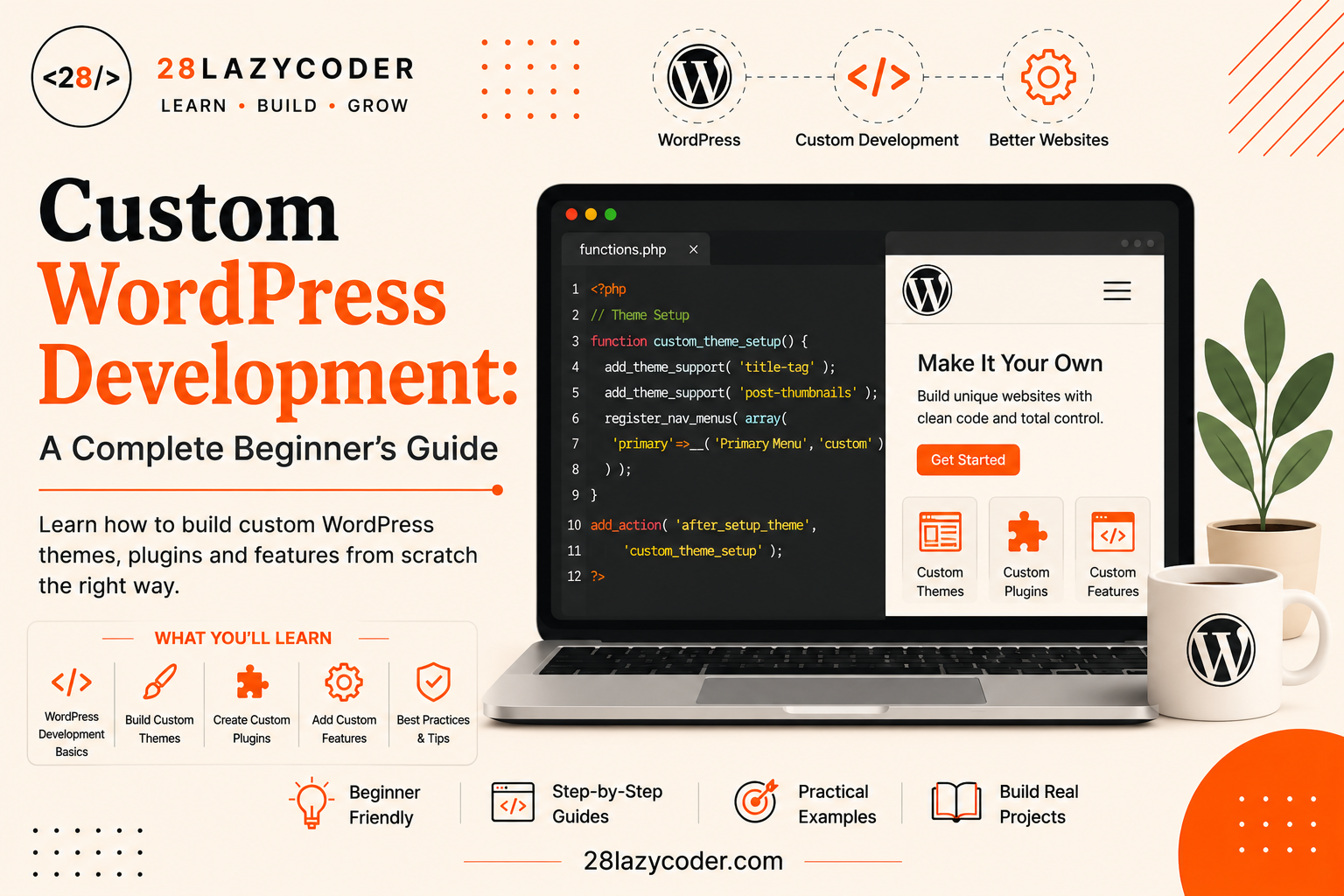
Have you ever installed a WordPress theme, gotten it looking almost right, and then hit a wall? Maybe you wanted one small thing changed a different footer text, a custom section on the homepage, a tiny tweak to how posts are displayed and no setting in the dashboard could do it.
That wall is exactly where custom WordPress development begins.
Here’s the good news: custom WordPress development doesn’t mean you have to build a whole website from a blank file. Most of the time, it means learning a handful of simple, repeatable techniques child themes, plugins, small code snippets, and “hooks” — and knowing which one to reach for in which situation.
Think of WordPress like a big Lego city that’s already built for you. Custom development isn’t about tearing the city down. It’s about learning which bricks you’re allowed to snap in, swap out, or add on top, without breaking the buildings around them.
By the end of this guide, you’ll understand exactly what custom WordPress development means, the four main ways to do it, and how to build your very first custom feature step by step, with real code.
What Does “Custom WordPress Development” Actually Mean?
Custom WordPress development is the practice of changing or adding to how a WordPress website looks or behaves, using code, instead of relying only on ready-made themes and plugins from the WordPress directory.
That’s a broad definition on purpose, because custom development covers a lot of ground:
- Changing colors, fonts, or layout beyond what your theme’s settings allow
- Adding a brand-new content type, like “Recipes” or “Portfolio Projects”
- Automatically inserting content (like a call-to-action box) into every blog post
- Building a completely original theme instead of using one off the shelf
- Writing a small plugin that adds one specific feature to your site
Simple analogy: think of a stock car straight from the factory. It runs fine for most people. But a mechanic can open the hood, swap the exhaust, adjust the engine tuning, or add a roof rack without needing to build a car from scratch. Custom WordPress development is you becoming that mechanic for your website.
If you haven’t set up WordPress on your computer yet, it’s worth doing that first. Our guide on installing WordPress locally using Local by WP Engine walks you through it without needing XAMPP.
Why Learn Custom WordPress Development?
WordPress currently powers a huge share of all websites on the internet depending on which report you check, estimates generally put it somewhere around 40% or more of all sites, and well over half of all sites that use any CMS at all. That scale matters for you as a learner, for a few practical reasons:
- Massive job and freelance demand. Businesses constantly need someone who can customize WordPress beyond the default theme settings.
- You’re not locked into page builders. Drag-and-drop tools are great, but they can only do what their developers programmed them to do. Code has no such ceiling.
- You understand what’s happening under the hood. Even if you use page builders daily, knowing custom development helps you debug problems, choose better plugins, and talk to developers confidently.
- It’s genuinely one of the most transferable web skills. The PHP, HTML, CSS, and JavaScript you use in WordPress are the same core technologies used across the web.
Before You Start: Tools You’ll Need
You don’t need anything expensive or complicated to begin. Here’s the beginner-friendly toolkit.
A Local WordPress Environment
You should never learn or test custom code on a live website. A local environment just means a copy of WordPress running on your own computer, where nothing you break can affect real visitors.
Tools like Local by WP Engine make this a one-click process. If you haven’t set this up yet, our guide on installing WordPress locally covers it in detail.
A Code Editor
You’ll want a proper code editor something like Visual Studio Code (free) instead of editing PHP files directly through the WordPress dashboard. A code editor gives you syntax highlighting (color-coded code that’s easier to read) and catches typos before they crash your site.
Basic HTML, CSS, PHP, and a Little JavaScript
WordPress is built mostly in PHP (a server-side programming language that generates the HTML your browser eventually shows), with HTML and CSS controlling structure and style, and JavaScript handling interactivity.
You don’t need to be an expert before you start, but you should be comfortable with the basics. If PHP functions feel shaky, our guide on PHP functions for beginners is a good warm-up, since almost everything in custom WordPress development is built out of PHP functions.
The Four Ways to Customize WordPress
This is the part most tutorials skip, and it’s the part that actually matters: there isn’t just one way to customize WordPress. There are four common approaches, and picking the right one for the job will save you hours of frustration.
1. Child Themes (Safe Style & Layout Tweaks)
A child theme is a small theme that “borrows” everything from a parent theme, but lets you override specific files safely. It’s the go-to option when you like your current theme overall, but want to tweak its styling or a few templates.
Simple analogy: imagine renting a furnished apartment. You’re not allowed to knock down the building’s walls (that’s the parent theme), but you’re totally free to repaint your own room, hang your own pictures, or swap the curtains and none of it disappears when the landlord renovates the building next door (updates the parent theme).
We cover this in full detail in our WordPress child theme guide.
2. Custom Themes (Building From Scratch)
A custom theme means designing and coding your own theme from the ground up, instead of modifying someone else’s. This gives you complete control over design and structure, but it also means more responsibility you’re now in charge of maintaining, securing, and updating every part of it.
This is the right choice when a project’s design is too unique to fit any existing theme, or when you’re building something for a client who needs full ownership of a completely original design.
We have a dedicated deep-dive on this exact topic: Custom WordPress Theme Development: A Complete Beginner’s Guide.
3. Plugins (Portable Functionality)
A plugin is a package of PHP code that adds a specific feature to WordPress independent of whichever theme is currently active. Unlike theme customizations, plugin features survive even if you switch themes entirely.
Plugins are the right tool when you’re adding functionality rather than appearance think contact forms, custom post types, SEO tools, or a feature you want to reuse across multiple sites.
If plugins are still a fuzzy concept for you, start with our guide: WordPress Plugins Explained: What They Are and How They Work.
4. functions.php Snippets (Quick, Small Tweaks)
Every theme has a file called functions.php, which acts like the theme’s own personal toolbox of PHP code. You can add small snippets here to tweak behavior but this method is best reserved for genuinely small, theme-specific tweaks, not big features.
Learn more about this file (and other important configuration files) in our guide on config files in WordPress.
Which One Should You Actually Use?
| Method | Best For | Survives Theme Change? | Beginner Difficulty |
|---|---|---|---|
| Child Theme | Style & layout tweaks to an existing theme | No | Easy |
| Custom Theme | Fully unique designs built from scratch | N/A (it’s the theme) | Hard |
| Plugin | Reusable features & functionality | Yes | Medium |
| functions.php Snippet | Tiny, quick, theme-specific tweaks | No | Easy |
Simple rule of thumb: if you’re changing how something looks, reach for a child theme. If you’re adding something your site does, reach for a plugin.
Understanding the Building Blocks
Whichever method you choose, custom WordPress development leans on the same three core concepts underneath. Understanding these makes everything else click into place.
Template Hierarchy
WordPress decides which PHP file to use for each page using a set of rules called the template hierarchy for example, a single blog post looks for single.php, while a category archive looks for category.php, falling back to more general files if a specific one doesn’t exist.
We break this down fully, with diagrams and examples, in our WordPress Template Hierarchy Explained guide. It’s essential reading before building a custom theme.
Hooks: Actions and Filters
Hooks are the connection points WordPress gives you to run your own code at specific moments, without editing WordPress’s own core files. There are two kinds:
- Action hooks let you run code at a certain point (like adding text to the footer).
- Filter hooks let you change data before WordPress displays or saves it (like editing a post title).
php
// Action hook example — runs code when the footer loads
function my28lazytheme_footer_note() {
    echo '<p>Built with custom WordPress development. Thanks for visiting!</p>';
}
add_action( 'wp_footer', 'my28lazytheme_footer_note' );

// Filter hook example — modifies existing data before it's shown
function my28lazytheme_shorten_excerpt( $length ) {
    return 20;
}
add_filter( 'excerpt_length', 'my28lazytheme_shorten_excerpt' );
If hooks are new to you, our full guide WordPress Hooks Explained: Actions vs Filters walks through many more real examples.
Template Tags
Template tags are small, ready-made PHP functions WordPress gives you to pull in dynamic content inside theme files things like the_title() or the_content(). You’ll use these constantly once you start editing or building theme files.
See our WordPress Template Tags Explained guide for a full list with examples.
Your First Custom Feature: Step by Step
Let’s put theory into practice by building something real: a small custom plugin that adds an “Estimated Reading Time” badge above every blog post a genuinely useful, beginner-friendly feature.
Step 1: Create the Plugin File
Inside wp-content/plugins/, create a new folder called my28lazytheme-reading-time, and inside it, a file named my28lazytheme-reading-time.php.
Step 2: Add the Plugin Header
WordPress identifies plugins using a comment block at the top of the main file:
php
<?php
/**
 * Plugin Name: 28 Lazy Coder Reading Time
 * Description: Adds an estimated reading time badge above blog posts.
 * Version: 1.0
 * Author: Ashutosh Rajbhar
 */
Step 3: Write the Logic
php
function my28lazytheme_reading_time( $content ) {
    if ( is_single() ) {
        $word_count = str_word_count( strip_tags( $content ) );
        $minutes    = ceil( $word_count / 200 ); // average reading speed

        $badge = '<p><strong>⏱ Estimated reading time: ' . $minutes . ' min</strong></p>';
        $content = $badge . $content;
    }
    return $content;
}
add_filter( 'the_content', 'my28lazytheme_reading_time' );
Notice this uses add_filter, not add_action because we’re modifying the post content, not just running a side task. This is exactly the Action vs Filter distinction from the previous section in practice.
Step 4: Activate and Test
Go to Plugins → Installed Plugins in your WordPress dashboard, activate “28 Lazy Coder Reading Time,” and open any published post. You should see the reading time badge appear right above the content.
That’s it you just wrote real custom WordPress development code, using a hook, a PHP function, and your own function-name prefix to avoid clashing with other plugins.
Best Practices for Custom WordPress Development
- Prefix every function name. Use something unique like
my28lazytheme_so your functions never collide with WordPress core, a theme, or another plugin. - Never edit WordPress core files. Any change you make there disappears or breaks your entire site the next time WordPress updates.
- Always test locally first. Never write or test untested code directly on a live site.
- Use child themes for style tweaks, so parent theme updates don’t erase your work.
- Keep functions small and single-purpose. One function should do one job.
- Comment your code. Future-you (or another developer) will thank present-you.
- Use version control. Even a simple Git setup protects you from losing work.
- Escape and sanitize data. Any time you handle user input or output dynamic data, use WordPress’s built-in escaping functions to keep your site secure.
Common Mistakes Beginners Make
- Editing the parent theme directly instead of creating a child theme updates then wipe out all your changes.
- Putting large features inside functions.php instead of building a small plugin this makes the code hard to maintain and theme-dependent.
- Forgetting to return data in a filter. Filters must always return a value, or WordPress will treat the content as blank.
- Not prefixing function names, leading to “Cannot redeclare function” errors when another plugin uses the same name.
- Skipping local testing and editing files directly on a live website through FTP or the dashboard’s file editor.
- Copy-pasting code from random blog posts without understanding what it does, which can introduce security holes.
Interview Questions on Custom WordPress Development
- What’s the difference between a child theme and a custom theme? A child theme inherits everything from a parent theme and only overrides specific files, while a custom theme is built entirely from scratch with no parent dependency.
- When would you choose a plugin over a functions.php snippet? When the feature needs to work independently of the current theme, or should survive a theme switch plugins are portable, functions.php code is not.
- What is the difference between an action hook and a filter hook? Actions let you run custom code at a specific point without returning anything; filters receive data, modify it, and must return the modified value.
- Why shouldn’t you edit WordPress core files directly? Because any change is overwritten the next time WordPress updates, and it can also introduce security and compatibility issues.
- What is the WordPress template hierarchy? It’s the set of rules WordPress uses to decide which theme file renders a given page, starting from the most specific template and falling back to more general ones.
- Why is it important to prefix your custom function names? To avoid “function already defined” fatal errors caused by naming collisions with WordPress core, the active theme, or other plugins.
Scenario-Based Problems and Solutions
Scenario 1: A client wants a custom “Testimonials” section on every page, without hiring you again if they change themes later. Solution: Build a small custom plugin that registers a “Testimonial” custom post type and a shortcode to display them. Since it’s a plugin, it keeps working no matter which theme they switch to.
Scenario 2: You’re using a popular theme, but need the blog post titles to always show in uppercase. Solution: This is a display change to existing data a perfect use case for a filter hook on the_title, placed in a child theme’s functions.php file.
Scenario 3: After adding custom code, your site shows a “Cannot redeclare function” fatal error. Solution: Two functions somewhere on the site share the same name. Rename your function using a unique prefix (like my28lazytheme_) to resolve the conflict.
Scenario 4: You need a completely unique homepage layout that no existing theme offers, for a long-term client project. Solution: This calls for a custom theme, built from scratch, since the design requirements go beyond what a child theme can safely achieve. See our full custom theme development guide for the full process.
FAQs
1. Do I need to know PHP to start custom WordPress development? Yes, at least the basics. WordPress core, themes, and plugins are all written in PHP, so understanding functions, arrays, and conditionals will take you a long way.
2. Is custom WordPress development the same as WordPress theme development? Not exactly. Theme development is one part of custom WordPress development. Custom development also includes plugins, functions.php snippets, and child themes.
3. Can I do custom WordPress development without touching code? To a limited degree, page builders and block themes let you customize visually. But true custom development adding new functionality or unique behavior requires writing code.
4. Where should I write my custom code: functions.php or a plugin? Small, theme-specific tweaks can go in a child theme’s functions.php. Anything that should survive a theme change, or that represents a real “feature,” belongs in its own plugin.
5. Is it safe to edit functions.php directly on a live website? It’s risky. A single typo can cause a fatal error and take your entire site down. Always test changes locally first.
6. How long does it take to learn custom WordPress development? With consistent practice, most beginners with basic PHP and HTML/CSS knowledge can build simple custom features (like plugins or child theme tweaks) within a few weeks.
Continue Learning
Ready to keep building on what you learned here? These guides pair naturally with this one:
- WordPress Child Theme: A Complete Beginner’s Guide
- Custom WordPress Theme Development: A Complete Beginner’s Guide
- WordPress Plugins Explained: What They Are and How They Work
- WordPress Hooks Explained: Actions vs Filters
- WordPress Template Hierarchy Explained
- WordPress Template Tags Explained
- WordPress Theme Files Explained
- WordPress Custom Post Types Explained
- What Are Config Files in WordPress?
- Install WordPress Locally Using Local by WP Engine
- PHP Functions Explained: A Complete Beginner’s Guide
Explore more tutorials on 28 Lazy Coder.
Conclusion
Custom WordPress development can feel intimidating from the outside, but as you’ve seen, it really comes down to a small toolbox: child themes for style tweaks, custom themes for original designs, plugins for portable features, and functions.php for quick fixes all built on top of hooks, template tags, and the template hierarchy.
Start small. Build one tiny plugin, like the reading-time example above. Then build another. Before long, “custom WordPress development” won’t feel like an intimidating phrase anymore it’ll just feel like Tuesday.
Happy coding!