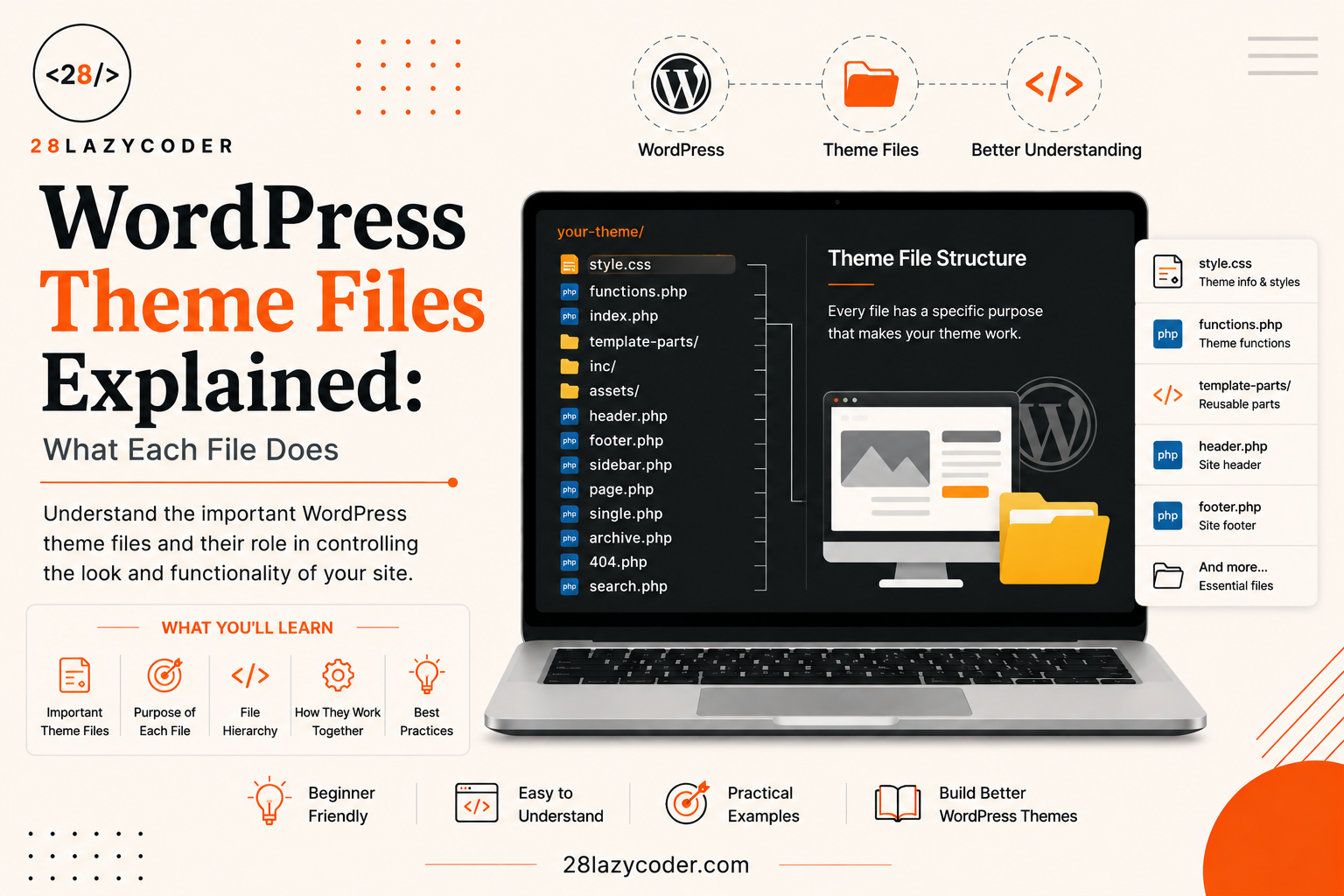
Have you ever opened a WordPress theme’s folder on your computer and felt a little dizzy? You see names like style.css, index.php, functions.php, header.php, and a dozen more, all sitting there quietly, and you have no idea what any of them actually do.
Don’t worry. You’re not alone, and this is completely normal when you’re starting out.
Here’s a simple way to think about it. Imagine a WordPress theme like a school project made by a group of students, where every student has one clear job. One student draws the design. One student writes the introduction. One student writes the conclusion. One student handles the “extra tools” like a calculator or a glossary at the back. Alone, each part looks small and boring. But put together, they make one complete, well-organized project.
A WordPress theme works exactly the same way. It’s not one giant file that does everything. It’s a folder full of smaller files, and each file has one main job. Once you know what each file is responsible for, the whole thing stops looking scary and starts looking organized.
In this guide, we’ll walk through the most important WordPress theme files, one by one, in plain simple language, so you finally understand what’s happening inside that theme folder.
What Is a WordPress Theme, Really?
Before we look at individual files, let’s quickly get the big picture right.
A WordPress theme is basically the outfit your website wears. It controls how your site looks and how content is arranged on the screen, things like colors, fonts, layout, spacing, and the position of your menu, sidebar, and footer.
WordPress itself (the software) stores your content, your posts, your pages, your images, in a database. The theme’s job is to take that content and display it nicely on the screen. Think of WordPress as the food, and the theme as the plate and table setting it’s served on.
If you’re brand new to WordPress and want the basics of how it even runs on a server before diving into theme files, our guide on what is required to run WordPress is a good place to start.
According to the official WordPress Theme Handbook, a theme can technically be built with just two files. But most real themes use many more files to stay organized and keep each piece of code doing one clear job. Let’s go through them.
The Only Two Files a Theme Actually Needs
This might surprise you: WordPress only strictly requires two files for a classic (non-block) theme to work at all.
style.css: The Outfit’s Fabric and Label
style.css does two jobs at once.
First, it’s a regular CSS file, the same kind of file used to style any website, controlling colors, fonts, spacing, and layout. If you’re new to CSS itself, MDN’s CSS documentation is a great plain-English starting point.
Second, and this is the part that’s unique to WordPress, the very top of this file contains a comment block with information about the theme itself: its name, the author, the version number, and a short description. WordPress reads this comment block to know the theme exists and to show its details in your WordPress dashboard. Without this header comment, WordPress won’t even recognize the folder as a theme.
css
/*
Theme Name: My First Theme
Author: Your Name
Version: 1.0
Description: A simple starter theme
*/

body {
  font-family: Arial, sans-serif;
}
index.php: The Fallback Page
index.php is the main template file. If WordPress can’t find a more specific file to display a particular page (we’ll explain what “more specific” means in a moment), it falls back to index.php. That’s why it’s sometimes called the “safety net” of a theme, it always catches whatever no other file handles.
As the official Theme Handbook puts it, if a theme only includes this one template file, it must contain all of the theme’s functionality on its own. In practice, real themes split things up into many files instead, which brings us to the rest of this list.
The Files That Build Your Page Piece by Piece
Most real-world themes break a webpage into reusable chunks, almost like Lego bricks, so the same header or footer doesn’t need to be rewritten on every single page.
header.php: The Top of Every Page
This file usually contains everything that appears at the very top of your site and stays the same across pages: your logo, your navigation menu, and often the opening HTML tags like <html> and <head>. Since almost every page needs a header, WordPress lets other template files simply “pull in” this file using one line of code instead of repeating it everywhere.
footer.php: The Bottom of Every Page
The opposite of header.php. This holds whatever repeats at the bottom of your site, copyright text, footer menus, widget areas, and the closing HTML tags. Again, other files just call this one in whenever they need a footer.
sidebar.php: The Side Column
If your theme has a sidebar (a column running down the side of the page with widgets like “Recent Posts” or a search box), this file controls what shows up there. Not every theme uses one, some modern designs skip sidebars entirely, but when a theme has one, this is the file responsible for it.
functions.php: The Toolbox
This is one of the most powerful files in a theme, and also one of the most misunderstood by beginners.
functions.php doesn’t display anything on the screen by itself. Instead, it’s where a theme adds features and behavior. Think of it as the theme’s toolbox. It’s where you might:
- Turn on support for featured images
- Register a custom menu location
- Load your CSS and JavaScript files properly
- Create custom widget areas
A lot of the “magic” that connects your theme’s features to WordPress itself happens here, often using something called hooks, which let your code run at specific moments while WordPress is building a page. If that sounds interesting, our deep dive on WordPress hooks explained covers actions and filters in beginner-friendly detail.
The Files That Handle Specific Types of Content
This is where WordPress theme files start to feel like they have “job titles.” Each of these is meant for one particular kind of content.
single.php: One Blog Post
When someone clicks on a single blog post to read the full article, WordPress looks for single.php to decide how that individual post should be displayed, its title, content, author, date, and comments.
page.php: One Static Page
Similar idea, but for pages instead of posts. Pages are things like your “About” page or “Contact” page, content that isn’t part of your blog feed. page.php controls how these standalone pages look.
archive.php: A List of Posts
This handles pages that show a collection of posts rather than one, for example, all posts in a category, all posts by a certain author, or all posts from a certain month.
404.php: The “Page Not Found” File
You’ve probably landed on a broken link before and seen a “Page Not Found” message. That message and its layout usually come from this file. It’s a small but genuinely useful thing to customize, since a friendly 404 page can keep visitors from leaving your site frustrated.
comments.php: The Comment Section
If your site allows visitors to leave comments on posts, this file controls how the comment form and the list of existing comments are displayed.
searchform.php and search.php: Search Features
searchform.php controls the little search box itself, while search.php controls how the search results page looks once someone submits a search.
How WordPress Decides Which File to Use
Here’s the part that ties everything together and often confuses beginners the most: how does WordPress know which file to load for a given page?
WordPress follows a specific order of checking, called the template hierarchy. In simple terms, when someone visits a page on your site, WordPress asks a series of “is this…?” questions. Is this a single post? Then look for single.php. Is this a category archive? Then look for category.php, and if that doesn’t exist, fall back to archive.php. And if absolutely nothing more specific is found, it falls all the way back to index.php.
This is exactly why index.php is required, it’s the final safety net at the bottom of that whole decision chain. We’ve written a full, detailed walkthrough of this exact process in our guide on the WordPress template hierarchy explained, which is worth reading right after this article if you want the complete picture.
Other Common Files You’ll See in a Theme Folder
screenshot.png: The Preview Image
This is simply a picture of what the theme looks like. WordPress shows this image in the “Appearance > Themes” screen so people can preview a theme before switching to it. It has no effect on how your site actually functions.
readme.txt: The Instruction Manual
A plain text file describing the theme, what it does, who made it, and sometimes installation notes. It’s especially expected if the theme is submitted to the official WordPress theme directory.
The assets Folder: Extra CSS, Images, and JavaScript
Many themes keep an assets (or sometimes inc, includes, or resources) folder to store additional CSS files, images, and JavaScript separately from the main PHP template files. This keeps things tidy as a theme grows larger, according to the official theme structure documentation.
A Quick Comparison Table
| File | Main Job | Required? |
|---|---|---|
style.css | Styles the site + tells WordPress the theme’s name | Yes |
index.php | Fallback template for any page | Yes |
header.php | Top of every page (logo, menu) | No, but very common |
footer.php | Bottom of every page | No, but very common |
sidebar.php | Side column with widgets | No |
functions.php | Adds features and behavior | No, but very common |
single.php | Displays one blog post | No |
page.php | Displays one static page | No |
archive.php | Displays a list of posts | No |
404.php | “Page not found” screen | No |
comments.php | Comment form and list | No |
screenshot.png | Preview image in dashboard | No |
Why This Matters Even If You Only Use Ready-Made Themes
You might be thinking, “I’ll just install a theme someone else made, why do I need to know this?” Fair question. But here’s the honest answer: the moment you want to make even a small change, like tweaking your header, fixing your footer text, or adding a custom feature, you’ll be editing one of these exact files.
Knowing what each file does means you can find the right one quickly instead of guessing and accidentally breaking something. And if you ever want to safely customize a theme without losing your changes during an update, that’s exactly what a WordPress child theme is for.
If you’re ready to go further and actually build a theme of your own from scratch, our complete walkthrough on custom WordPress theme development is the natural next step after this one. And since PHP is the language powering most of these template files, the official PHP getting started guide is a solid free resource if you want to understand the code itself a little better.
Conclusion
A WordPress theme folder might look like a pile of confusing files at first glance, but once you know the job each one does, it actually makes a lot of sense. style.css and index.php are the two files WordPress absolutely needs. header.php, footer.php, and sidebar.php handle the repeating parts of your layout. functions.php is your toolbox for adding features. And files like single.php, page.php, and archive.php each handle one specific type of content.
You don’t need to memorize all of this in one sitting. Bookmark this guide, and the next time you open a theme folder, come back and match each file name to its job. That’s really all it takes to stop feeling lost in there.
FAQs
Q1: What is the minimum number of files a WordPress theme needs? Technically just two: style.css and index.php. Everything else is optional, though most real themes use many more files to stay organized.
Q2: What does functions.php actually do? It doesn’t display content on the page. Instead, it’s where a theme adds features and behavior, like enabling featured images, registering menus, or loading CSS and JavaScript files properly.
Q3: What is the difference between page.php and single.php? page.php controls how static pages (like an About page) are displayed, while single.php controls how individual blog posts are displayed. They’re separate because pages and posts often need different layouts.
Q4: Do I need a sidebar.php file in my theme? No. It’s optional. Many modern, minimal theme designs don’t use a sidebar at all, so this file simply isn’t included in those themes.
Q5: How does WordPress decide which file to load for a page? It follows a set order of checks called the template hierarchy, starting with very specific files and falling back to more general ones, ending at index.php if nothing more specific exists.
Q6: Is style.css only for styling? Mostly, yes, but it also has a special job in WordPress: the comment block at the top of the file tells WordPress the theme’s name, version, and author, which is how WordPress recognizes it as a valid theme.
Continue Learning
Want to go deeper into WordPress themes? Check out these related guides on 28LazyCoder:
- WordPress Template Hierarchy Explained
- WordPress Child Theme: A Complete Beginner’s Guide
- Custom WordPress Theme Development: A Complete Beginner’s Guide
- WordPress Hooks Explained: Actions and Filters
- WordPress Plugins Explained
- What Are Config Files in WordPress?
- Install WordPress Locally Using Local by WP Engine