Imagine you just bought a brand-new phone. It works perfectly, looks great, and does everything you need. But you want to change the wallpaper and add a custom ringtone. Would you open up the phone’s internal software and start editing it directly? Of course not. One wrong move and the whole phone could stop working.
A WordPress child theme solves the exact same kind of problem, but for your website’s design.
If you’ve ever customized a WordPress theme by editing its files directly, only to lose all your changes after an update, you already know why this article matters. Let’s fix that, step by step, in the simplest way possible.
What Is a WordPress Theme, Quickly?
Before we talk about “child” themes, let’s quickly remind ourselves what a theme is.
A WordPress theme is basically the outfit your website wears. It controls how your site looks — colors, fonts, layout, spacing, and sometimes even how certain pages behave. If you’ve read our guide on WordPress Template Hierarchy, you already know that themes are made up of many small files working together, like single.php, header.php, and footer.php.
Now here’s the twist.
What Is a WordPress Child Theme?
A child theme is a second, smaller theme that “borrows” everything from another theme (called the parent theme) and lets you make changes safely, without ever touching the original theme’s files.
Think of it like this:
- The parent theme is the original recipe book.
- The child theme is your personal notebook where you write down small changes to the recipe — maybe less sugar, maybe extra spice.
You never scribble on the original recipe book. You just keep your notes separately. If the recipe book (parent theme) gets a new, updated edition, your personal notes (child theme) still apply on top of it.
In technical terms: a child theme inherits the functionality, features, and styling of its parent theme, but allows you to override or add things using its own files.
Why Not Just Edit the Theme Directly?
This is the question every beginner asks, so let’s answer it honestly.
Problem 1: Updates Wipe Out Your Changes
Every theme gets updated by its developer from time to time — for security fixes, new features, or bug fixes. When you update a theme, WordPress replaces the old files with new ones. If you had edited those files directly, your changes vanish. Gone. Just like that.
A child theme’s files are stored separately, so they are never touched during a parent theme update.
Problem 2: One Small Mistake Can Break Your Whole Site
Editing core theme files directly means you’re playing with the “main” version of your site’s design. A single typo in the code can turn your homepage into a blank white screen (developers jokingly call this the “White Screen of Death”).
With a child theme, you’re working in a safe, separate space. If something goes wrong, you can simply deactivate the child theme, and your site goes right back to the original parent theme.
Problem 3: No Safe Way to Experiment
A child theme gives you a sandbox — a safe playground — to try new CSS styles, layout tweaks, or small functional changes without any risk to the original theme.
Parent Theme vs Child Theme: The Simple Difference
| Parent Theme | Child Theme |
|---|---|
| The original, complete theme | A smaller theme that depends on the parent |
| Gets updated by its developer | Your customizations live here |
| Changes here are lost on update | Changes here are safe during updates |
| Works on its own | Cannot work without the parent theme installed |
When Should You Use a Child Theme?
You should create a child theme when you want to:
- Change small design details (colors, fonts, spacing) using custom CSS
- Add or modify small pieces of PHP functionality
- Overwrite a specific template file (like
single.phporfooter.php) without editing the original - Keep your customizations safe even after the parent theme updates
You don’t need a child theme if:
- You’re only using the theme’s built-in Customizer options (like changing colors from the WordPress dashboard)
- You’re using a page builder plugin that stores its own data separately
How to Create a WordPress Child Theme (Step-by-Step)
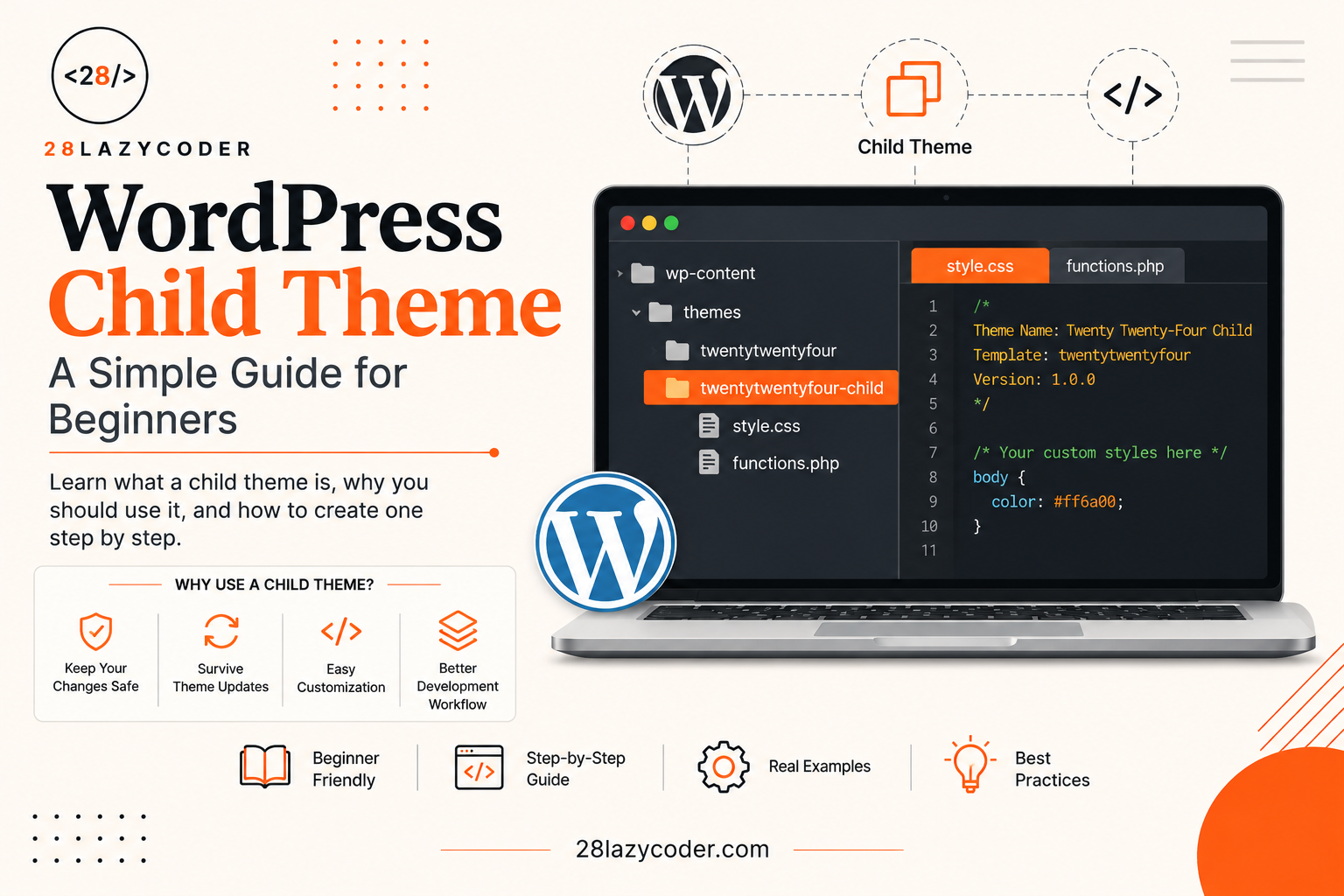
Let’s actually build one. Don’t worry, this is much simpler than it sounds. You just need two files to get started.
Step 1: Create a New Folder
Go to your WordPress installation folder and open:
wp-content/themes/Inside it, create a new folder for your child theme. Name it something clear, like:
twentytwentyfour-child(If your parent theme is Twenty Twenty-Four, this naming makes it easy to remember later.)
Step 2: Create the style.css File
Inside your new folder, create a file named style.css and add this at the very top:
css
/*
 Theme Name:   Twenty Twenty-Four Child
 Template:     twentytwentyfour
 Author:       Your Name
 Description:  Child theme for Twenty Twenty-Four
 Version:      1.0.0
*/
Here’s what matters most in this file:
- Theme Name — what shows up in your WordPress dashboard
- Template — this MUST exactly match the parent theme’s folder name (case-sensitive!). This one line is what actually connects your child theme to its parent.
You can also add your own custom CSS below this comment block. That CSS will load on top of the parent theme’s styles.
Step 3: Create the functions.php File
In the same folder, create another file called functions.php, and add this:
php
<?php
function my_child_theme_enqueue_styles() {
    wp_enqueue_style( 'parent-style', get_template_directory_uri() . '/style.css' );
}
add_action( 'wp_enqueue_scripts', 'my_child_theme_enqueue_styles' );
Wait, What Does This Code Actually Do?
Let’s break it into plain English:
wp_enqueue_style()is WordPress’s proper way of loading a CSS file. Think of it as politely asking WordPress, “Hey, please load this stylesheet on the page.”get_template_directory_uri()fetches the web address (URL) of the parent theme’s folder — so we’re telling WordPress to load the parent theme’sstyle.cssfirst.add_action( 'wp_enqueue_scripts', ... )is a hook. If that word feels new, our WordPress Hooks Explained guide covers hooks in plain, beginner-friendly language. In short, this line tells WordPress: “When you’re about to load styles and scripts on the page, please also run my function.”
Without this small piece of code, your child theme’s design would look completely broken, because it wouldn’t inherit any of the parent theme’s original CSS.
Step 4: Activate Your Child Theme
- Go to your WordPress dashboard
- Navigate to Appearance → Themes
- You’ll now see your child theme’s thumbnail there
- Click Activate
That’s it. Your site now runs on the child theme, which quietly pulls in all the design and functionality from the parent theme underneath it.
How to Customize Things in Your Child Theme
Now that your child theme is active, here’s how you actually use it.
Adding Custom CSS
Simply write your CSS rules below the comment block in style.css. For example:
css
body {
    background-color: #f9f9f9;
}

h1 {
    font-family: 'Georgia', serif;
}
If you’re new to CSS itself, our CSS Flexbox guide and CSS Grid guide are great places to strengthen your basics.
Overriding a Template File
Let’s say you want to change how the footer looks, without touching the parent theme’s footer.php.
Simply copy footer.php from the parent theme’s folder into your child theme’s folder, and edit that copy. WordPress automatically checks the child theme first before falling back to the parent theme. This “checking order” is part of the same Template Hierarchy system we mentioned earlier.
Adding Custom Functionality
You can add more PHP code inside functions.php. Just be careful — this file directly affects how your site runs, so test changes on a local or staging site first. If you haven’t set one up yet, our guide on installing WordPress locally shows you exactly how, with zero risk to your live site.
Common Mistakes Beginners Make
Forgetting the Template Line
If the Template value in style.css doesn’t exactly match the parent theme’s folder name, WordPress won’t be able to connect the two. Even one letter mismatch (uppercase vs lowercase) can break it.
Skipping the functions.php Stylesheet Code
Many beginners create the style.css file, activate the child theme, and are confused why the site looks broken. It’s almost always because they forgot to enqueue the parent’s stylesheet using functions.php.
Editing the Parent Theme “Just This Once”
It’s tempting to just quickly edit the parent theme when you’re in a rush. Resist it. That “just this once” edit is exactly what gets wiped out during the next update.
Child Theme vs Custom Theme: Don’t Confuse the Two
A child theme depends on a parent theme and inherits from it. A custom theme, on the other hand, is built completely from scratch with no dependency on another theme. If you’re curious about building a theme entirely on your own, check out our guide on Custom WordPress Theme Development.
Conclusion
A WordPress child theme is one of those small ideas that saves you from a lot of future headaches. It lets you customize your site’s design and functionality safely, keeps your changes protected from theme updates, and gives you a proper sandbox to experiment in without fear of breaking your live website.
If you’re serious about working with WordPress long-term — whether for your own blog or for client projects — learning to use child themes properly is a habit worth building early. It only takes two small files to get started, and the peace of mind it gives you is completely worth it.
FAQs
Q1. Do I need coding knowledge to create a WordPress child theme?
You need very basic knowledge of CSS and PHP. The steps in this guide use minimal, beginner-friendly code that you can copy and adjust.
Q2. Will a child theme slow down my website?
No. A properly set up child theme adds almost no extra load time. It simply tells WordPress to load a couple of extra files.
Q3. Can I switch back to the parent theme anytime?
Yes. You can deactivate the child theme and activate the parent theme again from Appearance → Themes at any point.
Q4. What happens if I delete the parent theme?
Your child theme will stop working completely, since it depends entirely on the parent theme’s files and templates.
Q5. Can every WordPress theme have a child theme?
Yes, technically any theme can be a parent theme. However, it’s best to use well-coded, actively maintained themes as parents for the smoothest experience.
Continue Learning
For official documentation, you can also refer to the WordPress Developer Handbook on Child Themesfrom wordpress.org.