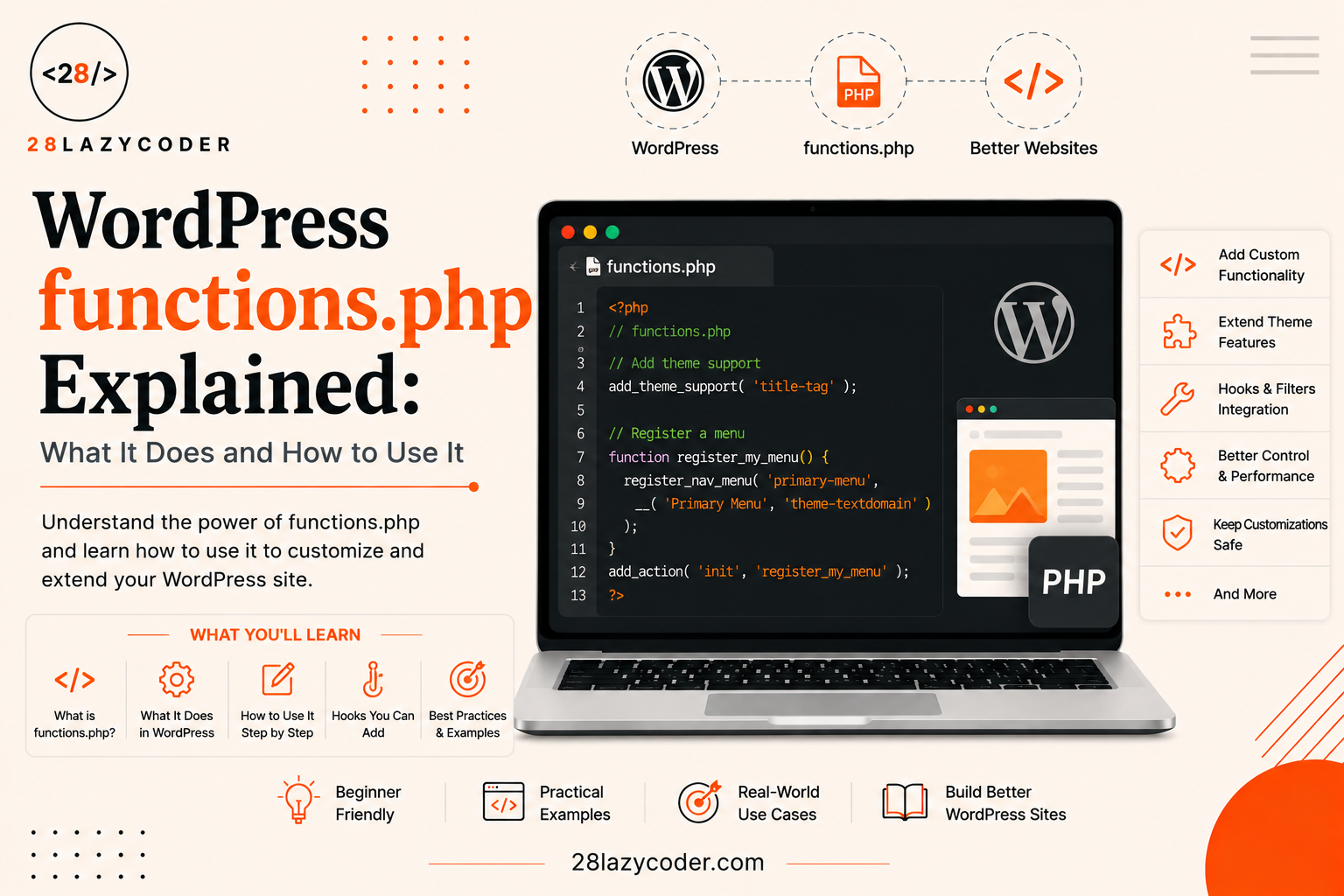
Have you ever opened your WordPress theme’s folder, spotted a file called functions.php, and quietly closed it again because it looked scary? You’re not alone. It’s just a plain text file, but the name makes it sound like something only “real programmers” should touch.
Here’s the good news: functions.php is actually one of the friendliest files in all of WordPress once you understand what it’s for. Think of it like the settings and superpowers panel for your theme. It doesn’t control how your site looks (that’s mostly CSS) — it controls what your site can do.
By the end of this guide, you’ll know exactly what functions.php is, where it lives, what people usually use it for, and how to safely add your own code without breaking your site.
What Is functions.php in WordPress?
functions.php is a special file that sits inside every WordPress theme’s folder. WordPress automatically loads it every time your site loads a page — you don’t have to tell it to run, it just runs quietly in the background, doing its job.
Here’s the simplest way to picture it:
If your theme is like a house,
functions.phpis the electrical panel. It doesn’t decorate the rooms, but it powers the lights, the doorbell, and everything you plug in.
Technically, functions.php is a PHP file. PHP is the programming language WordPress itself is built with. That means functions.php gives you access to the entire PHP language inside your theme, not just a handful of WordPress settings.
The official WordPress Theme Handbook describes it well: functions.php essentially works like a small plugin that lives inside your theme, letting you add your own custom PHP functions and open up the full power of PHP to your site. In simple words — it’s a plugin that happens to live inside your theme folder instead of the Plugins folder.
If you’re brand new to PHP or to programming in general, don’t worry. You don’t need to be a PHP expert to use functions.php safely. You just need to understand a few patterns, which we’ll walk through below.
Where Do You Find functions.php?
Every classic WordPress theme includes a functions.php file sitting right next to other theme files like style.css, index.php, and single.php. You can find it in two ways:
- Through your hosting file manager or FTP, inside
wp-content/themes/your-theme-name/functions.php - Through your WordPress dashboard, under
Appearance → Theme File Editor(use this carefully — a small mistake here can affect your whole site)
If you’re still getting familiar with what other files live inside a theme folder, our WordPress theme files guide breaks down what each one does, and pairs nicely with this article.
What Does functions.php Actually Do?
Let’s clear up a common myth first: functions.php does not control your site’s design. People sometimes confuse it with style.css. Design and layout belong to CSS and template files. functions.php is more about behavior — the things happening behind the scenes.
Here are the most common jobs functions.php handles on a typical WordPress site.
Turning On Theme Features
WordPress has a bunch of features that are switched off by default, and your theme has to explicitly turn them on. This is done using a function called add_theme_support(). For example, a theme might turn on:
- Featured images (also called “post thumbnails”)
- Custom logos
- Custom navigation menus
- Support for the block editor’s wide and full-width images
php
function my28lazytheme_setup() {
    add_theme_support( 'post-thumbnails' );
    add_theme_support( 'title-tag' );
    add_theme_support( 'custom-logo' );
}
add_action( 'after_setup_theme', 'my28lazytheme_setup' );
Loading CSS and JavaScript Files the Right Way
You might think you can just paste a <link> or <script> tag directly into your theme files to load a stylesheet or a script. You technically can — but WordPress has a much safer, smarter way to do it, called enqueuing.
“Enqueuing” simply means telling WordPress: “Please load this file, and make sure it loads in the right order without clashing with anything else.” This is done with functions like wp_enqueue_style() and wp_enqueue_script(), connected to a hook called wp_enqueue_scripts. This is the hook WordPress officially recommends for loading any script or stylesheet meant to appear on the front end of your site.
php
function my28lazytheme_load_assets() {
    wp_enqueue_style( 'my28lazytheme-style', get_stylesheet_uri() );
    wp_enqueue_script( 'my28lazytheme-script', get_template_directory_uri() . '/js/main.js', array(), '1.0', true );
}
add_action( 'wp_enqueue_scripts', 'my28lazytheme_load_assets' );
Don’t worry if that code looks like a wall of text right now — we’ll break down what “hooks” mean in a moment.
Creating Widget Areas and Menus
Ever seen a website with a sidebar full of small boxes, like “Recent Posts” or “Categories”? Those boxes live in something called a widget area, and it’s functions.php that registers where those widget areas exist. The same goes for navigation menus — the ones in your header or footer are usually registered here too.
Changing Small Default Behaviors
Sometimes you just want to tweak something small, like shortening the excerpt (the little preview text under a blog post) from WordPress’s default 55 words down to something shorter. That’s also done in functions.php, using something called a filter, which we’ll explain next.
Quick Example: Changing Excerpt Length
php
function my28lazytheme_shorter_excerpt( $length ) {
    return 20;
}
add_filter( 'excerpt_length', 'my28lazytheme_shorter_excerpt' );
This small snippet tells WordPress: “Whenever you’re about to show an excerpt, use 20 words instead of the usual 55.”
How functions.php Connects to Hooks
You’ll notice a pattern in almost every example above: add_action() and add_filter(). These come from a WordPress concept called hooks.
Think of a hook like a hook on a wall where you can hang your own coat (your own code) without redesigning the whole wall. As WordPress builds a page, it pauses at certain points and says, “If anyone has code they want to run right here, now’s the time.” Your functions.php file is usually where you place that code.
There are two types of hooks:
- Actions — do something at a certain point (like “load this script now”)
- Filters — change a piece of data before WordPress uses it (like “shorten this text before showing it”)
If this idea feels new, it’s genuinely worth slowing down on, because hooks are one of the most useful concepts in all of WordPress development. We cover them in much more depth in our guide to WordPress hooks, actions, and filters, which is a great next step after this article.
functions.php vs Plugins: What’s the Difference?
This is one of the most common beginner questions, so let’s settle it clearly.
| functions.php | A Plugin | |
|---|---|---|
| Where it lives | Inside your active theme’s folder | In its own folder under wp-content/plugins/ |
| What happens if you switch themes | Your code disappears along with the old theme | Keeps working no matter which theme is active |
| Best used for | Small tweaks tied to how the theme looks and behaves | Bigger features you want to keep long-term |
| Risk if something breaks | Can affect the whole site right away | Can usually be deactivated safely from the dashboard |
If you’re building something small and theme-specific, like changing excerpt length, functions.php is fine. But if you’re adding a feature you’d want to keep even after redesigning your site, like a contact form or an SEO tool, a plugin is the smarter, safer choice. Our guide on what WordPress plugins are and how they work explains this in more detail if you’re curious.
What About Child Themes?
Here’s an important safety tip: if you’re using a theme built by someone else, like one you bought or downloaded, never edit its functions.php directly. When that theme gets updated, your changes will be wiped out completely.
Instead, WordPress developers use something called a child theme — a small “mini theme” that sits on top of your main theme and safely stores your custom code, including its own functions.php. According to the official WordPress Theme Handbook, a child theme’s functions.php file loads right before the parent theme’s, and it doesn’t replace the parent file entirely — it simply adds to it or overrides specific pieces.
If you haven’t set one up yet, our beginner’s guide to WordPress child themes walks you through it step by step, and pairs perfectly with everything in this article.
How to Safely Add Code to functions.php
Ready to try it yourself? Here’s a simple, safe process to follow.
Step-by-Step Process
- Back up your site first. Even one small typo in
functions.phpcan crash your entire site with something jokingly called the “white screen of death” (literally just a blank white page). A backup is your safety net. - Use a child theme if you’re working on a theme you didn’t build yourself.
- Open functions.php through your file manager, FTP, or the Theme File Editor.
- Add your code at the bottom of the file, after all the existing code.
- Save, then immediately check your site. If something looks broken, undo your last change right away.
The One Rule Everyone Forgets
Never add a closing ?> tag at the very end of your functions.php file. It feels natural to close a PHP file properly, but in this file specifically, even one invisible blank space or line break after that closing tag can cause errors across your whole site. The official WordPress documentation specifically recommends avoiding a closing PHP tag at the end of functions.php for exactly this reason. Just leave the file open — WordPress handles the rest automatically.
A Safe Starter Template
php
<?php
// Your functions.php code goes here, one function at a time.

function my28lazytheme_setup() {
    add_theme_support( 'post-thumbnails' );
    add_theme_support( 'title-tag' );
}
add_action( 'after_setup_theme', 'my28lazytheme_setup' );

// No closing PHP tag below this line — leave the file open on purpose.
Naming Your Functions Safely
One mistake beginners often make is naming a function something generic, like setup() or load_scripts(). If a plugin or another theme happens to use the exact same name, your site will crash with a “fatal error: cannot redeclare function” message. The fix is simple: always add a unique prefix related to your theme or project name, like my28lazytheme_ in the examples above. This is exactly what the official WordPress handbook recommends to avoid naming conflicts between themes and plugins.
How functions.php Fits Into the Bigger Picture
functions.php doesn’t work alone — it’s one piece of a much larger system. It runs after your site’s config files have already set up the basic environment, and after any active plugins have already loaded, but before your theme’s template files (like single.php or page.php) decide what to actually display on the page.
If you want to understand how all these pieces connect — from the config files that start everything up, to the template files that decide what’s shown — these two guides are great companions to this one:
Conclusion
functions.php might look intimidating the first time you spot it in your theme folder, but it’s really just a toolbox. It’s the place where your theme quietly turns on features, loads scripts and styles the proper way, and connects to WordPress’s hook system to customize how your site behaves.
The two golden rules to remember are simple: use a child theme so your changes survive updates, and never leave a closing ?> tag at the end of the file. Follow those two habits, and you can experiment with functions.php confidently, one small function at a time.
FAQs
1. Is functions.php required for a WordPress theme to work? No. It’s technically an optional file. A theme can run without it, but almost every real-world theme includes one because it’s the standard place to add custom features and hook into WordPress.
2. Can functions.php break my whole website? Yes, if there’s a syntax error in the code, it can cause a blank white screen across your entire site, not just one page. This is why backing up your site and using a child theme are so important before making edits.
3. What’s the difference between functions.php and a plugin? functions.php lives inside your active theme and stops working if you switch themes. A plugin lives separately and keeps working no matter which theme you’re using. Long-term features are usually better placed in a plugin.
4. Do I need to know PHP to edit functions.php? You don’t need to be an expert, but understanding basic PHP concepts like functions and variables helps a lot. Copying trusted, well-explained code snippets and understanding what each line does is a great way to start.
5. Why shouldn’t I close the PHP tag at the end of functions.php? Because any accidental space or blank line after the closing ?> tag can cause header errors on your site. Leaving the file open avoids this problem entirely, and it’s an official WordPress recommendation.
6. Where exactly should I add my custom code in functions.php? The safest place is at the very bottom of the file, after all existing code, using your own uniquely named function connected to the appropriate hook.
Trusted Sources & References
- WordPress Developer Resources: Custom Functionality (functions.php)
- WordPress Developer Resources: Theme Functions
- WordPress Developer Resources: wp_enqueue_scripts Hook
- WordPress Developer Resources: wp_enqueue_script() Function
- PHP Official Documentation
- WordPress.org
Continue Learning
Want to keep building your WordPress knowledge? These guides from 28LazyCoder pair naturally with this one:
- WordPress Theme Files Explained: What Each File Does
- WordPress Hooks Explained: A Beginner-Friendly Guide to Actions and Filters
- WordPress Child Theme: A Complete Beginner’s Guide
- WordPress Plugins Explained: What They Are and How They Work
- WordPress Template Hierarchy Explained: A Beginner’s Guide
- What Are Config Files in WordPress?
Explore more tutorials at 28LazyCoder.