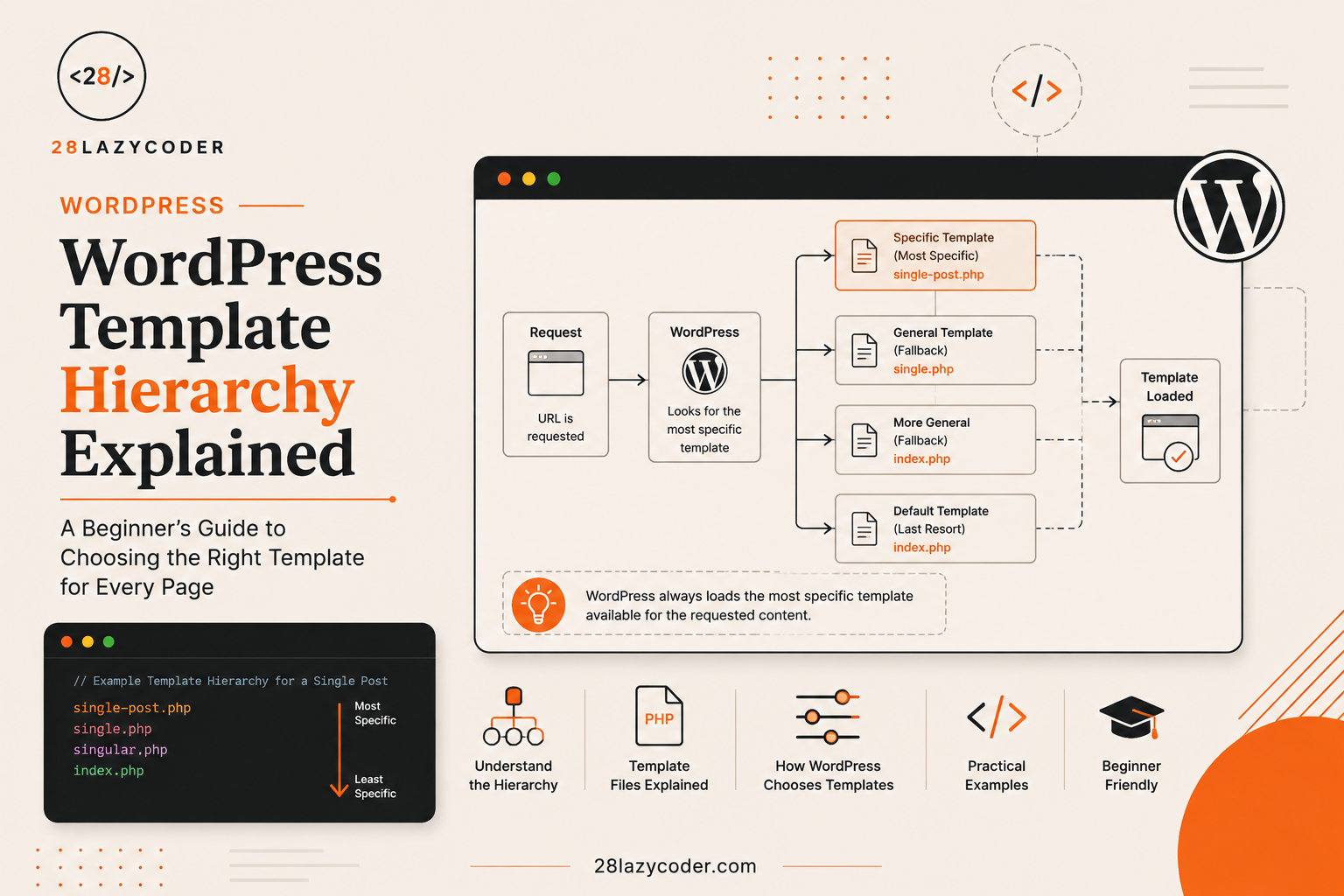
Have you ever opened a WordPress theme’s folder and seen a pile of files like single.php, page.php, archive.php, and index.php and wondered, “How does WordPress even know which one to use for which page?”
I remember staring at a theme folder early on, completely confused. I’d edit single.php expecting to fix my blog post page, and nothing would change. Turns out, WordPress was quietly using a completely different file, and I had no idea why.
The answer to all of this confusion is one single concept: the WordPress Template Hierarchy.
Once you understand this one system, WordPress theme development stops feeling like guesswork and starts feeling like following a clear, logical map. That’s exactly what we’re going to build in this guide.
What Is WordPress Template Hierarchy? (Explained Simply)
Let’s start with something you already know — a food delivery app.
When you open a food app and search for “pizza,” the app doesn’t show you every single restaurant randomly. It follows a set of rules: first, it checks if there’s a restaurant that matches “pizza” exactly in your area. If not, it looks for restaurants in the “Italian food” category. If that also fails, it just shows you general restaurant listings nearby.
WordPress does the exact same thing — but instead of finding restaurants, it’s finding the right template file (a PHP file that controls how a page looks) to display your content.
WordPress Template Hierarchy is the specific order in which WordPress checks for template files, before finally deciding which one to use to display any given page — a blog post, a category page, a search results page, or your homepage.
Did You Know? This exact hierarchy has been part of WordPress core since very early versions, and it’s the same logical system used by virtually every WordPress theme, including the biggest ones on the market.
Why do we need this? Because a website has many different types of content — single blog posts, category archives, search results, author pages, and more. Each of these often needs to look slightly different.
What problem does it solve? Without a clear system, developers would need to write one giant, messy file trying to handle every single type of page with confusing conditional logic. The template hierarchy solves this by giving each content type its own dedicated file, in a predictable, organized way.
What happens if we don’t understand it? You’ll end up editing the wrong file, wondering why your changes aren’t showing up — exactly the confusion I mentioned earlier. Once you understand the hierarchy, you’ll always know exactly which file controls which page.
Why Does WordPress Need a Hierarchy at All?
Think about a school. A school doesn’t have just one classroom for every single subject and grade. Instead, it has:
- A specific room for Class 10 Math.
- A general room for all of Class 10, if there’s no dedicated Math room.
- A shared assembly hall, if nothing else is available.
WordPress applies this exact same “most specific first, general fallback last” logic to templates.
If you have a super-specific template file for one particular blog post, WordPress will use it. If that doesn’t exist, it looks for a slightly more general file. If that doesn’t exist either, it keeps falling back, level by level, until it reaches the most general file of all — index.php, which every WordPress theme must have.
Tip: Think of
index.phpas the “final safety net” of the entire hierarchy. If WordPress can’t find any other matching template, it will always fall back toindex.php. This is why every theme requires this file to function at all.
The Core Idea: Specific Templates Win Over General Ones
This is the single rule that explains the entire template hierarchy. Let’s understand it using a traffic signal example.
Imagine a traffic rule book that has:
- A very specific rule for ambulances at a particular junction.
- A general rule for all emergency vehicles.
- A general rule for all vehicles.
If an ambulance approaches that junction, the traffic system checks the most specific rule first (ambulance-specific), and only falls back to the general vehicle rule if no specific rule exists.
WordPress templates work the same way:
More specific template files are always checked before more general ones.
Let’s now walk through the actual hierarchy, one content type at a time.
Single Post Template Hierarchy
Let’s say a visitor clicks on a single blog post on your website. WordPress checks for template files in this exact order:
| Order | Template File Checked | Example |
|---|---|---|
| 1 | single-{post-type}-{slug}.php | single-post-hello-world.php |
| 2 | single-{post-type}.php | single-post.php |
| 3 | single.php | single.php |
| 4 | singular.php | singular.php |
| 5 | index.php | index.php |
Explaining every row:
single-{post-type}-{slug}.php— the most specific option. This applies to just one single post, identified by its exact URL slug (the last part of its web address). Very rarely used, but available if you need pixel-perfect control over one specific post.single-{post-type}.php— applies to an entire custom post type, likesingle-product.phpfor a “product” post type on a WooCommerce store.single.php— the standard file most WordPress themes use to control how all regular blog posts look.singular.php— a fallback that applies to both single posts and single pages, if neithersingle.phpnorpage.phpexists.index.php— the final fallback, used only if nothing more specific is found.
Real-world use case: In most themes, including 28LazyCoder’s own theme, single.php is where the article title, content, author box, and related posts section are defined for every blog post.
Interview Tip: A common interview question is: “What’s the difference between
single.phpandsingular.php?” Answer:single.phponly handles single blog posts, whilesingular.phpis a shared fallback for both single posts and static pages.
Page Template Hierarchy
Now let’s say a visitor opens a static page, like an “About Us” or “Contact” page. WordPress checks in this order:
| Order | Template File Checked | Example |
|---|---|---|
| 1 | Custom template assigned in admin | template-contact.php |
| 2 | page-{slug}.php | page-about-us.php |
| 3 | page-{id}.php | page-42.php |
| 4 | page.php | page.php |
| 5 | singular.php | singular.php |
| 6 | index.php | index.php |
Explaining every row:
- Custom template assigned in admin — WordPress lets you create custom template files (like
template-contact.php) and manually assign them to a specific page from the WordPress editor’s “Page Attributes” panel. This always takes top priority. page-{slug}.php— targets one specific page based on its URL slug, likepage-about-us.phpfor a page atyoursite.com/about-us/.page-{id}.php— targets a page using its internal numeric ID instead of its slug.page.php— the standard, general file used for all static pages that don’t have a more specific match.
Real-world use case: If you wanted your agency’s “Services” page to look completely different from every other page — maybe with a pricing table and a different layout — you’d create a custom template like template-services.php and assign it directly from the page editor.
Category, Tag, and Custom Taxonomy Archive Hierarchy
Now imagine a visitor clicks on a category, like “JavaScript Tutorials,” to see all posts inside that category — like browsing the “JavaScript” shelf in a bookstore.
| Order | Template File Checked | Example |
|---|---|---|
| 1 | category-{slug}.php | category-javascript.php |
| 2 | category-{id}.php | category-12.php |
| 3 | category.php | category.php |
| 4 | archive.php | archive.php |
| 5 | index.php | index.php |
Tags follow the exact same pattern, just replacing “category” with “tag”:
tag-{slug}.php → tag-{id}.php → tag.php → archive.php → index.phpWhy it matters: This means you can design a completely unique layout just for your “JavaScript Tutorials” category page — maybe with a special banner — without affecting how any other category looks.
Author and Date Archive Hierarchy
WordPress also has dedicated hierarchies for author pages (showing all posts by one writer) and date archives (showing posts from a specific month or year).
| Content Type | Hierarchy Order |
|---|---|
| Author Archive | author-{nicename}.php → author-{id}.php → author.php → archive.php → index.php |
| Date Archive | date.php → archive.php → index.php |
Real-world use case: A multi-author blog, like a news website with several writers, might use author.php to display each writer’s photo, bio, and social links above their list of articles.
Search Results and 404 Page Hierarchy
Two more important, commonly used templates:
Search Results Template
When a visitor searches your website using the search bar, WordPress looks for:
search.php → index.phpWhy it matters: search.php controls how search results are displayed — usually showing a “Showing results for: [keyword]” heading, followed by a list of matching posts.
404 (Page Not Found) Template
When a visitor lands on a broken or non-existent URL, WordPress looks for:
404.php → index.phpBest Practice: Always create a custom, friendly
404.phpfile with a search bar and links to popular pages, instead of letting WordPress fall back to a plain, unhelpfulindex.phppage. A good 404 page keeps visitors on your site instead of losing them.
The Homepage: A Special Case
The homepage in WordPress has its own slightly special hierarchy, because WordPress allows two different homepage setups from the admin dashboard (Settings → Reading):
Option A: Homepage shows your latest blog posts
home.php → index.phpOption B: Homepage shows a static page you’ve chosen
front-page.php → page templates (as explained above) → index.phpExplaining the difference:
- If your site is set to show “Your latest posts” as the homepage, WordPress looks for
home.phpfirst. - If your site is set to show “A static page,” WordPress looks for
front-page.phpfirst — and interestingly,front-page.phpactually overrides everything else, even ifhome.phpalso exists.
Common Mistake: Beginners often assume
index.phpcontrols the homepage. In reality,index.phpis just the final fallback for every single template type — not a homepage-specific file. Many modern themes usefront-page.phpspecifically for homepage design.
The Complete Visual Flow (How WordPress Decides)
Here’s the general decision-making pattern that applies across every content type in WordPress:
- WordPress identifies what type of content is being requested (single post, page, category, search, etc.).
- It checks for the most specific matching template file first.
- If not found, it checks the next, slightly more general template file.
- This continues, step by step, becoming more general each time.
- If absolutely nothing else matches, WordPress falls back to
index.php.
[Flowchart: WordPress Template Hierarchy decision flow from specific to general]
Best Practice: When building a theme from scratch, always start by building a solid
index.phpas your safety net, then gradually add more specific templates (single.php,page.php,archive.php) as needed. This is exactly the approach used when building the 28LazyCoder <a href=”https://28lazycoder.com/custom-wordpress-theme-development/”>custom WordPress theme</a> from scratch.
get_header(), get_footer(), and Template Parts
Once WordPress picks the right template file, that file usually doesn’t build the entire page alone. Instead, it pulls in smaller, reusable pieces — similar to how a restaurant’s different dishes might all share the same side of rice, instead of each dish cooking rice separately.
php
<?php get_header(); ?>

<main class="site-content">
  <?php
  if ( have_posts() ) :
    while ( have_posts() ) : the_post();
      get_template_part( 'template-parts/content', get_post_type() );
    endwhile;
  endif;
  ?>
</main>

<?php get_footer(); ?>
Explaining every line:
get_header();— pulls in the sharedheader.phpfile, so every page uses the same navigation bar and site header without repeating that code everywhere.if ( have_posts() )— checks whether there is any content to display at all, using WordPress’s built-in “Loop” system.while ( have_posts() ) : the_post();— loops through each post one at a time, similar to how a <a href=”https://28lazycoder.com/javascript-loops-and-iteration/”>loop in JavaScript</a> repeats an action for every item in a list.get_template_part( 'template-parts/content', get_post_type() );— loads a smaller, reusable template file specifically for displaying one post’s content, and even adjusts which file to load based on the post type.get_footer();— pulls in the sharedfooter.phpfile, again avoiding repeated code.
Output: A complete page is assembled from smaller, reusable building blocks — header, main content loop, and footer — instead of one giant file repeating the same header and footer code on every single template.
Real-world use case: This exact pattern, using get_header(), the Loop, and get_footer(), is used in virtually every professionally built WordPress theme, including major themes used by millions of websites.
Template Hierarchy vs Hooks: What’s the Difference?
Beginners sometimes confuse the template hierarchy with <a href=”https://28lazycoder.com/wordpress-hooks/”>WordPress hooks</a>, since both involve “WordPress deciding what to run.” Here’s a clear comparison:
| Feature | Template Hierarchy | WordPress Hooks |
|---|---|---|
| What it controls | Which file loads for a given page | What code runs at specific points during page loading |
| Real-life analogy | Choosing the right classroom for a specific class | A bell system that triggers specific actions during the school day |
| Example | Choosing single.php over index.php | Running a function automatically after a post is published |
| When it’s used | Deciding page structure and layout | Adding or modifying functionality without editing core files |
Simple rule of thumb: Template hierarchy decides which file is used to build the page. Hooks decide what extra actions happen during that process — often used together in real theme development.
Common Mistakes Beginners Make
Common Mistake #1: Editing
index.phpexpecting it to control the homepage, without realizingfront-page.php(if it exists) takes priority for static homepages.
Common Mistake #2: Forgetting that a custom template assigned manually in the WordPress admin (Page Attributes panel) always overrides
page-{slug}.php, even if both exist.
Common Mistake #3: Not realizing that
single.phponly applies to regular blog posts, not custom post types — which need their ownsingle-{post-type}.phpfile.
Common Mistake #4: Assuming a missing template file will cause an error. In reality, WordPress simply falls back to the next file in the hierarchy — nothing breaks, it just becomes more general.
Best Practices for Working with Template Hierarchy
- Always keep a solid, working
index.phpas your ultimate fallback, even in a modern, well-structured theme. - Use
front-page.phpspecifically for homepage design when your site uses a static homepage — don’t rely onhome.phpalone in that case. - Break large templates into smaller
template-parts/files usingget_template_part(), to keep your code organized and reusable. - When debugging “why isn’t my change showing up,” always check the template hierarchy for that specific page type first — you might be editing the wrong file entirely.
- Use a free plugin like “Query Monitor” during development — it directly tells you which template file WordPress used for the current page, removing all the guesswork.
Interview Questions on Template Hierarchy
- What is the WordPress template hierarchy, and why does it exist?
- What is the difference between
single.phpandpage.php? - Which file does WordPress use as its final fallback template?
- What is the difference between
home.phpandfront-page.php? - How would you create a custom template for one specific page?
- What is the purpose of
get_template_part()?
Interview Tip: If asked to explain the template hierarchy in an interview, use the “most specific to most general” explanation with one clear example, like the single post hierarchy — it demonstrates that you understand the logic, not just a memorized list of file names.
Frequently Asked Questions (FAQs)
Q1. Do I need to create every single template file in the hierarchy? No. You only need to create the specific template files your theme actually requires. WordPress automatically falls back to more general files (and eventually to index.php) for anything you haven’t created.
Q2. What happens if two matching template files exist at the same time? WordPress always picks the more specific file. For example, if both single.php and single-post.php exist, single-post.php (more specific) wins for regular blog posts.
Q3. Can I create a custom template for just one single page? Yes. You can create a custom PHP file (for example, template-contact.php), add a special comment at the top identifying it as a template, and then assign it to any page directly from the WordPress editor’s Page Attributes panel.
Q4. Is the template hierarchy the same in every WordPress theme? Yes, the hierarchy logic itself is built into WordPress core and works the same way across every theme. However, which specific template files a theme actually includes can vary from theme to theme.
Q5. How can I quickly check which template file is being used for a page? The easiest way is to install the free “Query Monitor” plugin, which shows you exactly which template file WordPress loaded for the current page, without needing to guess or trace through the hierarchy manually.
Conclusion
The WordPress template hierarchy can feel like a long list of confusing file names at first — but as you’ve seen, it all comes down to one simple idea: WordPress always looks for the most specific matching file first, and falls back to something more general if it doesn’t exist.
Once this clicks, you’ll never randomly guess which file to edit again. You’ll look at any page on a WordPress site — a blog post, a category archive, a search results page — and instantly know exactly which file is responsible for it.
Take this hierarchy, open up any WordPress theme’s folder, and try matching the files you see to what you’ve just learned. That hands-on practice is what will make this knowledge stick for good.
Additional SEO & Technical Assets
Internal Linking Table
| Anchor Text | Target URL | Placement |
|---|---|---|
| custom WordPress theme | https://28lazycoder.com/custom-wordpress-theme-development/ | “Complete Visual Flow” section + Continue Learning |
| WordPress hooks | https://28lazycoder.com/wordpress-hooks/ | “Template Hierarchy vs Hooks” section + Continue Learning |
| loop in JavaScript | https://28lazycoder.com/javascript-loops-and-iteration/ | “get_header(), get_footer()” section + Continue Learning |
| PHP Variables Explained for Beginners | https://28lazycoder.com/php-variables/ | Continue Learning |
External Linking Table (Trusted Sources)
| Anchor Text | Target URL | Context |
|---|---|---|
| WordPress Theme Handbook | https://developer.wordpress.org/themes/basics/template-hierarchy/ | Reference for the full official hierarchy chart |
| WordPress Template Tags reference | https://developer.wordpress.org/reference/functions/get_template_part/ | Reference for get_template_part() |
(Note: WordPress.org’s official developer documentation is the authoritative technical source here, alongside your existing preferred sources like MDN and W3Schools where relevant to general web dev concepts. Add these as inline links in the CMS version, e.g., “you can see the full official chart in the WordPress Theme Handbook“.)