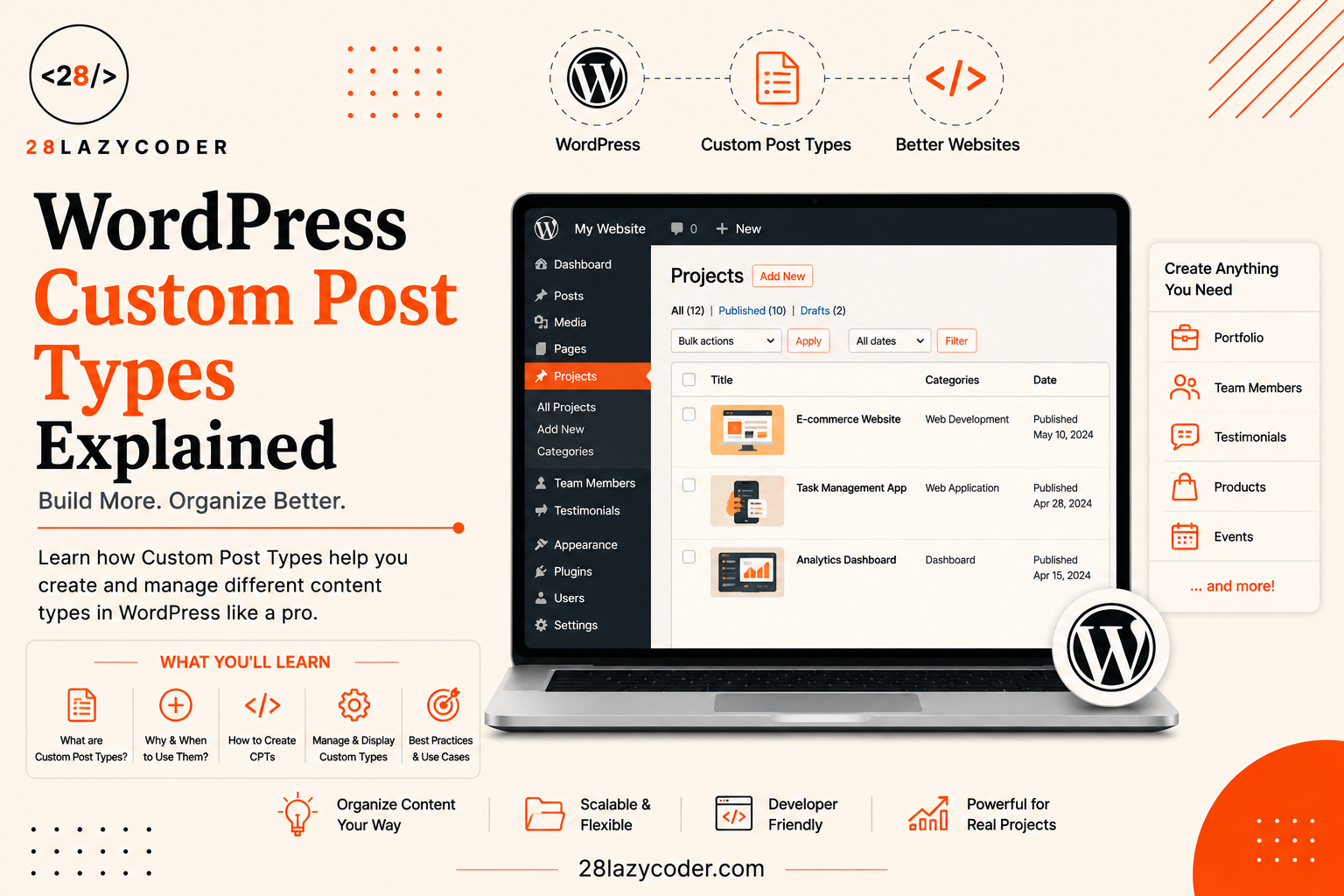
WordPress started as a blogging platform, but today it can power much more than a blog.
You can use WordPress to build portfolio websites, job boards, directories, learning platforms, eCommerce stores, membership websites, real estate websites, and much more.
But there is one problem.
The default Posts and Pages may not always be enough.
Imagine you’re building a portfolio website. You might want to manage:
- Projects
- Team members
- Testimonials
- Services
- Case studies
- Clients
Creating everything as a normal WordPress post can quickly become messy.
This is where WordPress Custom Post Types (CPTs) come in.
Custom Post Types allow you to create your own content types inside WordPress and manage them separately from regular posts and pages.
In this guide, we’ll understand what Custom Post Types are, why you need them, how they work, how to create them, how to display them, and some common mistakes beginners should avoid.
What Is a Custom Post Type in WordPress?
A Custom Post Type is a custom content type that you create in WordPress for a specific purpose.
WordPress already provides built-in post types such as:
- Posts
- Pages
- Attachments
- Revisions
- Navigation menus
A Custom Post Type lets you add something of your own.
For example:
Post
Page
Product
Portfolio
Book
Movie
Team Member
Testimonial
Job
Course
Instead of putting everything into regular blog posts, you can create separate sections for different types of content.
For example:
WordPress Dashboard

Posts
Pages
Projects
Testimonials
Team Members
Now your website content is much easier to manage.
According to the official WordPress Developer Handbook, Custom Post Types are useful when a website needs a specific type of content such as products, assignments, or movies.
Why Do We Need Custom Post Types?
Let’s understand this with a simple example.
Suppose you’re creating a website for a web development agency.
You have the following content:
Blog Posts
How to Learn JavaScript
What Is WordPress?
PHP Variables Explained
Projects
E-commerce Website
Real Estate Website
Restaurant Website
Testimonials
"Great service!"
"Excellent website!"
"Very professional team!"
If you store everything as normal posts, you might end up with hundreds of posts mixed together.
That’s difficult to manage.
Instead, you could create:
Posts
Projects
Testimonials
Each content type can have its own fields, URLs, categories, templates, and design.
That’s the real advantage of Custom Post Types.
Custom Post Type vs Post vs Page
Before going further, it’s important to understand the difference.
| Feature | Post | Page | Custom Post Type |
|---|---|---|---|
| Blog articles | ✅ | ❌ | Possible |
| Static content | ❌ | ✅ | Possible |
| Custom content | ❌ | Limited | ✅ |
| Custom URL structure | Limited | Limited | ✅ |
| Separate admin section | ❌ | ❌ | ✅ |
| Custom templates | Limited | ✅ | ✅ |
| Custom taxonomies | ✅ | Possible | ✅ |
Think about it this way:
Post = Blog content
Page = Static website content
Custom Post Type = Content designed for a specific purpose
There isn’t a rule saying every website needs Custom Post Types. If normal posts and pages already solve your content-management problem, you don’t need to create a CPT just because you can.
Real-World Examples of Custom Post Types
Custom Post Types become much easier to understand when you see real examples.
1. Portfolio
A freelancer or agency could create:
Projects
Each project could contain:
- Project title
- Client name
- Project image
- Technologies used
- Project URL
- Project description
2. Products
An eCommerce website could have:
Products
Each product might contain:
- Product name
- Price
- Product image
- Description
- SKU
- Product category
Large eCommerce systems often use more complex structures, but the basic idea is the same.
3. Team Members
A company website could have:
Team Members
Each entry could contain:
- Name
- Profile photo
- Job title
- Biography
- Social links
4. Testimonials
You could create:
Testimonials
Each testimonial might include:
- Customer name
- Company
- Profile image
- Review
- Rating
5. Job Listings
A recruitment website could create:
Jobs
A job entry might contain:
- Job title
- Company
- Location
- Salary
- Job description
- Application URL
This is much cleaner than creating every job as a normal WordPress post.
How Custom Post Types Work
Under the hood, WordPress stores posts and Custom Post Types using the same general post system.
The important difference is the post type.
For example:
post
page
product
portfolio
testimonial
A Custom Post Type has an internal identifier called a post type key.
For example:
portfolio
or:
product
You then tell WordPress how that post type should behave.
For example:
register_post_type()
This is the core WordPress function used to register a Custom Post Type.
How to Create a Custom Post Type in WordPress
There are two common approaches.
Method 1: Using a Plugin
This is usually easier for beginners.
Method 2: Using PHP
This gives you more control and is especially useful when developing custom WordPress themes or plugins.
Let’s look at both.
Method 1: Create a Custom Post Type Using a Plugin
If you’re not comfortable writing PHP, you can use a plugin that provides a graphical interface for creating Custom Post Types.
The basic process is:
Install CPT plugin
        ↓
Create Custom Post Type
        ↓
Choose labels
        ↓
Configure options
        ↓
Save
        ↓
New content type appears in Dashboard
For example, you could create:
Post Type: Portfolio
After saving it, WordPress can show something similar to:
Dashboard

Posts
Media
Pages
Portfolio
Comments
You can then add portfolio projects independently from your blog posts.
Important: A plugin can make creating a CPT easier, but you should still understand what the Custom Post Type actually does. Otherwise, debugging it later can become difficult.
Method 2: Create a Custom Post Type With PHP
If you’re comfortable with PHP, you can register a CPT programmatically.
Here’s a simple example:
function my_custom_post_type() {

    register_post_type('portfolio', array(
        'labels' => array(
            'name'          => 'Portfolio',
            'singular_name' => 'Project',
        ),
        'public'      => true,
        'has_archive' => true,
        'rewrite'     => array(
            'slug' => 'portfolio',
        ),
        'supports'    => array(
            'title',
            'editor',
            'thumbnail',
        ),
    ));

}

add_action('init', 'my_custom_post_type');
Let’s break this down.
Understanding register_post_type()
The most important part is:
register_post_type('portfolio', array(
Here:
portfolio
is the internal name of your Custom Post Type.
You then provide an array of settings.
labels
'labels' => array(
    'name'          => 'Portfolio',
    'singular_name' => 'Project',
),
These labels control how the post type appears in the WordPress Dashboard.
For example:
Portfolio
Add New
Edit Project
View Project
public
'public' => true,
This tells WordPress that the post type should generally be publicly available.
If you set it to:
'public' => false,
the behavior changes significantly and the content isn’t intended to be publicly accessible in the normal way.
has_archive
'has_archive' => true,
This allows the Custom Post Type to have an archive page.
For example:
example.com/portfolio/
The archive can list your portfolio projects.
rewrite
'rewrite' => array(
    'slug' => 'portfolio',
),
This controls the URL structure.
For example:
example.com/portfolio/my-first-project/
supports
'supports' => array(
    'title',
    'editor',
    'thumbnail',
),
This determines which editing features are available.
For example:
title
editor
thumbnail
means your editor can use:
- Title
- WordPress editor
- Featured image
You can also support features such as:
'excerpt'
'author'
'comments'
'revisions'
depending on your requirements.
Where Should You Register a Custom Post Type?
This is an important question.
You may see tutorials that tell you to put the CPT code directly inside:
functions.php
It can work.
But WordPress recommends putting Custom Post Type functionality in a plugin rather than a theme. This helps keep the content available if you change your theme.
Think about it.
Suppose your website has 500 portfolio projects.
If the CPT exists only because of your current theme, changing that theme could make the content difficult to access.
A better architecture is:
Theme
↓
Controls design

Plugin
↓
Controls Portfolio CPT
This separation makes your website easier to maintain.
Custom Post Types and Custom Fields
This is where CPTs become really powerful.
Imagine you have a Portfolio CPT.
The normal editor gives you:
Title
Content
Featured Image
But you might also need:
Client Name
Project URL
Technology
Project Date
Budget
These are custom fields.
A common setup looks like:
Custom Post Type
        +
Custom Fields
        +
Custom Taxonomies
        =
Structured Content
For example:
Portfolio Project

Title:
E-commerce Website

Client:
ABC Company

Technology:
WordPress, PHP, JavaScript

Project URL:
example.com

Description:
...
This is much more structured than putting everything into one large editor field.
Custom Post Types and Taxonomies
Another important concept is taxonomy.
WordPress already provides taxonomies such as:
- Categories
- Tags
You can also create your own custom taxonomies.
For example, if you have a Portfolio CPT, you could create:
Project Type
with terms such as:
WordPress
Shopify
React
WooCommerce
Custom Development
Your structure could then look like:
Portfolio
│
├── WordPress
│   ├── Project A
│   └── Project B
│
├── Shopify
│   ├── Project C
│   └── Project D
│
└── React
    ├── Project E
    └── Project F
This makes your content easier to organize and query.
Custom Post Type Templates
Creating a CPT is only half of the job.
You also need to decide how it will look on the frontend.
For classic WordPress themes, you can create specific template files for your CPT.
For example:
single-portfolio.php
can control an individual portfolio project.
And:
archive-portfolio.php
can control the portfolio archive.
So you might have:
portfolio/
│
├── single-portfolio.php
└── archive-portfolio.php
WordPress’s template hierarchy specifically supports single-{post-type}.php for individual Custom Post Type entries and archive-{post-type}.php for their archive pages.
What Is single-{post-type}.php?
Suppose your CPT is:
portfolio
Then:
single-portfolio.php
can be used to display a single portfolio project.
For example:
example.com/portfolio/company-website/
WordPress can use:
single-portfolio.php
to render that page.
This lets you create a completely different layout from a normal blog post.
What Is archive-{post-type}.php?
Now suppose someone visits:
example.com/portfolio/
You may want to show:
Our Portfolio

[Project 1] [Project 2]
[Project 3] [Project 4]
[Project 5] [Project 6]
You can create:
archive-portfolio.php
to control this archive page.
The official WordPress documentation describes the Custom Post Type archive hierarchy as archive-{post_type}.php, followed by more general templates such as archive.php and index.php.
Custom Post Type URL Structure
A good CPT usually has a clean URL structure.
For example:
example.com/portfolio/
and:
example.com/portfolio/my-project/
This is much easier to understand than a generic URL.
You can configure the rewrite slug when registering the CPT:
'rewrite' => array(
    'slug' => 'portfolio',
),
WordPress then uses that slug when generating the URLs.
After changing rewrite settings or registering a CPT, you may sometimes need to refresh your permalink settings so WordPress regenerates its rewrite rules. The WordPress developer documentation also discusses flushing rewrite rules when registering post types in plugins.
Custom Post Types Are Not the Same as Custom Fields
Beginners often confuse these two.
They solve different problems.
Custom Post Type
Answers:
“What kind of content is this?”
Examples:
Portfolio
Product
Job
Movie
Course
Custom Field
Answers:
“What information does this content contain?”
For example:
Client Name
Price
Location
Project URL
Duration
So:
Portfolio = Content Type

Client Name = Custom Field
Project Category = Taxonomy
Together, these create structured content.
When Should You Use a Custom Post Type?
Use a Custom Post Type when your content:
- Has a different purpose from regular blog posts.
- Needs its own section in the Dashboard.
- Requires its own URL structure.
- Needs different templates.
- Has unique fields.
- Needs its own taxonomy.
- Will contain multiple entries of the same type.
For example, a portfolio website is a great candidate:
Portfolio
    ↓
Project
    ↓
Project fields
    ↓
Project taxonomy
    ↓
Custom template
When Should You NOT Use a Custom Post Type?
Not everything needs a CPT.
If you’re simply creating:
About Us
Contact
Privacy Policy
Services
normal WordPress Pages are usually enough.
Similarly, if you’re writing:
10 JavaScript Tips
How PHP Variables Work
What Is WordPress?
regular Posts are probably the right choice.
Don’t create a Custom Post Type just to make your WordPress Dashboard look more complicated.
Use it when your content genuinely represents a different type of information.
Common Custom Post Type Mistakes
Let’s look at some mistakes developers commonly make.
1. Using Generic Post Type Names
Avoid overly generic identifiers such as:
register_post_type('product', ...);
if you’re developing a plugin that could conflict with another plugin.
WordPress recommends using a unique prefix for your identifiers and keeping the post type key within the documented character limit. It also recommends avoiding the wp_ prefix because WordPress itself uses it.
For example:
register_post_type('mybrand_product', ...);
is safer than using an overly generic identifier.
2. Registering the CPT at the Wrong Time
Custom Post Types should be registered during the appropriate WordPress lifecycle, typically using the init hook:
add_action('init', 'my_custom_post_type');
The official register_post_type() documentation specifically notes that post type registrations should not happen before the init action.
3. Putting Important CPT Logic Only in the Theme
As we discussed earlier, this can create a dependency between your content and your design.
If possible, keep the content structure in a plugin and let the theme handle presentation.
4. Forgetting About Templates
Creating:
Portfolio
doesn’t automatically mean your portfolio will look exactly how you want.
You still need to consider:
Single page
Archive page
Taxonomy pages
Search results
The WordPress template hierarchy determines which template is used to display these requests.
5. Creating CPTs for Everything
More Custom Post Types do not automatically mean a better website.
A website with:
15 unnecessary CPTs
can be harder to maintain than one with:
2 well-designed CPTs
Always start with the content requirement.
Custom Post Types and SEO
Custom Post Types can also be useful from an SEO perspective because they allow you to organize content more logically.
For example:
example.com/projects/
example.com/projects/ecommerce-website/
example.com/projects/wordpress-website/
This creates a clear content structure.
However, simply creating a CPT will not automatically improve your rankings.
You still need:
- Useful content
- Good page titles
- Descriptive URLs
- Internal linking
- Proper metadata
- Fast performance
- Mobile-friendly design
- Good user experience
- Search-engine-friendly templates
Think of CPTs as a content architecture tool, not an SEO shortcut.
Custom Post Types and Internal Linking
CPTs can become especially useful when you build a larger content website.
For example, imagine 28LazyCoder has:
WordPress Tutorials
        ↓
WordPress Projects
        ↓
WordPress Plugins
        ↓
WordPress Resources
A tutorial about WordPress Hooks could naturally link to related WordPress projects or resources.
This creates relationships between different pieces of content.
Good internal linking helps users discover related content and makes your website’s information structure easier to understand.
For example, if you’re learning WordPress development, you can also explore our existing guides on topics such as WordPress Hooks and WordPress configuration files.
Should You Use a Plugin or Code Your CPT?
It depends on your situation.
Use a plugin when:
- You’re a beginner.
- You want to create a CPT quickly.
- You don’t want to write PHP.
- The website is mostly content-driven.
- You need an easy admin interface.
Use PHP when:
- You’re developing custom WordPress solutions.
- You need complete control.
- You’re building a custom plugin.
- You’re working on a custom theme/plugin architecture.
- You want the CPT behavior version-controlled with your code.
For professional WordPress development, knowing how CPTs work in PHP is extremely valuable even if you normally use plugins to create them.
A Simple Custom Post Type Architecture
A real-world WordPress project might look something like this:
WordPress Website
│
├── Posts
│   └── Blog Articles
│
├── Pages
│   ├── About
│   └── Contact
│
├── Portfolio
│   ├── Project A
│   ├── Project B
│   └── Project C
│
├── Testimonials
│   ├── Testimonial A
│   └── Testimonial B
│
└── Team
    ├── Developer
    ├── Designer
    └── Manager
Each section has a clear purpose.
That’s exactly what Custom Post Types are designed to help you achieve.
Frequently Asked Questions
What is a Custom Post Type in WordPress?
A Custom Post Type is a user-defined content type that allows you to manage a specific kind of content separately from WordPress’s default Posts and Pages.
Examples include Products, Portfolio Projects, Jobs, Courses, Movies, and Testimonials.
Are Custom Post Types built into WordPress?
WordPress provides the functionality to create Custom Post Types through its core APIs, including register_post_type(). You can create your own CPTs using code or tools/plugins that use WordPress’s APIs.
Can I create a Custom Post Type without coding?
Yes. Plugins can provide an interface for creating and managing Custom Post Types without writing the registration code manually.
Where should I register a Custom Post Type?
For reusable functionality, WordPress recommends registering Custom Post Types in a plugin rather than a theme so the content structure remains available when the theme changes.
What is the difference between a Custom Post Type and a Custom Field?
A Custom Post Type defines the type of content, while a Custom Field stores additional information about that content.
For example, Portfolio can be a Custom Post Type, while Client Name can be a Custom Field.
What is single-{post-type}.php?
It is a template file that can be used to display an individual entry from a Custom Post Type.
For a CPT named portfolio, the template would be:
single-portfolio.php
What is archive-{post-type}.php?
It is a template used to display the archive/listing page for a Custom Post Type.
For example:
archive-portfolio.php
can display a list of portfolio projects.
Are Custom Post Types good for SEO?
They can help you organize content into a clear structure, but creating a CPT by itself does not improve rankings. SEO still depends on content quality, technical SEO, internal linking, performance, and user experience.
Final Thoughts
Custom Post Types are one of those WordPress features that can completely change how you build websites.
At first, the idea may seem complicated:
Post Type
Taxonomy
Custom Field
Template
Rewrite
But the basic idea is actually simple.
A Custom Post Type gives WordPress a new kind of content.
Instead of putting everything into Posts and Pages, you can build a structure that matches the actual website.
For example:
Blog → Posts

About → Pages

Portfolio → Custom Post Type

Project Type → Taxonomy

Client Name → Custom Field

single-portfolio.php → Single Project Design

archive-portfolio.php → Portfolio Listing
Once you understand this structure, building more advanced WordPress websites becomes much easier.
And that’s the real power of WordPress: you don’t have to force your content into WordPress’s default structure—you can build a structure that fits your project.
Trusted Resources
If you want to go deeper into Custom Post Types, these official WordPress resources are worth bookmarking:
- WordPress Developer Handbook — Registering Custom Post Types
- WordPress
register_post_type()Reference - WordPress Template Hierarchy
- WordPress Custom Post Type Template Files
These are official WordPress documentation sources and are excellent references when you’re ready to move from beginner-level CPT usage to professional WordPress development.