I once wrote a blog post about a laptop review, and I wanted to show a neat little “Rating: 4.5/5” badge above the content. My first instinct was to just type it straight into the post content, right below the title. It worked, but it felt wrong. Every time I wanted to change the rating, I had to dig through paragraphs of text to find that one number and edit it by hand.
Then someone told me, “That’s exactly what custom fields are for.” I remember thinking, custom what now? I had seen a mysterious little “Custom Fields” panel in the WordPress editor before, but I always ignored it because I had no idea what it actually did.
Once I understood it, everything clicked. Custom fields let you attach small, separate pieces of extra information to a post, like a rating, a price, or a release date, that live outside the main content and can be reused, styled, and displayed however you want. This guide walks you through exactly how they work, the beginner-friendly way.
Custom Fields vs Custom Post Types: A Quick Refresher
Before going further, it helps to be clear on one thing beginners mix up constantly: a custom post type and a custom field are not the same thing, even though they’re often used together.
Simple analogy: Think of a custom post type as a brand-new filing cabinet drawer, like “Movies” or “Products,” separate from your regular “Posts” drawer. A custom field, on the other hand, is a small sticky note attached to one specific file inside that drawer, holding one extra detail like “Release Year: 2024.”
If you’re not yet familiar with custom post types, it’s worth reading WordPress Custom Post Types Explained first, since that guide covers exactly how post types work and touches on how custom fields fit alongside them. This article picks up right where that one leaves off.
What Exactly Is a Custom Field?
A custom field, also called post meta, is a small piece of extra data attached to a single post, page, or custom post type entry, stored separately from the main title and content.
Instead of cramming everything into one big content editor, custom fields let you break information into clean, structured pieces. For example, a recipe post might have:
- Title and content: the recipe write-up itself
- Custom field
prep_time:20 minutes - Custom field
servings:4 - Custom field
difficulty:Easy
Simple analogy: Imagine filling out a form for a library book. The book’s story is the main content, but the form also has separate little boxes for “Author,” “Publish Year,” and “Genre.” Those boxes are custom fields, small, labeled slots for specific facts that don’t belong inside the main story itself.
Where Custom Fields Actually Live: The wp_postmeta Table
Every custom field you create gets saved in WordPress’s database, in a table called wp_postmeta. Each row in that table holds four pieces of information: a unique ID, the post it belongs to, a meta key (the field’s name, like prep_time), and a meta value (the actual data, like 20 minutes).
You don’t need to touch the database directly. WordPress gives you built-in PHP functions to read and write this data safely, which is what the rest of this guide focuses on. If database tables and structured data still feel like a new concept, it helps to first be comfortable with how PHP Arrays work, since custom field data is often handled as arrays once it reaches your code.
Did You Know? A single post can have multiple values stored under the exact same meta key. WordPress supports this on purpose, it’s how features like repeating a custom field (say, storing several “ingredient” entries for one recipe) become possible without needing a separate database table.
Adding a Custom Field Through the WordPress Editor
The simplest way to try custom fields is directly inside the WordPress post editor, no code required.
Step-by-Step: Using the Built-In Panel
- Open any post or page in the WordPress editor.
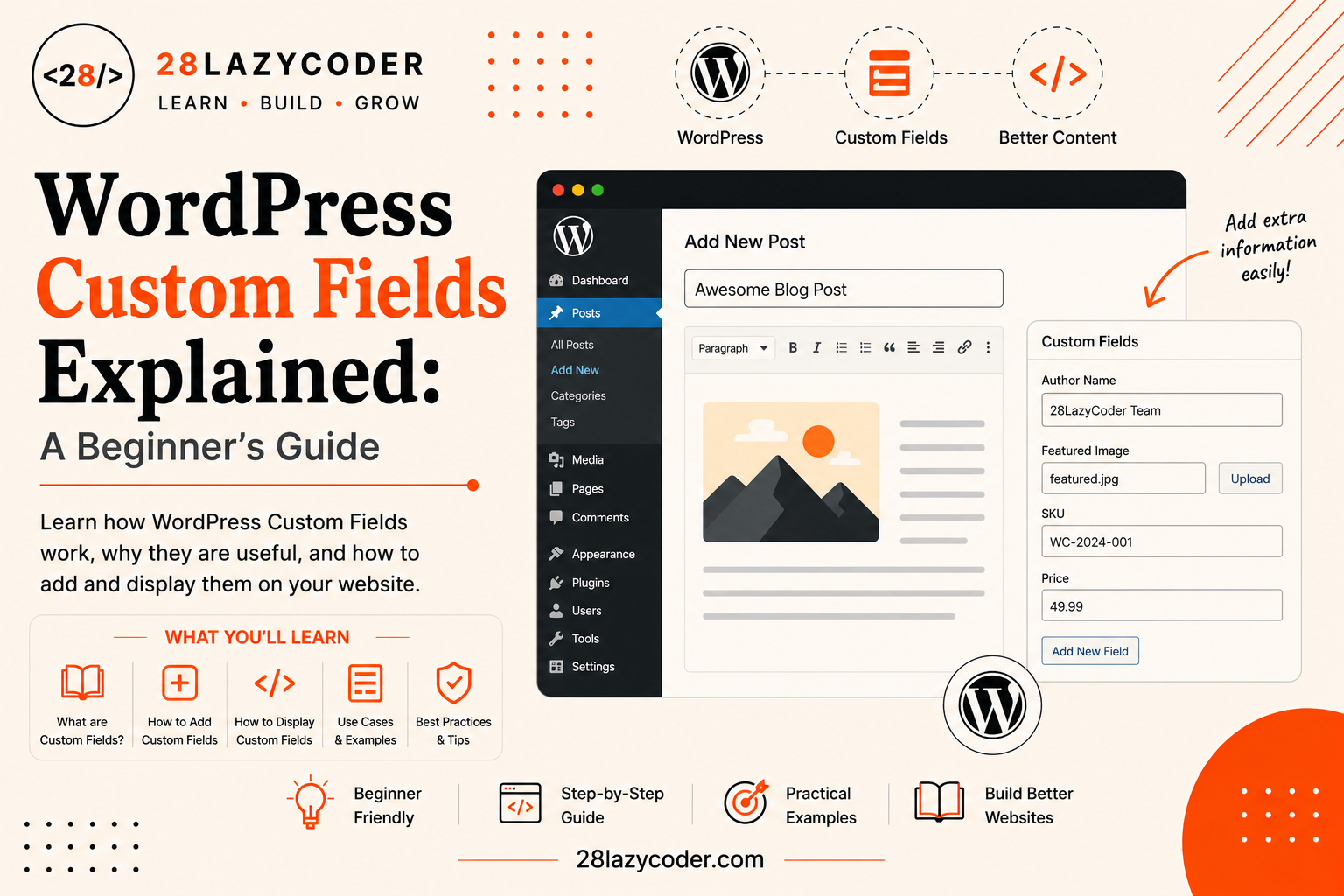
- Look for the Custom Fields panel. In the block editor, you may need to enable it first from the three-dot menu in the top-right corner, under Preferences → Panels.
- Enter a Name (this becomes the meta key, like
prep_time) and a Value (like20 minutes). - Click Add Custom Field, then update or publish the post.
That’s it, the value is now saved in wp_postmeta, tied to that specific post. But by itself, this data won’t show up anywhere on your live site yet. To actually display it, you need a small bit of PHP in your theme, which is exactly what the next few sections cover.
Reading Custom Field Data with get_post_meta()
Once a custom field has been saved, you read it back using PHP’s get_post_meta() function.
php
<?php
$prep_time = get_post_meta( get_the_ID(), 'prep_time', true );
echo 'Prep Time: ' . esc_html( $prep_time );
?>
Let’s break this down:
get_the_ID()grabs the ID of the current post, the function needs to know exactly which post’s meta data to fetch.'prep_time'is the meta key you’re looking for, the exact name you gave the field when you saved it.truetells WordPress to return a single plain value instead of an array. If you leave this out or set it tofalse, you’ll get back an array of all values stored under that key, useful for fields that repeat.
Tip: Always wrap output like this in an escaping function such as
esc_html()before printing it to the page. Custom field values are just like any other user-supplied data, they should never be trusted blindly, the same principle covered in PHP Error Handling Explained.
Saving Custom Field Data with update_post_meta()
While the editor panel is fine for occasional manual entries, most real projects save custom field data through code, usually when a form is submitted or a post is saved. That’s where update_post_meta() comes in.
php
<?php
update_post_meta( $post_id, 'prep_time', '20 minutes' );
?>
This function takes three main pieces: the post ID, the meta key, and the new value. If that meta key doesn’t exist yet for the post, WordPress creates it. If it already exists, WordPress overwrites the old value with the new one.
This pattern shows up constantly when you hook into WordPress’s save_post action, so the custom field updates automatically whenever a post is saved:
php
<?php
function my28lazytheme_save_prep_time( $post_id ) {
    if ( isset( $_POST['prep_time'] ) ) {
        update_post_meta( $post_id, 'prep_time', sanitize_text_field( $_POST['prep_time'] ) );
    }
}
add_action( 'save_post', 'my28lazytheme_save_prep_time' );
?>
Notice the isset() check and sanitize_text_field() call here, the same defensive habit covered in PHP GET vs POST Explained, where reading form data safely means always checking it exists and cleaning it before use. If hooks like add_action() feel unfamiliar, WordPress Hooks Explained is a great primer, since custom fields lean on the exact same action-and-filter system.
add_post_meta() vs update_post_meta()
WordPress actually gives you two functions for writing meta data, and beginners often mix them up.
update_post_meta()overwrites the existing value for a meta key, or creates it if it doesn’t exist yet. Use this when a field should only ever hold one current value, like a price or a rating.add_post_meta()adds a brand-new value under a meta key, without removing any existing ones. Use this when a field is meant to repeat, like storing multiple “ingredient” entries under the same key.
php
<?php
// Adds a new ingredient without removing previous ones
add_post_meta( $post_id, 'ingredient', 'Flour' );
add_post_meta( $post_id, 'ingredient', 'Sugar' );
?>
Reading that back with get_post_meta( $post_id, 'ingredient', false ) (notice false this time) returns an array containing both Flour and Sugar, rather than overwriting one with the other.
Displaying a Custom Field in Your Theme
Once your data is saved, showing it on the frontend is just a matter of calling get_post_meta() inside your theme file, wherever you want the value to appear.
php
<?php
if ( have_posts() ) :
    while ( have_posts() ) : the_post();

        the_title( '<h1>', '</h1>' );

        $prep_time = get_post_meta( get_the_ID(), 'prep_time', true );
        $servings  = get_post_meta( get_the_ID(), 'servings', true );

        if ( ! empty( $prep_time ) ) {
            echo '<p><strong>Prep Time:</strong> ' . esc_html( $prep_time ) . '</p>';
        }

        if ( ! empty( $servings ) ) {
            echo '<p><strong>Servings:</strong> ' . esc_html( $servings ) . '</p>';
        }

        the_content();

    endwhile;
endif;
?>
This example mixes a template tag, the_title(), with a custom field lookup, which is a very common pattern in real WordPress themes. If template tags like the_title() or the_content() are still new territory, WordPress Template Tags Explained covers the full list with examples.
Native Custom Fields vs the ACF Plugin
Writing raw get_post_meta() and update_post_meta() calls works well, but it can get repetitive on larger projects with many fields. This is where a plugin like Advanced Custom Fields (ACF) comes in.
ACF gives you a visual interface for defining custom fields, text boxes, image uploads, dropdowns, repeaters, and more, without writing the raw meta box code yourself. Under the hood, it still saves everything into wp_postmeta using the same core WordPress system you just learned.
Simple analogy: Native custom fields are like building furniture with raw wood and your own tools, you have full control, but you’re doing every cut yourself. ACF is like an assembly kit with pre-cut pieces and clear instructions, faster to put together, especially when you need many similar fields across a big site.
Making Custom Fields Work with the Block Editor: register_post_meta()
If you’re building a custom field that needs to appear in the block editor’s sidebar, or be accessible through the WordPress REST API, you need to properly register it first using register_post_meta().
php
<?php
function my28lazytheme_register_meta() {
    register_post_meta( 'post', 'prep_time', array(
        'show_in_rest' => true,
        'single'       => true,
        'type'         => 'string',
    ) );
}
add_action( 'init', 'my28lazytheme_register_meta' );
?>
This tells WordPress three important things: which post type the field belongs to ('post'), that it should be exposed through the REST API (show_in_rest), and what kind of data to expect (type). Without this registration step, a meta key created purely through update_post_meta() won’t automatically show up in block editor sidebar panels or REST API responses.
When Should You Use a Custom Field?
A simple rule of thumb: use a custom field when you need to attach one specific, structured piece of extra data to an existing post, page, or custom post type entry.
- Use a custom field for: a product’s price, a recipe’s prep time, an event’s date, a book’s author, a rating score.
- Don’t use a custom field for: an entirely different kind of content that deserves its own section, dashboard menu, and URL structure, that’s a job for a custom post type instead.
- Use a taxonomy instead when: you’re grouping or categorizing content rather than attaching a unique fact to it, like tagging a recipe as “Vegetarian” or “Dessert.”
A Quick Word on Security
Custom field data often comes from a form submission, which means it should be treated the same way you’d treat any other user input: never trust it blindly.
- Sanitize before saving. Use functions like
sanitize_text_field()before passing a value intoupdate_post_meta(), so unexpected characters or scripts don’t get stored. - Escape before displaying. Use functions like
esc_html(),esc_attr(), oresc_url()depending on where the value is printed, so stored data can’t break your page’s HTML or run unwanted scripts. - Check capabilities on save. If you’re saving custom field data from a custom admin form, confirm the current user actually has permission to edit that post before writing anything.
- Verify a nonce on form submissions. A nonce is a one-time security token WordPress generates to confirm a form submission genuinely came from your own site, not from an outside attacker.
Common Beginner Mistakes
- Forgetting the third
trueargument inget_post_meta(). Leaving it out returns an array instead of a plain string, which often causes a value to display asArrayon the page instead of the expected text. - Using
add_post_meta()when they meantupdate_post_meta(). This quietly creates duplicate entries under the same meta key instead of updating the existing value, leading to confusing bugs later. - Skipping sanitization on save. Saving raw
$_POSTdata directly intoupdate_post_meta()without cleaning it first opens the door to malformed or unsafe data being stored. - Expecting a custom field to show up in the block editor sidebar automatically. Without calling
register_post_meta()withshow_in_restset totrue, the field stays invisible to the block editor and REST API, even though it’s saved correctly in the database.
Scenario-Based Practice
Scenario 1: Adding a Star Rating to Product Reviews
Problem: You’re building a product review site and want each post to have a numeric star rating that can be displayed above the content.
Solution: Add a custom field with the meta key star_rating, saved through the editor panel or a custom meta box, then pull it into your theme with get_post_meta( get_the_ID(), 'star_rating', true ) right above the_content().
Scenario 2: Storing Multiple Ingredients for a Recipe
Problem: A recipe post needs to list several ingredients, and the number of ingredients varies from recipe to recipe.
Solution: Use add_post_meta() to save each ingredient under the same meta key, like ingredient, without the unique flag. Reading it back with get_post_meta( $post_id, 'ingredient', false ) returns the full array of ingredients for that specific recipe.
Scenario 3: Making a Custom Field Editable in the Block Editor Sidebar
Problem: You want a “Client Name” field to appear in the block editor’s sidebar panel for a Portfolio custom post type, and be accessible via the REST API for a headless setup.
Solution: Register the field with register_post_meta(), setting show_in_rest to true and specifying the correct post type. This exposes the field properly to both the block editor and any REST API requests.
Scenario 4: A Client Wants an Easy Way to Add Fields Without Touching Code
Problem: You’re building a site for a non-technical client who will need to add new custom fields to different post types themselves, without editing PHP.
Solution: Install the ACF plugin, which lets the client define new fields through a visual interface. Under the hood, it still uses the same wp_postmeta system, so it stays fully compatible with get_post_meta() calls in the theme.
Interview Questions on WordPress Custom Fields
Q1. What is a custom field in WordPress, and where is it stored? A custom field, also called post meta, is a small piece of extra data attached to a specific post, page, or custom post type entry. It’s stored in the wp_postmeta database table, linked to that post’s ID.
Q2. What’s the difference between a custom field and a custom post type? A custom post type defines an entirely new kind of content, with its own dashboard section and URL structure, while a custom field attaches one small, specific piece of data to an existing post.
Q3. What does the third parameter of get_post_meta() do? It controls whether the function returns a single value (true) or an array of all values stored under that meta key (false or omitted), which matters for fields that can repeat.
Q4. What’s the difference between add_post_meta() and update_post_meta()? update_post_meta() overwrites the existing value for a meta key or creates it if missing, while add_post_meta() always adds a new value without removing existing ones, useful for repeating fields.
Q5. Why might a custom field not appear in the block editor sidebar even though it’s saved correctly? Because it likely hasn’t been registered with register_post_meta() and show_in_rest set to true. Without that registration, the block editor and REST API have no way of knowing the field exists.
Q6. Why is sanitizing custom field data before saving important? Because custom field values often come from user-submitted forms, and saving raw, unvalidated input can allow malformed or malicious data into the database, the same principle that applies to any other form input in WordPress or PHP.
Interview Tip: If asked to compare custom fields and custom post types, lead with “what vs how much detail”, a custom post type defines what kind of content something is, while a custom field defines one specific detail about that content. That framing makes the rest of the comparison easy to explain on the spot.
Frequently Asked Questions
Q1. Do I need a plugin to use custom fields in WordPress?
No. WordPress has native support for custom fields built in, through the editor’s Custom Fields panel and functions like get_post_meta() and update_post_meta(). Plugins like ACF simply make managing many fields more convenient.
Q2. Can a custom field store more than plain text?
Yes. While custom fields are commonly used for short text values, you can also store numbers, dates, and even serialized arrays or objects, though for structured or repeating data, many developers still prefer a plugin like ACF for easier management.
Q3. Why isn’t the Custom Fields panel showing up in my block editor?
In some WordPress setups, the panel is hidden by default and needs to be enabled from the editor’s Preferences menu under Panels. Some custom post types also need to explicitly declare 'custom-fields' support when registered.
Q4. Is get_post_meta() safe to use directly in a template?
The function itself is safe to call, but the value it returns should always be escaped with a function like esc_html() before being printed, since custom field data can originate from user input.
Q5. Can custom fields be searched or filtered on the frontend?
Yes, using WP_Query with meta query parameters, you can filter or sort posts based on their custom field values, for example, showing only recipes with a difficulty field set to Easy.
Q6. What happens to custom field data if I delete a post?
By default, WordPress removes the associated post meta data when a post is permanently deleted, since that data is tied directly to the post’s ID and has no purpose without it.
Conclusion
Custom fields solve a very specific problem: attaching small, structured, reusable pieces of information to your content without stuffing everything into one big editor box. Once you’re comfortable with get_post_meta() and update_post_meta(), you have the exact same foundation that plugins like ACF are built on top of.
A good way to make this stick is to pick one of your own posts, think of one useful extra detail it’s missing, like a rating, a date, or a price, and add it as a real custom field using the steps in this guide. Once you see that value pulled into your theme with your own code, custom fields stop feeling mysterious and start feeling like just another tool in your WordPress toolbox.
Trusted Sources & References
This guide is grounded in official documentation. For deeper reading, these are reliable places to go:
- WordPress Developer Reference — get_post_meta() the official reference for reading post meta
- WordPress Developer Reference — update_post_meta()
- WordPress Developer Reference — register_post_meta() covers exposing custom fields to the block editor and REST API
- WordPress Support — Custom Fields a beginner-friendly overview of the editor panel
- PHP Manual — Arrays useful background for handling repeating custom field values
We recommend bookmarking developer.wordpress.org it’s the official, most trusted reference for anything related to WordPress development.
Continue Learning
Want to build on what you just learned? Check out these related guides on 28LazyCoder:
- WordPress Custom Post Types Explained: A Beginner-Friendly Guide
- WordPress Hooks Explained: Actions vs Filters
- WordPress Template Tags Explained: A Beginner’s Guide
- WordPress functions.php Explained: What It Does and How to Use It
- Custom WordPress Development: A Complete Beginner’s Guide
- PHP Arrays Explained: A Complete Beginner’s Guide with Examples
Explore more tutorials on 28LazyCoder.