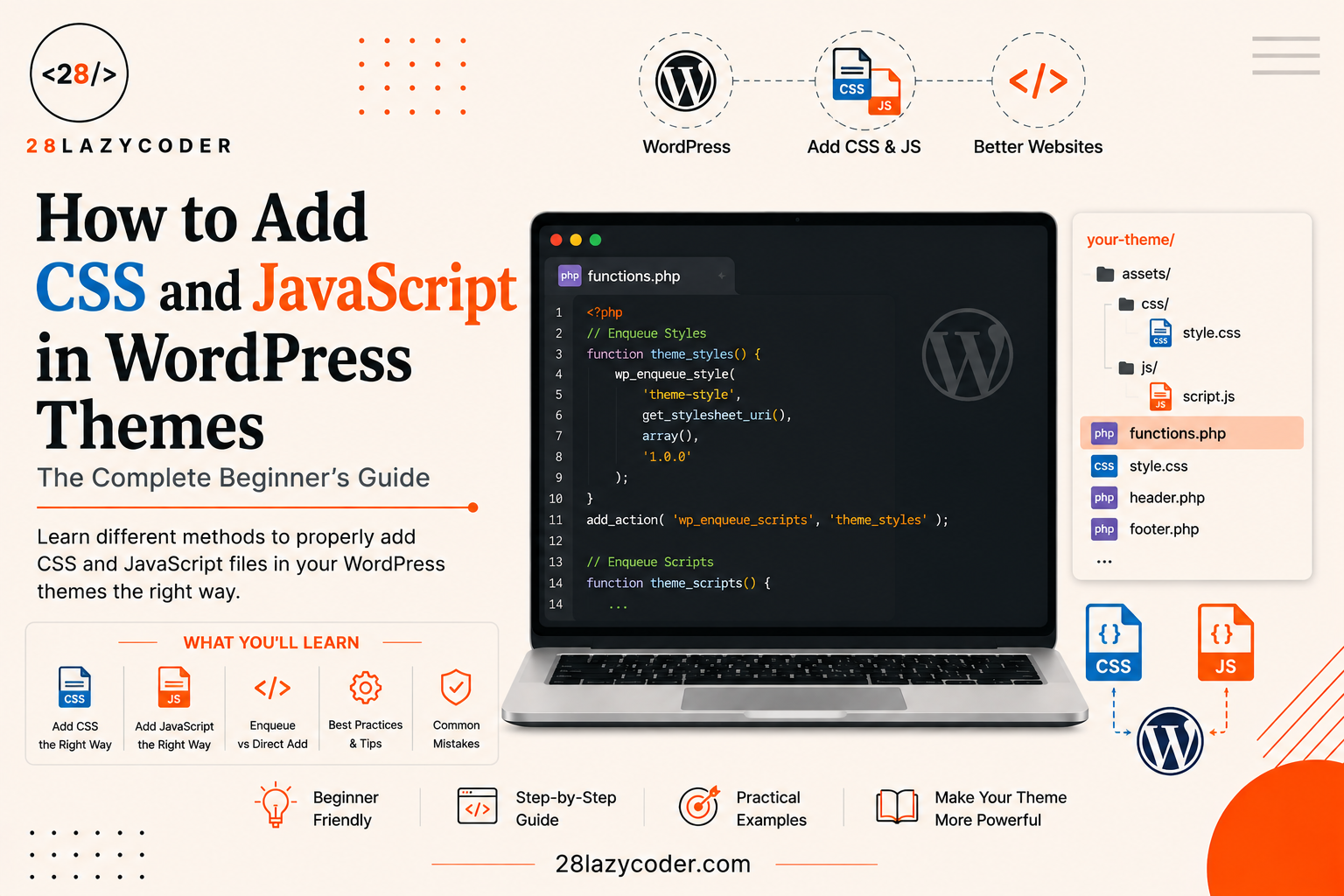
Imagine you just built a small JavaScript slider or wrote a few custom CSS rules, and now you want them to show up on your WordPress site. Your first instinct might be to open your theme’s header file and paste in a <link> tag or a <script> tag, the same way you’d do it in a plain HTML page.
Here’s the twist: WordPress really doesn’t want you to do it that way. And once you understand why, you’ll never go back to pasting tags manually again.
In this guide, you’ll learn the correct, WordPress-approved way to load your own CSS and JavaScript files, using two simple functions. No prior experience with PHP is needed. We’ll explain every piece of code in plain language as we go.
Why You Shouldn’t Just Paste <link> and <script> Tags
On a normal HTML page, adding a stylesheet or script is easy. You just write:
html
<link rel="stylesheet" href="style.css">
<script src="script.js"></script>
But a WordPress site isn’t one simple page — it’s a system built out of a theme, several plugins, and WordPress core itself, all trying to load their own CSS and JavaScript files at the same time. If everyone just pasted tags wherever they wanted, you’d quickly run into problems like:
- The same file loading twice, slowing your site down for no reason
- Files loading in the wrong order, breaking scripts that depend on each other
- Version conflicts, where an old cached copy of your CSS keeps showing even after you’ve updated it
To avoid all of this, WordPress has a built-in traffic-control system for loading files. In WordPress language, this process is called enqueuing — a fancy word that simply means “getting in line properly instead of pushing to the front.”
Where This Code Goes: functions.php
All of this enqueuing code lives inside a file called functions.php, found inside your theme’s folder. Think of it as your theme’s control room — it doesn’t affect how things look, but it controls how things behave and load. If you’d like a deeper look at that file specifically, our WordPress theme files guide is a great place to start.
A quick safety note before we continue: if you’re using a theme you didn’t build yourself (like one you purchased or downloaded), never edit its functions.php directly, because a theme update will erase your changes. Instead, use a child theme, which is a small companion theme that safely stores your custom code. Our beginner’s guide to WordPress child themes walks you through setting one up in a few minutes.
A Quick Word on Hooks
You’ll notice the code examples below use something called add_action(). This connects your code to a hook — a specific moment where WordPress pauses and says, “If anyone has code to run right here, now’s the time.” For loading CSS and JavaScript, the hook you want is called wp_enqueue_scripts. It’s the hook WordPress officially recommends for loading any script or stylesheet meant to appear on the front end of your site.
If hooks are a brand-new concept for you, it’s worth taking a short detour to our WordPress hooks, actions, and filters guide before continuing, since almost everything in this article builds on that idea.
Step-by-Step: Adding a CSS File
To load a CSS file the proper WordPress way, you use a function called wp_enqueue_style(). Here’s what it looks like in action:
php
function my28lazytheme_load_styles() {
    wp_enqueue_style(
        'my28lazytheme-main-style',                          // 1. Handle (a unique name)
        get_template_directory_uri() . '/css/custom.css',    // 2. File location
        array(),                                              // 3. Dependencies
        '1.0.0',                                              // 4. Version number
        'all'                                                 // 5. Media type
    );
}
add_action( 'wp_enqueue_scripts', 'my28lazytheme_load_styles' );
What Each Piece Means
- Handle — a nickname for your file, so WordPress (and other plugins) can refer to it without conflicts. It must be unique across your whole site.
- File location — the actual web address of your CSS file.
get_template_directory_uri()automatically returns the correct URL of your theme’s folder, so you never have to hardcode it. - Dependencies — an array listing any other stylesheets that must load before this one. Leave it empty (
array()) if there aren’t any. - Version number — helps browsers know when to grab a fresh copy of the file instead of using an old cached one. Bump this number whenever you make changes.
- Media type — which devices or media this stylesheet applies to, like
'all','screen', or'print'.
Step-by-Step: Adding a JavaScript File
Loading JavaScript works almost the same way, using wp_enqueue_script():
php
function my28lazytheme_load_scripts() {
    wp_enqueue_script(
        'my28lazytheme-main-script',                          // 1. Handle
        get_template_directory_uri() . '/js/custom.js',       // 2. File location
        array( 'jquery' ),                                     // 3. Dependencies
        '1.0.0',                                               // 4. Version number
        true                                                   // 5. Load in footer
    );
}
add_action( 'wp_enqueue_scripts', 'my28lazytheme_load_scripts' );
What’s Different Here
The first four pieces work exactly like wp_enqueue_style(). The last one is new:
- Load in footer (
trueorfalse) — when set totrue, your script loads near the bottom of the page instead of the top. This is usually the better choice, because it means your page’s text, images, and layout show up first, and the script doesn’t slow down that initial load.
Notice the dependency array( 'jquery' ) in the example above. jQuery is a popular JavaScript library that WordPress already includes by default, so you don’t need to upload your own copy — you can simply list it as a dependency, and WordPress makes sure it loads before your script does.
Loading Files Only on Certain Pages
Sometimes you don’t want a script or stylesheet loading on every single page, especially if it’s something specific, like a contact form script that’s only needed on your Contact page. You can wrap your enqueue code in a simple condition:
php
function my28lazytheme_conditional_script() {
    if ( is_page( 'contact' ) ) {
        wp_enqueue_script(
            'my28lazytheme-contact-script',
            get_template_directory_uri() . '/js/contact-form.js',
            array(),
            '1.0.0',
            true
        );
    }
}
add_action( 'wp_enqueue_scripts', 'my28lazytheme_conditional_script' );
This small check keeps your site faster overall, because pages that don’t need the file simply won’t load it.
Adding a Small Amount of Inline CSS or JavaScript
Every so often, you just need a tiny snippet of custom CSS or JS, and creating a whole separate file feels like overkill. WordPress has functions for that too: wp_add_inline_style() and wp_add_inline_script(). They attach directly to a style or script you’ve already enqueued, so they load at the right time automatically.
php
function my28lazytheme_inline_css() {
    wp_enqueue_style( 'my28lazytheme-main-style', get_template_directory_uri() . '/css/custom.css' );
    wp_add_inline_style( 'my28lazytheme-main-style', 'body { background-color: #f7f7f7; }' );
}
add_action( 'wp_enqueue_scripts', 'my28lazytheme_inline_css' );
Common Mistakes Beginners Make
Using the Wrong File Path
A very common error is typing the file path by hand instead of using get_template_directory_uri(). If you ever move your theme, rename a folder, or migrate your site to a new domain, hardcoded paths will silently break. Let WordPress build the path for you instead.
Forgetting the Dependencies Array
If your JavaScript file uses jQuery but you forget to list array( 'jquery' ) as a dependency, your script might load before jQuery is ready, causing confusing errors in the browser console that say something is “not defined.”
Skipping the Version Number
Leaving the version number blank might seem harmless, but it can cause visitors’ browsers to keep showing an old cached version of your file even after you’ve made updates. Bumping the version number, even by a small amount, tells the browser: “this file changed, please grab a new copy.”
Loading Everything on Every Page
Not every script needs to load site-wide. Loading unnecessary files on pages that don’t need them slows down your whole site for no real benefit — this is one of the most overlooked performance mistakes beginners make.
functions.php vs Plugin: Where Should Enqueue Code Live?
| In functions.php | In a Plugin | |
|---|---|---|
| Best for | CSS/JS tightly tied to your current theme’s design | Features you want to keep even if you change themes |
| Survives a theme switch? | No | Yes |
| Good starting point for beginners? | Yes, for learning and small theme tweaks | Yes, once you’re managing reusable functionality |
If your CSS and JavaScript are part of your site’s actual design and layout, functions.php (ideally inside a child theme) is the right home for them. If you’re building something more like a standalone feature meant to survive future redesigns, our guide on what WordPress plugins are and how they work explains when a plugin makes more sense.
Conclusion
Adding CSS and JavaScript to a WordPress theme isn’t about pasting tags into your header the way you would on a plain HTML page. WordPress has its own polite, organized system for it, built around wp_enqueue_style(), wp_enqueue_script(), and the wp_enqueue_scripts hook, all living inside functions.php.
Once you get comfortable with the handle, file path, dependencies, version, and footer-loading pattern, you’ll be able to add any custom CSS or JavaScript to your theme confidently, without slowing down your site or fighting with other plugins for control.
FAQs
1. Can I just paste a <link> or <script> tag directly into my theme file instead? You technically can, but it’s not recommended. It skips WordPress’s built-in system for avoiding duplicate files, load-order conflicts, and caching issues, so it’s considered bad practice even though it may appear to work at first.
2. What’s the difference between wp_enqueue_style and wp_enqueue_script? wp_enqueue_style() is used for loading CSS files, while wp_enqueue_script() is used for loading JavaScript files. Their setup is very similar, but wp_enqueue_script() has an extra option for loading the file in the footer.
3. Why should JavaScript load in the footer? Loading scripts near the bottom of the page lets your page’s visible content, like text and images, load first. This usually makes your site feel faster, since visitors aren’t waiting on a script before they can see anything.
4. Do I need to include jQuery myself if my script uses it? No. WordPress already includes jQuery by default. Just list 'jquery' in your script’s dependencies array, and WordPress will make sure it loads before your script runs.
5. Where exactly should I put my CSS and JS files in my theme? Most themes use folders like /css/ and /js/ inside the main theme folder, but the exact structure isn’t fixed. Just make sure the file path in your enqueue code matches wherever you actually placed the files.
6. Will this code work the same in a child theme? Yes. The same wp_enqueue_style() and wp_enqueue_script() functions work identically in a child theme’s functions.php file, and using a child theme is actually the safer, recommended approach if you’re customizing someone else’s theme.
Trusted Sources & References
- WordPress Developer Resources: wp_enqueue_style() Function
- WordPress Developer Resources: wp_enqueue_script() Function
- WordPress Developer Resources: wp_enqueue_scripts Hook
- WordPress Developer Resources: Custom Functionality (functions.php)
- MDN Web Docs: The Script Element
- W3Schools: CSS Introduction
Continue Learning
Want to keep building your WordPress knowledge? These guides from 28LazyCoder pair naturally with this one:
- WordPress Theme Files Explained: What Each File Does
- WordPress Hooks Explained: A Beginner-Friendly Guide to Actions and Filters
- WordPress Child Theme: A Complete Beginner’s Guide
- WordPress Plugins Explained: What They Are and How They Work
- Custom WordPress Theme Development: A Complete Beginner’s Guide
- CSS Grid vs Flexbox: Which One Should You Use?
Explore more tutorials at 28LazyCoder.