If you’ve been following along with our guides on JavaScript operators and loops and iteration, you already know how to make decisions and repeat tasks in your code. Now it’s time to talk about something you’ll use in almost every single JavaScript project you ever write: arrays.
Think about it. Whether you’re building a to-do list, showing a list of products, storing user scores, or handling API responses — you’re dealing with a group of values, not just one. That’s exactly what arrays are for.
In this guide, we’ll break down arrays from scratch, in plain language, with real examples you can actually picture using in a project. No fluff, no jargon overload.
What Is an Array in JavaScript?
An array is simply a list of values, stored under one variable name.
Instead of creating five separate variables to store five fruits, you put them all in one array:
const fruits = ["Apple", "Banana", "Mango", "Orange", "Grapes"];
That’s it. One variable, five values, all organized in order.
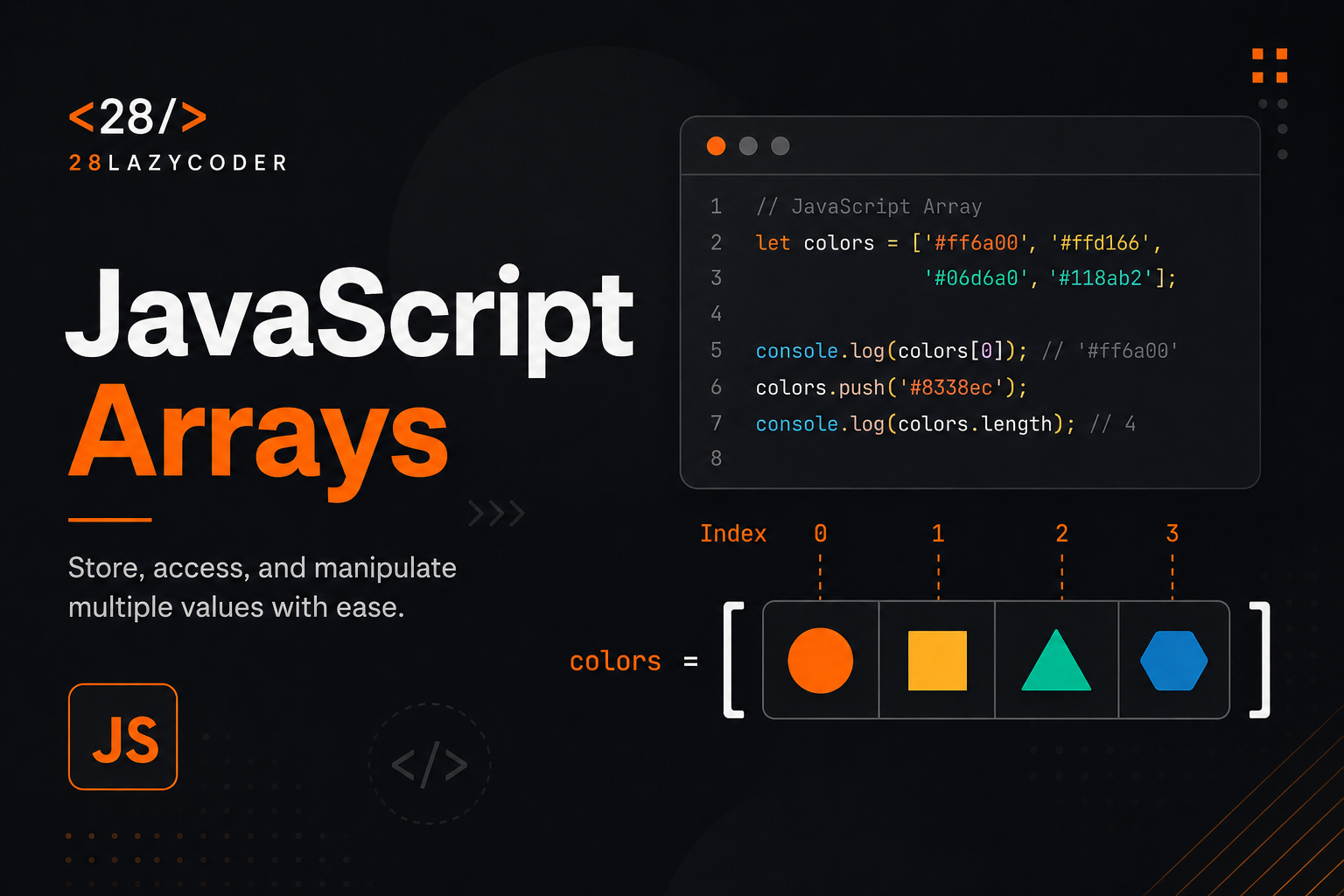
Each value in an array has a position, called an index. Indexing starts at 0, not 1 — this trips up a lot of beginners, so keep it in mind.
| Value | Apple | Banana | Mango | Orange | Grapes |
|---|---|---|---|---|---|
| Index | 0 | 1 | 2 | 3 | 4 |
Note: Arrays in JavaScript can hold any data type — strings, numbers, booleans, objects, even other arrays. You can even mix types in the same array, though it’s usually better practice to keep one array focused on one type of data.
Creating an Array
There are two common ways to create an array.
1. Array literal (the one you’ll use 99% of the time):
const colors = ["Red", "Green", "Blue"];
2. Array constructor:
const colors = new Array("Red", "Green", "Blue");
Both do the same job, but the array literal syntax is shorter, cleaner, and the one recommended by the MDN Web Docs.
Tip: Stick to
[]for creating arrays unless you have a specific reason not to. It’s faster to type and avoids a weird edge case wherenew Array(7)creates an empty array of length 7 instead of an array containing the number 7.
Accessing and Modifying Array Elements
Once you have an array, you’ll want to read from it or change it.
Accessing Elements
Use square brackets with the index number:
const fruits = ["Apple", "Banana", "Mango"];

console.log(fruits[0]); // Apple
console.log(fruits[2]); // Mango
Updating an Element
Just assign a new value to that index:
fruits[1] = "Pineapple";
console.log(fruits); // ["Apple", "Pineapple", "Mango"]
Finding the Length of an Array
The .length property tells you how many items are in the array:
console.log(fruits.length); // 3
This is especially useful when looping through arrays, which we covered in detail in our guide on loops and iteration.
for (let i = 0; i < fruits.length; i++) {
  console.log(fruits[i]);
}
Common Array Methods You’ll Use All the Time
This is where arrays really start to shine. JavaScript gives you a set of built-in methods that let you add, remove, search, and transform data without writing loops from scratch every time.
Adding and Removing Elements
| Method | What It Does | Changes Original Array? |
|---|---|---|
push() | Adds an item to the end | Yes |
pop() | Removes the last item | Yes |
unshift() | Adds an item to the beginning | Yes |
shift() | Removes the first item | Yes |
const tasks = ["Design", "Develop"];

tasks.push("Test");       // ["Design", "Develop", "Test"]
tasks.pop();               // ["Design", "Develop"]
tasks.unshift("Plan");     // ["Plan", "Design", "Develop"]
tasks.shift();              // ["Design", "Develop"]
Warning:
push(),pop(),unshift(), andshift()all mutate (change) the original array. If you need to keep the original array untouched, make a copy first using the spread operator:const copy = [...tasks];
Searching Inside an Array
const numbers = [10, 20, 30, 40];

console.log(numbers.includes(30));   // true
console.log(numbers.indexOf(40));     // 3
console.log(numbers.indexOf(100));    // -1 (not found)
includes() gives you a simple true/false answer. indexOf() tells you exactly where the value sits, and returns -1 if it doesn’t exist.
Transforming Arrays: map, filter, and reduce
These three methods are the real workhorses of modern JavaScript. Once these click, working with data feels a lot less intimidating.
map() — transform every item and return a new array
const prices = [100, 200, 300];
const withTax = prices.map(price => price * 1.18);

console.log(withTax); // [118, 236, 354]
filter() — keep only the items that match a condition
const ages = [12, 18, 25, 15, 30];
const adults = ages.filter(age => age >= 18);

console.log(adults); // [18, 25, 30]
reduce() — combine everything into a single value
const cart = [250, 100, 75];
const total = cart.reduce((sum, price) => sum + price, 0);

console.log(total); // 425
Tip:
map(),filter(), andreduce()all return new arrays or values — they don’t touch the original array. That makes them safer and more predictable to use than manual loops withpush()scattered inside.
Other Useful Methods
const items = ["Pen", "Book", "Bag"];

console.log(items.join(", "));   // "Pen, Book, Bag"
console.log(items.reverse());    // ["Bag", "Book", "Pen"]
console.log(items.slice(0, 2));  // ["Bag", "Book"] (does NOT change original)
console.log(items.splice(1, 1)); // removes 1 item at index 1 (changes original)
slice() vs splice(): Don’t Mix These Up
This one confuses a lot of beginners because the names look almost identical.
slice() | splice() | |
|---|---|---|
| Purpose | Copies a portion of the array | Adds/removes items in place |
| Changes original array? | No | Yes |
| Returns | A new array | The removed items |
const nums = [1, 2, 3, 4, 5];

const sliced = nums.slice(1, 3);   // [2, 3] — original untouched
console.log(nums);                  // [1, 2, 3, 4, 5]

const spliced = nums.splice(1, 3); // removes [2, 3, 4]
console.log(nums);                  // [1, 5] — original changed!
Looping Through Arrays
You already know for loops from our loops and iteration guide, but arrays have their own dedicated looping methods too.
const fruits = ["Apple", "Banana", "Mango"];

// forEach - runs a function for each item, returns nothing
fruits.forEach(fruit => console.log(fruit));

// for...of - clean, modern way to loop over values
for (const fruit of fruits) {
  console.log(fruit);
}
forEach() is great when you just want to do something with each item — like logging it or updating the DOM. If you need to stop the loop early with break, use for...of or a regular for loop instead, since forEach() doesn’t support that.
Multidimensional Arrays
Arrays can hold other arrays. This is handy for representing grids, tables, or coordinates.
const matrix = [
  [1, 2, 3],
  [4, 5, 6],
  [7, 8, 9]
];

console.log(matrix[1][2]); // 6
Here, matrix[1] gets the second inner array ([4, 5, 6]), and [2] grabs the third item inside it (6).
Common Mistakes When Working With Arrays
1. Confusing array index with array length
const colors = ["Red", "Green", "Blue"];
console.log(colors[colors.length]); // undefined — last valid index is length - 1
2. Using == instead of comparing array contents properly
console.log([1, 2] == [1, 2]); // false! Arrays are compared by reference, not value
If you’re unsure why this happens, our guide on the difference between == and === in JavaScript explains comparison behavior in detail.
3. Forgetting that push(), sort(), and splice() mutate the original array
This can cause bugs when you assume the original data is untouched but it isn’t.
4. Using for...in to loop over arrays
for...in is meant for objects, not arrays. It can produce unexpected results with arrays, especially if extra properties get added. Stick to for...of, forEach(), or a standard for loop instead.
5. Checking for NaN inside array data with ===
If your array contains calculated values, you might run into NaN. Comparing it directly won’t work the way you’d expect — check out our post on what NaN really is in JavaScript to understand why.
Best Practices for Working With Arrays
- Prefer
map(),filter(), andreduce()over manual loops when transforming data — they’re more readable and less error-prone. - Use
constwhen declaring arrays you don’t plan to reassign. Note that you can stillpush()or modify items —constonly prevents reassigning the variable itself. - Avoid mutating arrays you don’t own, especially ones passed into functions. Copy them first using the spread operator or
slice(). - Use meaningful, plural variable names like
users,orders, orscoresinstead of vague names likearrordata. - Check
Array.isArray()before assuming a variable is actually an array, especially with data coming from an API.
console.log(Array.isArray(fruits)); // true
console.log(Array.isArray("Apple")); // false
Frequently Asked Questions
Q: What’s the difference between an array and an object in JavaScript? Arrays store ordered lists of values accessed by index (0, 1, 2...). Objects store key-value pairs accessed by name (user.name). Use arrays when order matters and items are similar; use objects when you’re describing properties of a single thing.
Q: Can a JavaScript array hold different data types? Yes. A single array can hold strings, numbers, booleans, objects, and even other arrays at the same time. It’s technically allowed, though for readability it’s usually best to keep one array focused on one type of data.
Q: How do I check if an array is empty? Check its .length property: if (myArray.length === 0) { ... }.
Q: Does sort() change the original array? Yes, sort() mutates the array in place, and by default it sorts elements as strings, which can lead to strange results with numbers (e.g., [10, 2, 1].sort() returns [1, 10, 2]). Use a compare function for numeric sorting: numbers.sort((a, b) => a - b).
Q: What is array destructuring? It’s a shorthand for pulling values out of an array into variables: const [first, second] = fruits;. It’s widely used in modern JavaScript and worth learning once you’re comfortable with the basics covered here.
Conclusion
Arrays are one of those things that feel small at first but end up touching almost everything you build in JavaScript. Once you’re comfortable adding, removing, searching, and transforming data with methods like push(), filter(), map(), and reduce(), a huge chunk of everyday coding problems start feeling a lot more manageable.
Don’t worry about memorizing every method today. Bookmark this page, come back when you need a refresher, and try rewriting a small project — like a to-do list or a shopping cart — using only the methods covered here. That’s the fastest way to make this stick.
If you haven’t already, check out our guides on JavaScript loops and iteration and JavaScript functions next — arrays, loops, and functions are the trio you’ll be combining constantly as you build real projects.