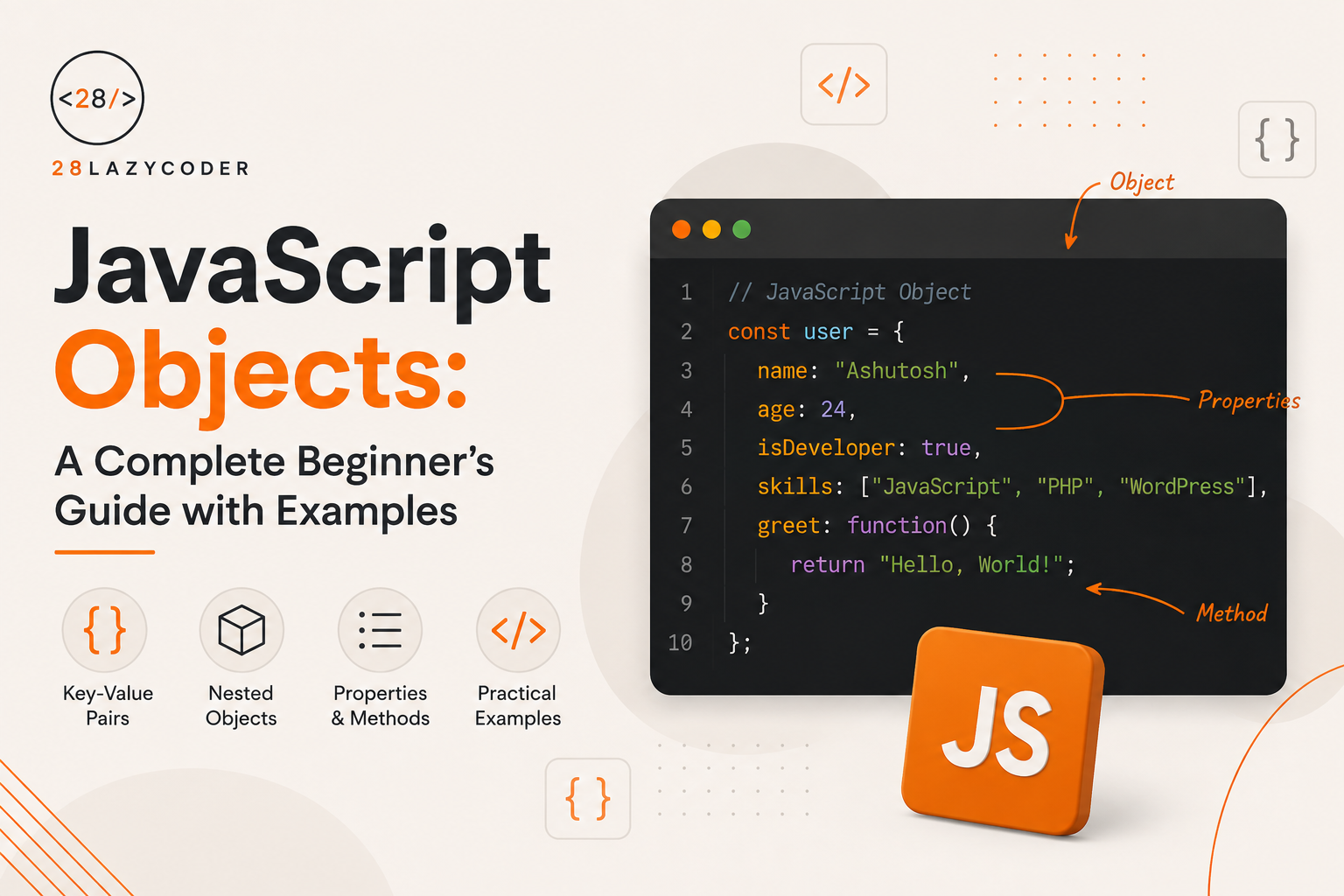
If you’ve already gone through our guide on JavaScript functions, you know how to bundle logic together. Objects do something similar, but for data — they let you bundle related information under one variable instead of scattering it across a dozen separate ones.
Almost everything in JavaScript eventually touches an object. A user profile, a product card, an API response, even the browser’s document — all objects. So getting comfortable with them early pays off fast.
Let’s go through this the same way we’d explain it to a friend sitting next to us, no unnecessary jargon.
What Is an Object in JavaScript?
An object is a collection of related data, stored as key-value pairs.
Instead of creating separate variables for a person’s name, age, and city, you group them together:
const user = {
  name: "Rohit",
  age: 26,
  city: "Noida"
};
Here, name, age, and city are called keys (or properties), and "Rohit", 26, "Noida" are their values.
Note: If arrays are for ordered lists of similar things (like a list of fruits), objects are for describing a single thing with multiple properties (like one specific user). We covered arrays in detail in our JavaScript arrays guide — worth a read if you haven’t seen it yet.
Creating an Object
The most common way is the object literal syntax, using curly braces:
const car = {
  brand: "Tata",
  model: "Nexon",
  year: 2024
};
You can also create one using the Object constructor, though it’s rarely used in everyday code:
const car = new Object();
car.brand = "Tata";
Tip: Stick with the curly brace
{}syntax. It’s shorter, easier to read, and the standard approach recommended in the MDN documentation on working with objects.
Accessing and Modifying Object Properties
There are two ways to read a property from an object: dot notation and bracket notation.
Dot Notation
console.log(car.brand); // Tata
console.log(car.model); // Nexon
This is the one you’ll use most of the time. It’s clean and easy to read.
Bracket Notation
console.log(car["brand"]); // Tata
Bracket notation becomes useful when the property name is stored in a variable, or when the key has spaces or special characters:
const key = "model";
console.log(car[key]); // Nexon

const info = { "fuel type": "Petrol" };
console.log(info["fuel type"]); // Petrol (dot notation won't work here)
Updating and Adding Properties
car.year = 2025;        // updates existing property
car.color = "White";    // adds a brand-new property

console.log(car);
// { brand: "Tata", model: "Nexon", year: 2025, color: "White" }
Deleting a Property
delete car.color;
console.log(car); // color is gone
Objects Can Hold Functions Too
When a function is stored inside an object, it’s called a method.
const user = {
  name: "Priya",
  greet: function () {
    console.log("Hi, I'm " + this.name);
  }
};

user.greet(); // Hi, I'm Priya
The this keyword here refers to the object the method belongs to — in this case, user. If you’re still getting comfortable with how functions behave, our guide on JavaScript functions is a good place to brush up.
Warning: Avoid using arrow functions for object methods when you need
thisto refer to the object. Arrow functions don’t have their ownthis— they inherit it from the surrounding scope, which usually isn’t what you want here.
const user = {
  name: "Priya",
  greet: () => {
    console.log("Hi, I'm " + this.name); // this does NOT refer to user
  }
};
Looping Through an Object
Since objects aren’t ordered lists like arrays, you can’t use a regular for loop directly. Instead, you have a few solid options.
for…in Loop
const car = { brand: "Tata", model: "Nexon", year: 2024 };

for (const key in car) {
  console.log(key + ": " + car[key]);
}
// brand: Tata
// model: Nexon
// year: 2024
This is the direct opposite of what we recommend for arrays — remember from our loops and iteration guide that for...in isn’t ideal for arrays, but it’s exactly right for objects.
Object.keys(), Object.values(), and Object.entries()
These built-in methods give you more control and work nicely with array methods like map() and forEach().
| Method | Returns |
|---|---|
Object.keys(obj) | An array of all keys |
Object.values(obj) | An array of all values |
Object.entries(obj) | An array of [key, value] pairs |
console.log(Object.keys(car));   // ["brand", "model", "year"]
console.log(Object.values(car)); // ["Tata", "Nexon", 2024]
console.log(Object.entries(car));
// [["brand", "Tata"], ["model", "Nexon"], ["year", 2024]]
Object.entries(car).forEach(([key, value]) => {
  console.log(`${key} -> ${value}`);
});
Checking If a Property Exists
console.log("brand" in car);         // true
console.log(car.hasOwnProperty("color")); // false
console.log(car.color === undefined); // true
Tip: Use
inorhasOwnProperty()instead of just checkingif (car.color). If a property legitimately holds a falsy value like0,"", orfalse, that check would give you a wrong answer.
Nested Objects
Objects can contain other objects — this is extremely common when working with real-world data like API responses.
const employee = {
  name: "Aman",
  address: {
    city: "Delhi",
    pincode: 110001
  },
  skills: ["JavaScript", "React"]
};

console.log(employee.address.city); // Delhi
console.log(employee.skills[0]);     // JavaScript
Notice how this one object mixes a nested object (address) and an array (skills) — that’s completely normal and something you’ll see constantly once you start working with real APIs.
Copying Objects the Right Way
This is where a lot of beginners get tripped up.
const original = { name: "Sam" };
const copy = original;

copy.name = "Alex";
console.log(original.name); // Alex — wait, what?
Objects are stored by reference, not by value. So copy isn’t a new object — it’s just another name pointing to the same object in memory. Changing one changes the other.
To create a real, independent copy, use the spread operator or Object.assign():
const original = { name: "Sam" };
const copy = { ...original };

copy.name = "Alex";
console.log(original.name); // Sam — original is safe now
console.log(copy.name);      // Alex
Warning: The spread operator only creates a shallow copy. If your object has nested objects inside it, those inner objects are still shared by reference. For deeply nested data, you’ll need a proper deep clone, like
structuredClone(obj)in modern browsers.
Object vs Array: Quick Comparison
| Array | Object | |
|---|---|---|
| Stores | Ordered list of items | Key-value pairs |
| Access by | Index (0, 1, 2) | Key name (.name) |
| Best for | Similar items in sequence | Describing one entity’s properties |
| Common loop | for, for...of, forEach() | for...in, Object.keys() |
Common Mistakes When Working With Objects
1. Comparing objects with == or === expecting a value match
console.log({ a: 1 } === { a: 1 }); // false
Objects are compared by reference, not content, just like arrays. If this feels confusing, our post on the difference between == and === in JavaScript explains the underlying comparison rules.
2. Assuming const makes an object unchangeable
const user = { name: "Ravi" };
user.name = "Dev"; // this works fine!
const only prevents reassigning the variable itself, not modifying its contents. Use Object.freeze(user) if you genuinely need to lock it down.
3. Losing this inside arrow function methods
Covered above — this one causes silent bugs that are annoying to track down.
4. Mutating an object you don’t own
Passing an object into a function and modifying it directly can cause bugs elsewhere in your code, since objects are shared by reference.
5. Forgetting that for...in also loops through inherited properties
If the object’s prototype has extra properties, for...in picks those up too, unless you guard it with hasOwnProperty(). Object.keys() avoids this problem entirely, which is why many developers prefer it.
Best Practices for Working With Objects
- Prefer
Object.keys(),Object.values(), orObject.entries()overfor...infor more predictable, safer looping. - Use the spread operator (
{ ...obj }) to copy objects instead of assigning them directly. - Keep object structures flat where possible — deeply nested objects get harder to read, update, and debug.
- Use
Object.freeze()when you want to guarantee an object’s contents won’t be accidentally changed later. - Name your objects after what they represent (
user,product,order) instead of vague names likeobjordata.
const settings = Object.freeze({ theme: "dark", language: "en" });
settings.theme = "light"; // silently fails (or throws in strict mode)
console.log(settings.theme); // dark
Frequently Asked Questions
Q: What’s the difference between an object and an array in JavaScript? Arrays store ordered lists accessed by numeric index, while objects store key-value pairs accessed by name. Use an array when you have a list of similar items, and an object when you’re describing the properties of one specific thing.
Q: Can an object have a method that calls another method in the same object? Yes, using this. For example, this.calculateTotal() inside another method works fine, as long as you’re not using an arrow function for the outer method.
Q: How do I check how many properties an object has? Use Object.keys(obj).length, since objects don’t have a built-in .length property like arrays do.
Q: What does “shallow copy” mean? A shallow copy duplicates the top-level properties of an object, but nested objects inside it are still shared by reference with the original. Only a deep clone fully separates every nested level.
Q: Is JSON the same as a JavaScript object? Not exactly. JSON (JavaScript Object Notation) is a text-based data format based on JavaScript object syntax, commonly used to send data over APIs. You can convert between them using JSON.stringify() and JSON.parse().
Conclusion
Objects are how JavaScript models real-world things — a user, a product, a setting, a response from a server. Once key-value pairs, dot notation, and methods like Object.keys() and Object.entries() feel natural, reading and working with real project data gets a whole lot easier.
Try rebuilding something simple, like a contact card or a product listing, using an object instead of separate variables. Once that clicks, nested objects and arrays of objects — which is what most real APIs return — will make a lot more sense too.
If you haven’t already, check out our guides on JavaScript arrays and JavaScript functions next. Arrays, objects, and functions are the three building blocks you’ll be combining in pretty much every project from here on.