Think about your phone for a second.
When you first bought it, it could make calls, send texts, and take photos. That’s it. But now your phone can order food, track your steps, edit videos, and even scan documents. You didn’t buy a new phone for all that — you just downloaded apps.
WordPress plugins work exactly the same way.
A plain WordPress website, fresh out of the box, is like that new phone — it can publish posts and pages, but not much else. Plugins are the “apps” you add on top to make your site do more, without you having to build any of that extra stuff yourself.
In this guide, we’ll break down what plugins actually are, how they work under the hood (in beginner-friendly terms), and how you can start using them safely on your own site.
What Is a WordPress Plugin?
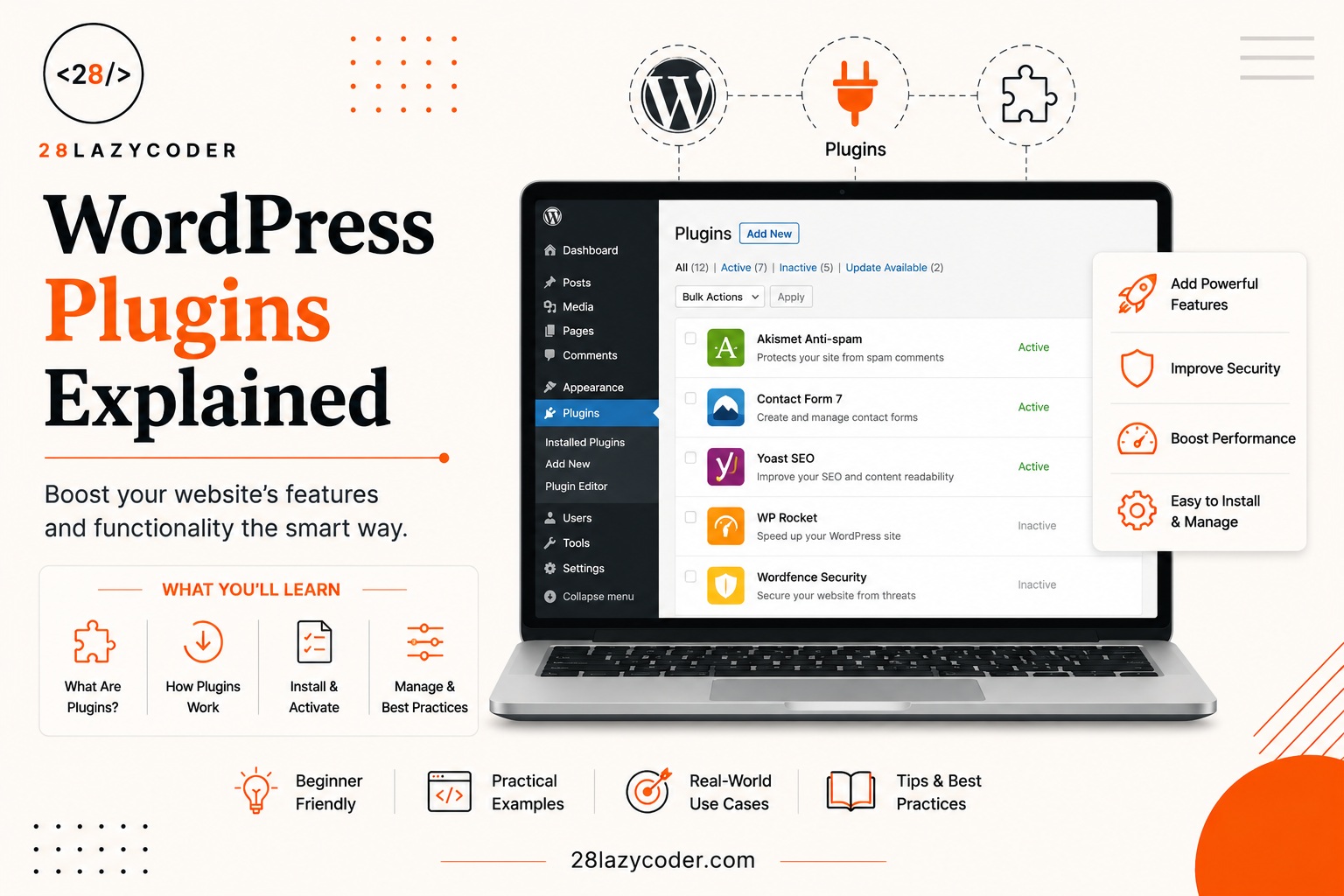
A WordPress plugin is a small package of code that adds new features to your WordPress website — without you having to touch the core WordPress files.
Plugins can do almost anything:
- Add a contact form to your site
- Improve your SEO (search engine optimization — basically, helping Google understand and rank your pages)
- Create an online store
- Add security protection
- Speed up your website
- Build custom forms, galleries, sliders, and more
There’s a plugin for almost every need, and thousands of them are completely free.
Why Plugins Exist in the First Place
WordPress was originally built to be simple — just a blogging tool. But not everyone needs the same things. A photographer needs a gallery. A shop owner needs a cart and checkout. A business needs a booking system.
Instead of cramming every possible feature into WordPress itself (which would make it slow and confusing for everyone), the creators of WordPress built something called a plugin architecture — a system that lets developers “plug in” extra features whenever needed. You only add what you actually need.
How Do WordPress Plugins Actually Work?
Here’s where it gets interesting. You don’t need to be a programmer to understand this part.
WordPress Runs on “Hooks”
WordPress code is built around special connection points called hooks. Think of a hook like a light switch panel on a wall. WordPress leaves these switches available at different points while it’s loading a page — and plugins can “flip” those switches to run their own code at exactly the right moment.
For example, a hook might exist right before a blog post is published. A plugin can attach itself to that hook and say, “Hey, when this happens, also send an email notification” or “also check this post for spelling mistakes.”
We’ve actually written a full breakdown of this system if you want to go deeper — check out our guide on WordPress Hooks Explained.
Plugins Don’t Touch WordPress’s Core Files
This is the important part. A good plugin never edits WordPress’s original files directly. Instead, it sits in its own separate folder and uses hooks to “tap into” WordPress from the outside.
Why does this matter? Because it means:
- You can update WordPress safely without breaking your plugins
- You can turn a plugin on or off without damaging your site
- Different plugins can work side by side without conflicting (most of the time!)
Where Plugin Files Live
Every plugin lives inside a folder at wp-content/plugins/ on your website’s server. Each plugin usually has at least one main PHP file (PHP is the programming language WordPress itself is built with) that tells WordPress what the plugin does and which hooks it connects to.
If you’re curious about how WordPress organizes its files and folders in general, our post on What Are Config Files in WordPress? is a good companion read.
Types of WordPress Plugins
Not all plugins do the same job. Here’s a simple way to group them:
Feature Plugins
These add a specific function — like a contact form, a photo gallery, or a countdown timer. You install it, configure a few settings, and it just works.
SEO Plugins
These help your content get found on Google. They check things like your page titles, meta descriptions, and readability, and guide you toward better search rankings.
Security Plugins
These protect your site from hackers, spam, and malicious login attempts — kind of like an antivirus app for your website.
Performance Plugins
These make your website load faster by compressing images, caching pages (storing a ready-made copy so it doesn’t have to be rebuilt every time), and cleaning up unnecessary code.
E-commerce Plugins
These turn a regular WordPress site into a full online store, complete with products, a shopping cart, and payment options.
How to Install a WordPress Plugin (Step by Step)
If you already have WordPress running, here’s the beginner-friendly way to add a plugin.
Step 1 — Go to the Plugins Section
In your WordPress dashboard, look at the left-hand menu and click Plugins → Add New.
Step 2 — Search for What You Need
Type in what you’re looking for — for example, “contact form” or “SEO.” WordPress will show you a list of matching plugins, along with their ratings and number of active installs (a good way to judge if a plugin is trustworthy).
Step 3 — Install and Activate
Click Install Now, wait a few seconds, then click Activate. That’s it — the plugin is now live on your site.
Step 4 — Configure Its Settings
Most plugins add their own settings page once activated. Head there to customize how the plugin behaves.
If you don’t have a WordPress site running yet and want a safe place to practice all this without affecting a live website, take a look at our guide on Installing WordPress Locally Using Local by WP Engine.
Plugins vs Themes: What’s the Difference?
Beginners often mix these two up, so let’s clear it up quickly.
- A theme controls how your website looks — colors, layout, fonts.
- A plugin controls what your website does — features and functionality.
Think of a theme as your house’s paint and furniture, and a plugin as the appliances you install inside it, like a washing machine or a smart doorbell. If you want to understand themes more deeply, check out our guide on WordPress Child Themes or our deep dive into Custom WordPress Theme Development.
Tips for Choosing Safe, Good-Quality Plugins
Since anyone can technically build a plugin, it’s smart to be a little careful. Here’s what to check before installing one:
- Last updated date — if a plugin hasn’t been updated in over a year, it might not be well maintained.
- Number of active installations — more installs usually means more people trust it.
- Star rating and reviews — read a few reviews, not just the star count.
- Compatibility — check that it works with your current WordPress version.
- Only install from trusted sources — the official WordPress Plugin Directory, or well-known premium plugin companies.
Avoid installing too many plugins at once. Each plugin adds a little bit of extra loading time and a small chance of conflicting with another plugin, so only keep the ones you actually use.
Conclusion
WordPress plugins are one of the biggest reasons WordPress has become the most popular website-building platform in the world. They let you add powerful features — stores, forms, SEO tools, security — without writing a single line of code yourself.
Once you understand that plugins simply “hook into” WordPress at the right moments, without touching its core files, the whole system starts to make a lot more sense. Start small: install one plugin, see how it changes your site, and build your understanding from there.
FAQs
Q1. Are WordPress plugins free?
Many plugins are completely free, especially those listed in the official WordPress Plugin Directory. Some offer a free version with paid “premium” upgrades for extra features.
Q2. How many plugins should I install on my WordPress site?
There’s no fixed number, but a good rule of thumb is to only install plugins you actually need. Too many plugins can slow down your site or cause conflicts.
Q3. Can plugins break my website?
Yes, it’s possible — especially with poorly coded or outdated plugins. That’s why it’s important to check reviews, update regularly, and always keep a backup of your site.
Q4. Do I need to know coding to use plugins?
No. Most plugins are designed for non-coders and come with simple settings pages. Coding knowledge only becomes useful if you want to build your own plugin.
Q5. What’s the difference between a plugin and a theme?
A theme changes how your site looks, while a plugin adds new functionality or features to your site.
Continue Learning
Want to keep building your WordPress knowledge? Check out these related guides on 28LazyCoder:
- WordPress Hooks Explained: A Beginner-Friendly Guide to Actions and Filters
- WordPress Child Theme: A Complete Beginner’s Guide
- WordPress Template Hierarchy Explained
- Install WordPress Locally Using Local by WP Engine
- What Is Required to Run WordPress?
Explore more tutorials on 28LazyCoder.com
You can also learn more about plugin development standards directly from the source: WordPress.org Plugin Developer Handbook.