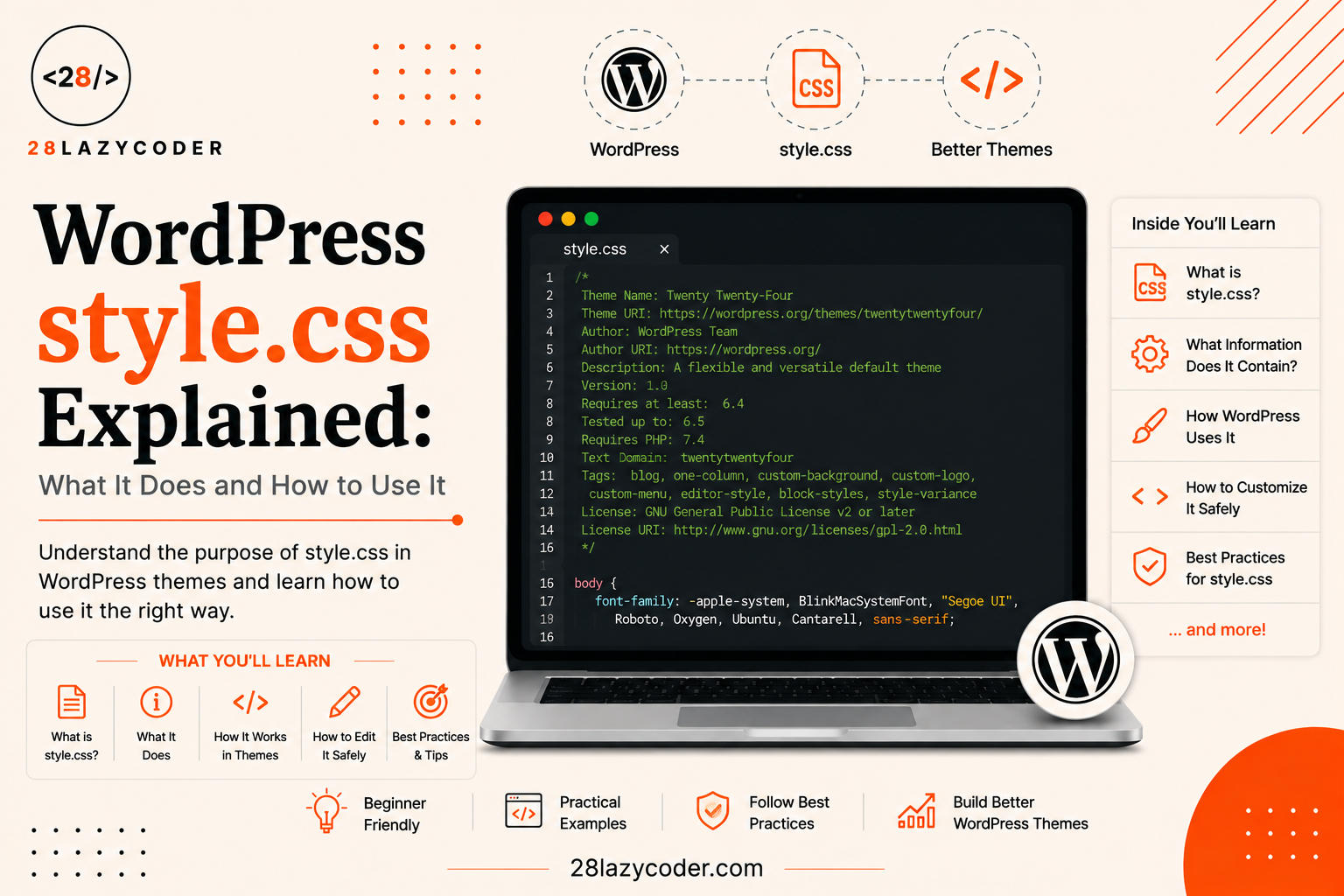
Have you ever downloaded a WordPress theme, opened its folder, and noticed a file called style.css sitting right at the top, almost like it’s the “main” file of the whole theme? Then you open it and the first fifteen lines aren’t even CSS at all they’re just plain text, wrapped inside a comment.
That confused me the first time too. I expected a stylesheet (a file that controls how a website looks colors, fonts, spacing) to be full of CSS code from line one. Instead, I found something that looked more like a form you’d fill out at a doctor’s office: Theme Name, Author, Version, Description.
So what’s really going on here? In this guide, we’ll slow down and go through exactly what style.css is, why WordPress treats it so specially, and how to use it correctly whether you’re editing your first theme or building a child theme to keep your changes safe.
What Is style.css in WordPress?
style.css is a required file in every classic WordPress theme. It does two separate jobs at once, and that’s exactly why it confuses beginners:
- It introduces your theme to WordPress. A block of comment text at the very top of the file called the “header” tells WordPress the theme’s name, version, author, and other details.
- It stores your theme’s CSS code. Below that header, you can write normal CSS just like in any other project, controlling colors, spacing, fonts, and layout.
Simple analogy: Think of style.css like a job application form attached to a portfolio. The top section (the header) is the form WordPress reads to know who you are, your name, your experience, your details. Everything below that is your actual portfolio work, the CSS that shapes how the site looks. WordPress reads the form first, then makes your portfolio available to visitors.
Why Does It Need Both Jobs in One File?
This design goes back to WordPress’s early days. Every theme needs some file that identifies it uniquely so it can show up correctly under Appearance > Themes in your dashboard. Rather than creating a separate configuration file just for that, WordPress reuses a file every theme already needs anyway, its main stylesheet and tucks the theme information into a comment at the top. One file, two jobs, less clutter.
Why Every WordPress Theme Needs a style.css File
According to the WordPress Theme Handbook, style.css is one of the required files for a classic theme. Without it, WordPress won’t even recognize the folder in wp-content/themes/ as a valid theme at all it simply won’t appear in your dashboard.
Real-world use case: If you were building a custom theme for a client’s portfolio site (similar to how we approached the custom WordPress theme development process here on 28LazyCoder), the very first file you’d create is style.css, even before writing a single line of PHP.
Did You Know? Technically,
style.cssdoesn’t have to contain any actual CSS rules to make a theme “work.” The header comment alone is enough for WordPress to register the theme. But obviously, a theme with zero styling would look completely unstyled and broken to visitors.
The style.css Header: Your Theme’s ID Card
Let’s look at a real header, the kind you’d find at the very top of any theme’s style.css file:
css
/*
Theme Name: My28LazyTheme
Theme URI: https://28lazycoder.com/my28lazytheme
Author: Ashutosh Rajbhar
Author URI: https://28lazycoder.com
Description: A clean, beginner-friendly theme built for learning WordPress theme development.
Version: 1.0.0
Requires at least: 6.4
Requires PHP: 7.4
License: GNU General Public License v2 or later
License URI: https://www.gnu.org/licenses/gpl-2.0.html
Text Domain: my28lazytheme
Tags: blog, custom-colors, custom-menu, responsive-layout
*/
Explaining every field:
- Theme Name the display name shown in your WordPress dashboard. This must be unique among your installed themes.
- Theme URI a link to a page with more details about the theme, usually optional for personal projects.
- Author the person or team who built the theme.
- Author URI a link to the author’s website or profile.
- Description a short summary shown under Appearance > Themes, explaining what the theme does.
- Version the current version number, useful for tracking updates and for correctly loading newer CSS files (more on this below).
- Requires at least the minimum WordPress version the theme needs to run properly.
- Requires PHP the minimum PHP version required.
- License / License URI the legal terms under which the theme is distributed, GPL is the standard for WordPress themes.
- Text Domain an identifier used when translating the theme into other languages.
- Tags keywords describing the theme’s features, mainly used if you submit the theme to the official WordPress.org theme directory.
Tip: WordPress reads this header as plain text using a special parser it doesn’t run it as CSS. That’s why it’s safely wrapped inside a
/* ... */comment block; browsers and CSS engines will simply ignore it as a comment, while WordPress reads the same text separately to extract theme details.
Where Does This Information Actually Show Up?
Once WordPress reads this header, it displays the details in a few places:
- The theme’s name and description under Appearance > Themes
- The “Theme Details” popup, when you click on a specific theme
- The active theme’s info shown to plugins and other parts of WordPress that need to know which theme is running
Which Header Fields Are Actually Required?
Here’s something that surprises a lot of beginners: out of that entire header block, only one field is technically required for WordPress to recognize the theme.
| Field | Required? | What Happens If Missing |
|---|---|---|
| Theme Name | Yes | WordPress won’t recognize the folder as a valid theme at all |
| Description, Author, Version, etc. | No | Theme still works, just shows blank/default info in the dashboard |
| Template (child themes only) | Yes, for child themes | WordPress won’t know which parent theme to inherit from |
Even though most fields are optional, it’s good practice to fill them all in, especially Version, since it directly affects a common WordPress performance trick we’ll cover next.
How style.css Actually Gets Loaded on Your Site
Here’s a detail that trips up a lot of beginners: just because style.css exists in your theme folder doesn’t automatically mean every visitor’s browser loads it.
For most classic themes, WordPress automatically includes the active theme’s style.css as a CSS <link> tag in the site’s <head>. But many modern and custom themes take more control over this by manually loading it using a function called wp_enqueue_style(), usually from inside functions.php.
php
<?php
function my28lazytheme_enqueue_styles() {
    wp_enqueue_style(
        'my28lazytheme-style',
        get_stylesheet_uri(),
        array(),
        wp_get_theme()->get( 'Version' )
    );
}
add_action( 'wp_enqueue_scripts', 'my28lazytheme_enqueue_styles' );
Explaining every line:
wp_enqueue_style()a built-in WordPress function (a “function” here just means a reusable block of code) that tells WordPress “please load this CSS file for visitors.”'my28lazytheme-style'a unique handle (nickname) WordPress uses internally to keep track of this stylesheet, useful if other files need to reference it later.get_stylesheet_uri()a WordPress function that automatically returns the correct web address of the active theme’sstyle.cssfile, so you never have to hardcode the path.array()a list of other stylesheets this one depends on, and should load after. Empty here means no dependencies.wp_get_theme()->get( 'Version' )pulls the Version number straight out of the style.css header you just learned about, and appends it to the file’s web address.add_action( 'wp_enqueue_scripts', ... )this “hooks” our function into the exact moment WordPress is ready to load front-end styles and scripts. If terms like “hooks” and “actions” are new to you, our guide on WordPress hooks explains them from scratch.
Why Attach the Version Number to the File?
This is a neat trick called cache busting. Browsers save (or “cache”) CSS files to load your site faster on repeat visits. The problem is, if you update your style.css but the file name stays the same, some visitors’ browsers might keep showing the old, cached version.
By adding ?ver=1.0.1 (built from your Version field) to the end of the file’s address every time you bump the version number, you’re telling the browser “this is technically a new file now, please fetch the latest copy.” It’s a small trick, but it solves a genuinely annoying real-world problem.
style.css in Child Themes: The Special Case
If you’ve read our guide on WordPress template hierarchy, you already know WordPress loves the idea of “specific overrides general.” Child themes follow that exact same philosophy, and style.css is where it starts.
A child theme is a separate theme that inherits everything from a “parent” theme, letting you make safe customizations without ever touching the parent theme’s original files (which would get wiped out on the next update). The connection between the two is made entirely inside the child theme’s style.css header, using one extra field:
css
/*
Theme Name: My28LazyTheme Child
Template: my28lazytheme
Description: A child theme for safely customizing My28LazyTheme.
Version: 1.0.0
*/
The key field here is Template. It must exactly match the parent theme’s folder name (not its display name), relative to wp-content/themes/. If your parent theme’s folder is named my28lazytheme, then Template: my28lazytheme is what connects the two. Get this wrong even by one character and WordPress won’t be able to link the child theme to its parent at all.
Safety Note: Never edit a theme’s files directly if it’s a popular theme you downloaded (from the WordPress.org directory or a marketplace). The moment that theme gets updated, your edits will be silently overwritten and lost. Always use a child theme for customizations you want to keep.
Does the Child Theme’s style.css Automatically Load the Parent’s Styles?
This is the single most common mix-up with child themes: no, it does not automatically happen. Simply adding the Template field connects the two themes logically, but it doesn’t load the parent’s CSS for visitors. You still need to enqueue both stylesheets, usually from the child theme’s functions.php:
php
<?php
function my28lazytheme_child_enqueue_styles() {
    $parent_style = 'my28lazytheme-style';

    wp_enqueue_style( $parent_style, get_template_directory_uri() . '/style.css' );

    wp_enqueue_style(
        'my28lazytheme-child-style',
        get_stylesheet_directory_uri() . '/style.css',
        array( $parent_style ),
        wp_get_theme()->get( 'Version' )
    );
}
add_action( 'wp_enqueue_scripts', 'my28lazytheme_child_enqueue_styles' );
Notice the two similar-looking functions: get_template_directory_uri() always points to the parent theme’s folder, while get_stylesheet_directory_uri() always points to the active theme’s folder (the child, in this case). Mixing these two up is an extremely common beginner mistake.
style.css vs functions.php: What’s the Difference?
Beginners sometimes lump style.css and functions.php together, since both files feel like “core” theme files. Here’s a clear side-by-side comparison:
| Feature | style.css | functions.php |
|---|---|---|
| Main purpose | Visual styling + theme identification | Adding functionality and features |
| Language used | CSS (with a comment-based header) | PHP |
| Required for a theme? | Yes, always required | Technically optional, but almost always used |
| Loaded for visitors automatically? | Sometimes, depends on the theme | Loaded automatically by WordPress if present |
| Typical beginner mistake | Forgetting to enqueue the child theme version | Forgetting the correct function name prefix, causing conflicts |
Simple rule of thumb: style.css decides how things look. functions.php decides what things do. Real theme development almost always involves both files working together.
How to Safely Edit style.css
- Never edit a live, active theme’s files directly if it’s a downloaded or purchased theme use a child theme instead.
- Always bump the Version number in the header after making meaningful CSS changes, so the cache-busting trick we covered earlier actually works for your visitors.
- Keep the header comment intact. Deleting it, even by accident, can cause WordPress to stop recognizing your theme.
- Use a code editor with syntax highlighting, so you can visually tell the difference between the comment header and your actual CSS rules.
- Test on a staging or local site first. Tools like the one covered in our local WordPress installation guide let you experiment safely before touching a live website.
Common Beginner Mistakes with style.css
- Deleting the header by accident while cleaning up CSS, which makes WordPress stop recognizing the theme entirely.
- Assuming
style.cssalways loads automatically many modern themes require it to be manually enqueued throughfunctions.php, so simply adding CSS to the file doesn’t guarantee it appears on the site. - Forgetting the
Templatefield in a child theme, or getting the parent folder name slightly wrong, breaking the parent-child connection. - Mixing up
get_template_directory_uri()andget_stylesheet_directory_uri()in a child theme, accidentally loading the wrong theme’s file. - Never updating the Version number, causing visitors’ browsers to keep showing outdated, cached CSS after a design change.
- Writing all custom CSS directly into a parent theme’s style.css, instead of a child theme, only to lose every change on the next theme update.
Quick Comparison Table
| Concept | What It Does |
|---|---|
| style.css header | Identifies the theme to WordPress (name, version, author, etc.) |
| style.css body | Holds the theme’s actual CSS rules |
| Theme Name field | The only truly required header field |
| Template field | Connects a child theme to its parent (child themes only) |
| Version field | Used for cache busting when the stylesheet is enqueued |
| wp_enqueue_style() | The recommended, safe way to load style.css for visitors |
| get_stylesheet_uri() | Returns the active theme’s style.css web address |
| get_template_directory_uri() | Always points to the parent theme’s folder |
| get_stylesheet_directory_uri() | Always points to the active (child) theme’s folder |
Scenario-Based Practice
Scenario 1: Your Custom CSS Isn’t Showing Up
Problem: You added new CSS rules to style.css, refreshed the site, and nothing changed.
Solution: First, check whether the theme is even loading style.css through wp_enqueue_style(), some custom or modern themes rely entirely on this instead of WordPress’s default auto-loading. Second, hard-refresh your browser (or clear the cache) in case the old, cached version is still showing due to an unchanged Version number.
Scenario 2: A Client’s Theme Update Wiped Out Your Custom Styling
Problem: You directly edited a purchased theme’s style.css to add custom colors. After the developer released an update, all your changes disappeared.
Solution: This happens because theme updates completely replace the original theme files. The fix going forward is to create a child theme, add the Template header field pointing to the parent, and move your custom CSS there instead. Child theme files are never touched by parent theme updates.
Scenario 3: Your Child Theme Looks Completely Unstyled
Problem: You created a child theme with just a style.css file containing the Template field, activated it, and the whole site now looks like plain, unstyled HTML.
Solution: Remember, the Template field only creates the logical connection between child and parent it doesn’t automatically load the parent’s CSS for visitors. You need a functions.php file in the child theme that enqueues both the parent’s style.css (using get_template_directory_uri()) and the child’s own style.css (using get_stylesheet_directory_uri()).
Scenario 4: Two Developers Keep Overwriting Each Other’s style.css Version Number
Problem: On a team project, one developer bumps the Version field to track a CSS fix, and another developer accidentally reverts it while editing unrelated styles.
Solution: Treat the Version field like any other piece of shared code, track it in your version control system (like Git) and communicate version bumps clearly in commit messages, so cache-busting continues to work reliably for every visitor after each deployment.
Interview Questions on style.css
Q1. What are the two main purposes of the style.css file in a WordPress theme? It does two jobs at once. First, its comment header at the top identifies the theme to WordPress, name, version, author, and other details. Second, the CSS code below that header controls the actual visual styling of the site. One file handles both theme registration and design.
Q2. Which field in the style.css header is technically the only required one? Theme Name is the only field WordPress strictly requires. Every other field, Description, Author, Version, and so on, is optional, though leaving them blank means WordPress just shows less information about the theme in the dashboard.
Q3. What does the Template field do, and where is it used? The Template field is used only in child themes. It points to the parent theme’s folder name, telling WordPress “this theme inherits from that one.” Its value must exactly match the parent theme’s folder name relative to wp-content/themes/, or the connection won’t work.
Q4. Why might a theme’s style.css not load automatically for visitors? While WordPress can auto-load a classic theme’s main stylesheet by default, many modern and custom themes take manual control of this using wp_enqueue_style(), usually inside functions.php. If that enqueue code is missing or broken, the CSS simply won’t reach the visitor’s browser, even though the file itself exists in the theme folder.
Q5. What is the practical purpose of updating the Version field in the header? It’s mainly used for cache busting. When style.css is enqueued with wp_get_theme()->get( 'Version' ), that version number gets appended to the file’s web address (like ?ver=1.0.1). Changing the version after a CSS update signals to browsers that the file is “new,” so they fetch the latest copy instead of showing an old, cached version.
Q6. What is the difference between get_template_directory_uri() and get_stylesheet_directory_uri()? get_template_directory_uri() always returns the URL of the parent theme’s folder, no matter which theme is active. get_stylesheet_directory_uri() always returns the URL of the currently active theme’s folder, which is the child theme, if one is active. Mixing these up in a child theme is a common way to accidentally load the wrong stylesheet.
Interview Tip: If asked to explain
style.css, mention both of its roles, theme identification through the header, and actual styling through the CSS body. Interviewers often want to see that you understand why WordPress designed it this way, not just that the file exists.
Frequently Asked Questions
Q1. Is style.css required in every WordPress theme? Yes, for classic (non-block) themes, style.css is one of the required files. Without it, WordPress won’t recognize the theme folder at all.
Q2. Can I write CSS anywhere else instead of style.css? Yes. Many themes load additional CSS files from an assets/css/ folder using wp_enqueue_style(). style.css remains required for the theme header, but it doesn’t have to hold all of your CSS.
Q3. Does editing style.css affect my site’s plugins? No, plugins have their own separate CSS files and typically don’t rely on your theme’s style.css. Editing your theme’s stylesheet only affects the visual styling controlled by the theme itself.
Q4. Why does my child theme’s style.css need a Template field but the parent theme’s doesn’t? The Template field exists specifically to tell WordPress “I am a child theme, and this is my parent.” A regular (non-child) theme has no parent to point to, so it simply omits that field.
Q5. What happens if I forget to update the Version number after changing my CSS? Nothing breaks, but some returning visitors’ browsers may continue showing your old, cached styles for a while, since the cache-busting trick relies on that version number changing.
Q6. Can two different themes have the same Theme Name? No, the Theme Name should be unique among your installed themes. Using a duplicate name can cause confusion in the WordPress dashboard about which theme is actually active.
Conclusion
style.css looks like a simple file at first glance, but as you’ve seen, it’s quietly doing two very different jobs at once: introducing your theme to WordPress through its header, and shaping how your site actually looks through its CSS rules below.
Once that clicks, a lot of previously confusing theme behavior starts making sense, why some themes need wp_enqueue_style() to actually display their CSS, why child themes need that extra Template field, and why bumping the Version number after a design change genuinely matters for your visitors.
The best way to make this stick is hands-on practice: open any WordPress theme’s style.css file, find each header field we covered, and try creating a small child theme of your own that safely overrides just one or two styles.
Trusted Sources & References
This guide is grounded in official documentation. For deeper reading, these are reliable places to go:
- WordPress Theme Handbook — Main Stylesheet (style.css) the official reference for every header field
- WordPress Theme Handbook — Required Theme Files confirms style.css as a required file
- WordPress Theme Handbook — Child Themes the official guide to the Template field and child theme setup
- WordPress Developer Reference — wp_enqueue_style() full technical reference for safely loading stylesheets
- MDN — CSS Reference for general CSS syntax and properties used inside style.css
We recommend bookmarking WordPress Developer Resources it’s the most authoritative reference for WordPress theme development.
Continue Learning
Want to build on what you just learned? Check out these related guides on 28LazyCoder:
- WordPress Template Hierarchy Explained: A Beginner’s Guide
- WordPress Hooks Explained: Actions and Filters for Beginners
- Custom WordPress Theme Development: A Beginner’s Guide
- WordPress Custom Post Types Explained: A Beginner-Friendly Guide
- Install WordPress Locally Using Local by WP Engine
- PHP Variables Explained for Beginners
Explore more tutorials on 28LazyCoder.