Picture a group project in college. Everyone’s editing the same file. By the end of the week, your folder looks like this:
project_final.docx, project_final_v2.docx, project_final_v2_ACTUAL.docx, project_final_v2_ACTUAL_use_this_one.docx.
Nobody knows which file is correct. Someone overwrites someone else’s changes. Total chaos.
Now imagine if every change was tracked automatically — who changed what, when, and why — and you could always go back to any earlier version with one click. That’s exactly the problem Git was built to solve.
And when developers say “just push it to GitHub,” they’re talking about something related, but not the same thing.
If you’ve ever nodded along in a meeting when someone said “Git” and “GitHub” like they were interchangeable — this guide is for you. By the end, you’ll know exactly what each one does, and why they’re both essential.
Why Version Control Matters
Before Git, understand the problem it solves: version control.
Think about your phone’s photo gallery. Every time you edit a photo, some apps keep the original safe and let you undo changes later. That’s version control for photos — a safety net.
In software development, code changes constantly. Multiple developers touch the same files. Bugs get introduced. Sometimes a feature that worked yesterday breaks today, and nobody remembers what changed.
A version control system (VCS) solves this by:
- Recording every change made to a project, with a timestamp and description
- Letting you go back to any previous version instantly
- Allowing multiple people to work on the same project without overwriting each other’s work
- Showing exactly who changed what, and why
Real-world example: Think about Google Docs’ “Version History” feature. You can see every edit, who made it, and restore an older draft. Git does this for code — but with far more control, and it works even without an internet connection.
What Is Git?
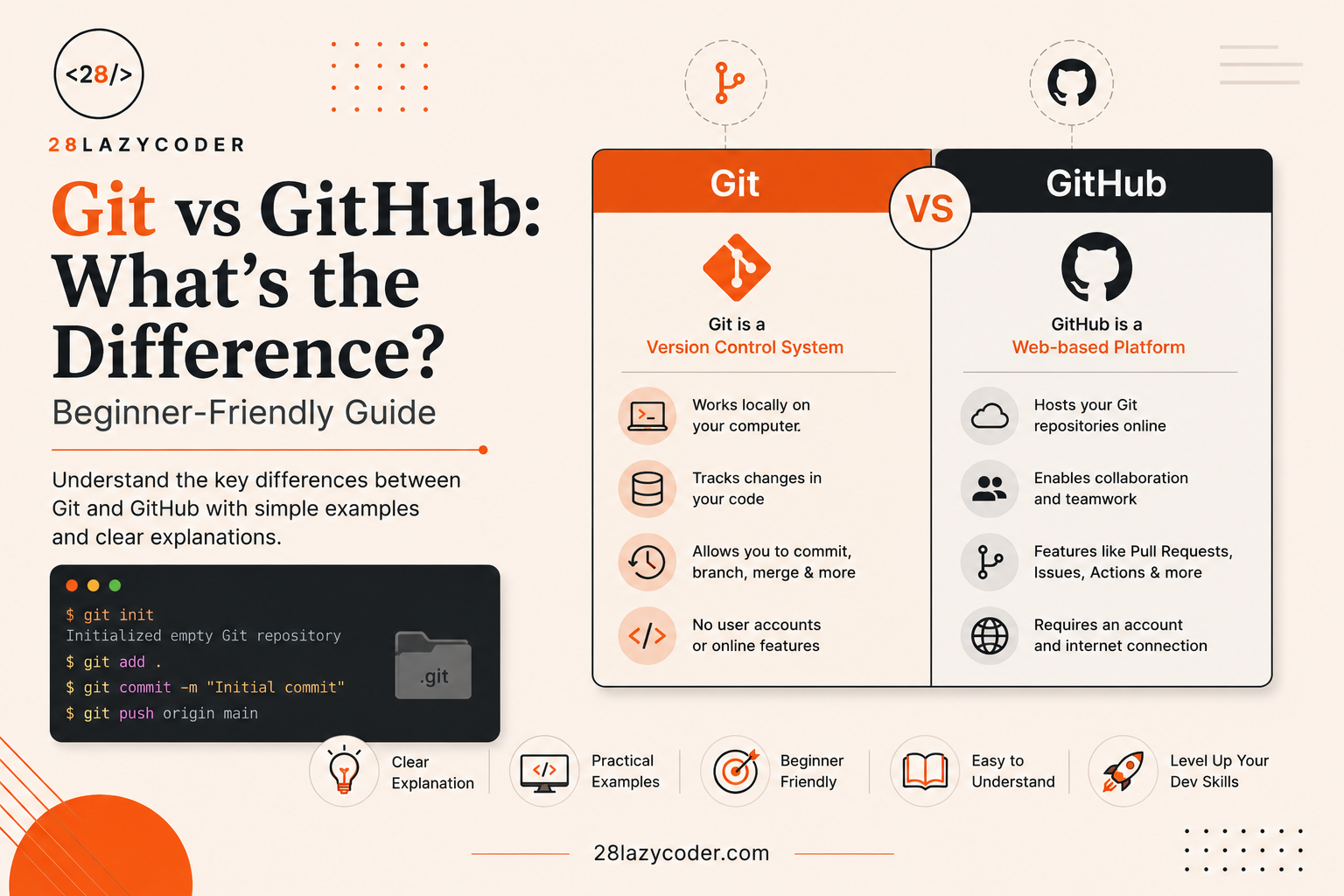
Git is a version control system — a tool installed on your computer that tracks changes to your code, locally.
Think of Git as a super-powered “Save” button. Except instead of just saving the current state, it saves a complete snapshot of your project every time you tell it to, along with a note describing what changed.
Note: Git was created in 2005 by Linus Torvalds, the same person who created Linux, specifically to manage the Linux kernel’s source code across thousands of contributors.
Why Do Developers Need Git?
- To undo mistakes safely — go back to any earlier version of your code
- To experiment without fear — try a new feature in an isolated “branch” without breaking the main project
- To collaborate — multiple developers can work on the same codebase without stepping on each other’s changes
- To track history — see exactly when a bug was introduced and by which change
Real-world example: It’s like a TV remote’s “Rewind” feature for your code. Made a mistake three days ago? Git lets you rewind straight to that point and see exactly what was different.
Git runs entirely on your computer — it doesn’t need the internet to work. You can write code, save versions (“commits”), and view history completely offline.
What Is GitHub?
GitHub is a cloud-based hosting platform for Git repositories. It’s a website (and service) where you store, share, and collaborate on Git projects online.
If Git is the tool that tracks your changes, GitHub is the place on the internet where you store a copy of that tracked project — so others can see it, download it, or contribute to it.
Tip: Think of it like WhatsApp vs WhatsApp Web. Git is the core app running on your device doing the actual work. GitHub is like the synced, shareable version accessible from anywhere, that others can also see and interact with.
Why Do Developers Need GitHub?
- To back up code online, safely away from your local machine
- To collaborate with other developers, anywhere in the world
- To showcase projects — most developer portfolios and job applications link to GitHub profiles
- To contribute to open-source projects used by millions of people
- To use built-in tools like Issues (bug tracking), Pull Requests (code review), and Actions (automation)
Real-world example: Think of a shared family photo album on Google Photos. Everyone in the family can upload photos, see what others added, and access it from any device. GitHub does this for code — a shared, always-accessible home for a project.
Warning: GitHub is not the only platform of its kind. GitLab and Bitbucket do something similar. GitHub is just the most widely used, especially for open-source projects.
Git vs GitHub: The Core Difference
This is the part that trips up most beginners. Let’s make it crystal clear.
| Git | GitHub | |
|---|---|---|
| What it is | A version control tool (software) | A cloud platform / website |
| Where it lives | Installed on your computer | Hosted online (github.com) |
| Works offline? | Yes, fully | No, needs internet |
| Main job | Tracks changes to your code | Stores and shares your Git repositories |
| Created by | Linus Torvalds (2005) | GitHub, Inc. (2008), now owned by Microsoft |
| Alternatives | Mercurial, SVN | GitLab, Bitbucket |
| Can exist without the other? | Yes — Git works with zero GitHub | No — GitHub is built to host Git repositories |
In one line: Git tracks your code’s history on your machine. GitHub stores that history online so you can share it and collaborate with others.
You can use Git without ever touching GitHub. But you cannot use GitHub without Git underneath it — that’s the technology making version tracking possible in the first place.
How Git Actually Works (Local Workflow)
Before jumping into commands, let’s understand Git’s three core areas — this is the part that confuses most beginners the most.
- Working Directory — the actual files on your computer that you’re editing right now.
- Staging Area — a holding zone where you place the changes you want to save next. Think of it like items you’ve picked up in a shopping cart, but haven’t checked out yet.
- Repository (Local) — the permanent saved history of all your “checked out” changes (commits).
Real-world example: Imagine packing a suitcase for a trip. Your room is the working directory (everything scattered around). The suitcase you’re actively packing is the staging area. Once you zip it and it’s ready to travel, that’s a commit — a locked-in, permanent snapshot.
Working Directory → git add → Staging Area → git commit → Repository (History)Step-by-Step: Installing Git
Prerequisites
- A Windows, Mac, or Linux computer
- Basic comfort using a terminal or command prompt
Step 1: Download Git
Go to the official Git website and download the installer for your operating system.
Step 2: Run the Installer
- Windows: Run the
.exefile and keep clicking “Next” using default settings (they work fine for beginners). - Mac: Git usually comes pre-installed. If not, install it via Homebrew:
brew install git - Linux: Run
sudo apt install git(Ubuntu/Debian) orsudo dnf install git(Fedora)
Step 3: Verify Installation
Open your terminal (or Git Bash on Windows) and type:
bash
git --versionExpected output:
git version 2.44.0If you see a version number, Git is installed correctly.
Step 4: Set Up Your Identity
Git needs to know who’s making the changes. Run:
bash
git config --global user.name "Ashutosh Rajbhar"
git config --global user.email "ashutosh@example.com"
What’s happening here? This attaches your name and email to every commit you make — so history clearly shows who changed what. This is a one-time setup per computer.
Common Troubleshooting Tip: If
gitis not recognized as a command after installation, restart your terminal or computer — Git needs the terminal to reload its saved system paths.
Essential Git Commands
Let’s go through the commands you’ll actually use every day, with real explanations.
git init — Start Tracking a Project
bash
git initWhat’s happening here? This turns your current folder into a Git repository. Git creates a hidden .git folder that stores all the history. Your files aren’t changed — Git is just now “watching” them.
Real-world use case: This is the very first command you run when starting a brand-new project you want Git to track.
git status — Check What’s Changed
bash
git statusOutput example:
On branch main
Changes not staged for commit:
  modified:   index.html
What’s happening here? This tells you exactly which files have been changed since your last save (commit), and whether they’re staged or not. Think of it as checking your shopping cart before checkout.
git add — Move Changes to Staging
bash
git add index.htmlOr to stage everything at once:
bash
git add .What’s happening here? This tells Git “I want to include this change in my next save.” Files aren’t permanently saved yet — just marked as ready.
git commit — Save a Snapshot
bash
git commit -m "Fixed navbar alignment issue"What’s happening here? This permanently saves the staged changes into Git’s history, along with a message describing what changed. The -m flag lets you write that message directly in the command.
Real-world use case: Think of this like saving a document with a meaningful filename instead of just “Untitled” — future you (or a teammate) will thank you for a clear message.
Tip: Write commit messages like a headline, not a diary entry.
"Fix login button not responding on mobile"is far more useful than"updated stuff".
git log — View Commit History
bash
git logOutput example:
commit 8f3a21c...
Author: Ashutosh Rajbhar <ashutosh@example.com>
Date:   Tue Aug 4 10:12:00 2026

    Fixed navbar alignment issue
Real-world use case: This is your project’s diary — every commit, in order, with who made it and when. Extremely useful when debugging “when did this break?”
git branch — Work on Features Separately
bash
git branch new-feature
git checkout new-feature
Or in one step:
bash
git checkout -b new-featureWhat’s happening here? A branch is an independent copy of your project where you can make changes without affecting the main version. Once you’re happy with your changes, you merge the branch back.
Real-world use case: Think of it like drafting a reply on WhatsApp without sending it. You can experiment freely, and only “send” (merge) it when it’s ready.
git merge — Combine Branches
bash
git checkout main
git merge new-feature
What’s happening here? This takes all the changes made in new-feature and combines them into the main branch. This is how completed features get added to the actual project.
What GitHub Adds on Top of Git
Once you’re comfortable working with Git locally, GitHub becomes useful the moment you want to:
- Store your code online as a backup
- Share your project with other developers
- Collaborate on the same codebase as a team
- Track bugs and feature requests using Issues
- Review code changes using Pull Requests before they’re merged
- Automate testing and deployment using GitHub Actions
Key GitHub Concepts
| Term | What It Means |
|---|---|
| Repository (Repo) | A project hosted on GitHub — the online home of your Git project |
| Remote | A reference to the online version of your repository |
| Push | Sending your local commits up to GitHub |
| Pull | Downloading the latest changes from GitHub to your computer |
| Clone | Downloading an entire existing GitHub repository to your computer |
| Fork | Creating your own copy of someone else’s repository on GitHub |
| Pull Request (PR) | A request to merge your changes into someone else’s (or your team’s) project, usually reviewed before approval |
Real-world example: A Pull Request is like sending a document for approval before it goes live — a manager (or teammate) reviews your changes, leaves comments, and approves it before it becomes part of the final project.
9. Step-by-Step: Pushing Local Code to GitHub
Prerequisites
- Git installed and configured (see Section 6)
- A free GitHub account (create one at github.com)
Step 1: Create a New Repository on GitHub
Log in to GitHub, click New Repository, give it a name, and click Create.
Step 2: Connect Your Local Project to GitHub
bash
git remote add origin https://github.com/yourusername/your-repo.gitWhat’s happening here? This tells your local Git repository, “This is where the online version lives.” origin is just a nickname for that GitHub URL.
Step 3: Push Your Code
bash
git push -u origin mainWhat’s happening here?
pushsends your committed changes to GitHub.originis the destination (your GitHub repo).mainis the branch you’re pushing.-usets this as the default, so next time you can just typegit push.
Expected output:
Enumerating objects: 5, done.
Writing objects: 100% (5/5), done.
To https://github.com/yourusername/your-repo.git
 * [new branch]      main -> main
Step 4: Verify on GitHub
Refresh your GitHub repository page — your files should now appear online.
Common Mistake: Forgetting to commit before pushing.
git pushonly sends what’s already been committed — uncommitted changes stay on your computer.
Step 5: Pulling Future Updates
If someone else (or you, from another computer) makes changes, sync them with:
bash
git pull origin mainReal-world use case: This entire push/pull flow is exactly how teams at companies collaborate — everyone pushes their work to a shared GitHub repository, and pulls others’ updates before continuing.
Git Commands Cheat Sheet
| Command | Purpose |
|---|---|
git init | Start tracking a project with Git |
git status | Check what’s changed |
git add <file> | Stage a specific file |
git add . | Stage all changed files |
git commit -m "message" | Save a snapshot with a message |
git log | View commit history |
git branch <name> | Create a new branch |
git checkout <name> | Switch to a branch |
git merge <name> | Merge a branch into the current one |
git clone <url> | Download a GitHub repository |
git remote add origin <url> | Link local repo to GitHub |
git push | Upload commits to GitHub |
git pull | Download latest changes from GitHub |
Common Mistakes Beginners Make
- Thinking Git and GitHub are the same thing — Git works fine without GitHub; GitHub just adds cloud hosting and collaboration on top.
- Forgetting to
git addbefore committing — a commit only saves staged changes, not everything in the folder. - Writing vague commit messages —
"fix"or"update"tells you nothing six months later. - Not pulling before pushing — if teammates have pushed changes you don’t have, Git will reject your push until you pull first.
- Committing sensitive files — like
.envfiles with passwords or API keys. Always use a.gitignorefile to exclude them. - Working directly on the
mainbranch for new features, instead of creating a separate branch — this makes it harder to undo experiments safely.
Best Practices
- Commit often, with small, focused changes — not one giant commit at the end of the day.
- Write clear, descriptive commit messages that explain “what” and “why.”
- Use branches for every new feature or bug fix, and merge only once it’s tested.
- Always use a
.gitignorefile to keep sensitive files and unnecessary folders (likenode_modules) out of version control. - Pull the latest changes before starting new work, especially in team projects.
- Review changes with
git statusandgit diffbefore committing, so you know exactly what you’re saving.
Real-World Use Cases
- Solo projects — Git alone lets you experiment freely and roll back mistakes, even without GitHub.
- Team collaboration — GitHub lets multiple developers work on the same codebase without overwriting each other’s work.
- Open-source contribution — Developers fork a project on GitHub, make changes, and submit a Pull Request to the original maintainers.
- Portfolio building — Recruiters and hiring managers routinely check a developer’s GitHub profile to see real project work.
- Automated deployment — GitHub Actions can automatically test and deploy code every time you push, saving hours of manual work.
Interview Questions on Git and GitHub
- What is the difference between Git and GitHub? Git is a local version control tool that tracks code changes on your computer. GitHub is a cloud platform that hosts Git repositories online for sharing and collaboration.
- What is the difference between
git addandgit commit?git addstages changes (marks them ready to be saved).git commitpermanently saves the staged changes into the project’s history. - What is a branch in Git, and why is it useful? A branch is an independent line of development. It lets you build features or fix bugs without affecting the main codebase until you’re ready to merge.
- What is the difference between
git pullandgit fetch?git fetchdownloads changes from GitHub but doesn’t apply them to your working files.git pulldoes both — fetches and merges the changes automatically. - What is a Pull Request? A request to merge changes from one branch (or fork) into another, typically reviewed by teammates before being approved and merged.
- What is
.gitignoreused for? A file that tells Git which files or folders to ignore — commonly used for secrets, dependency folders, and build files that shouldn’t be tracked.
FAQs
Q1. Do I need to know Git before learning GitHub? Yes. GitHub is built on top of Git, so understanding basic Git commands (add, commit, push, pull) makes GitHub far easier to use.
Q2. Can I use Git without GitHub? Absolutely. Git works completely offline and doesn’t require GitHub at all. GitHub is useful once you want to back up your code online or collaborate with others.
Q3. Is GitHub free to use? Yes, GitHub offers free accounts with unlimited public and private repositories, which is more than enough for most beginners and small projects.
Q4. What’s the difference between GitHub and GitLab? Both are cloud platforms for hosting Git repositories with similar core features. GitHub is more popular for open-source projects, while GitLab is often used for private, enterprise-level DevOps pipelines.
Q5. What happens if I forget to commit before closing my project? Nothing is lost — your uncommitted changes still exist in your working directory. You just won’t have a saved “snapshot” of them in Git’s history until you commit.
Summary
Git and GitHub work together, but they solve different problems. You now understand:
- Git is a local tool that tracks every change to your code
- GitHub is a cloud platform that hosts your Git projects and enables collaboration
- How Git’s working directory, staging area, and repository fit together
- The essential Git commands you’ll use daily:
add,commit,push,pull,branch,merge - How to push a local project to GitHub, step by step
- Common mistakes and best practices that make version control much smoother
Conclusion
Once Git and GitHub click, they become second nature — most developers run git add, git commit, and git push dozens of times a day without a second thought.
The best way to actually learn this is by doing it. Create a small test project, run through every command in this guide, and push it to your own GitHub account. That hands-on repetition is what will make it stick.