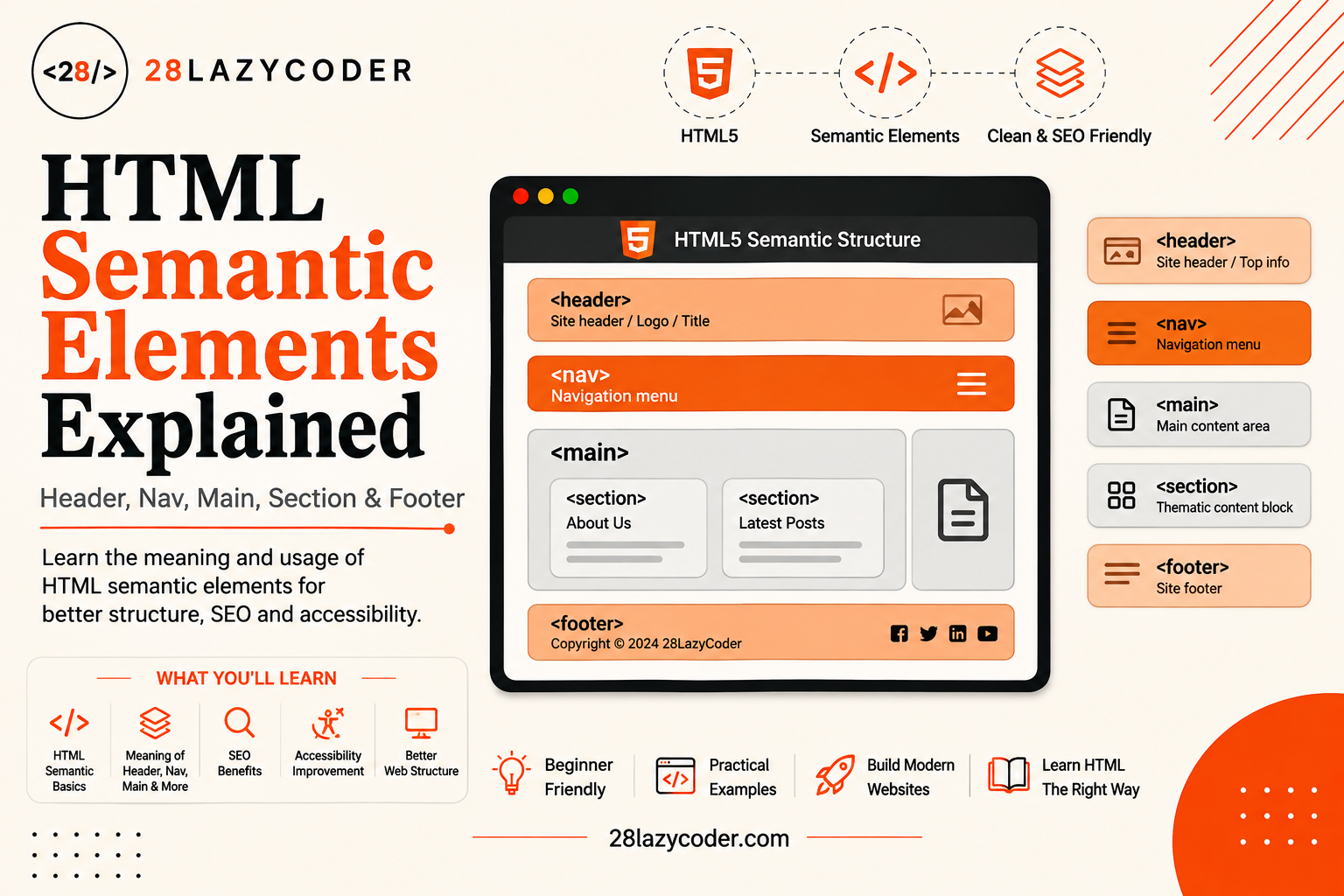
Have you ever opened up a website’s code and seen something like <div id="header">, <div class="nav">, and <div id="footer"> stacked on top of each other? I used to write pages exactly like that. Every single part of the page was just a <div> with a class name attached to explain what it was supposed to be.
It worked, visually. But here’s the thing: a <div> doesn’t actually mean anything. It’s a blank box. A browser, a screen reader (software that reads a webpage aloud for visually impaired users), or a search engine has no real way of knowing that <div class="nav"> is your site’s navigation menu, it just sees an empty box with a label a human gave it.
That’s exactly the problem semantic elements were built to solve. In this guide, we’ll go through each major semantic element, <header>, <nav>, <main>, <section>, <article>, <aside>, and <footer>, one at a time, using plain English and real examples, until the whole page layout finally clicks.
What Are Semantic Elements in HTML?
A semantic element is an HTML tag that clearly describes its own meaning, both to the browser and to the developer reading the code. The word “semantic” simply means “relating to meaning.”
Simple analogy: Think about the difference between a plain cardboard box with nothing written on it, versus a box with “KITCHEN — FRAGILE — THIS SIDE UP” printed on the side. Both boxes can hold the exact same items. But only one of them tells you, and anyone else handling it, exactly what’s inside and how to treat it, without opening it first.
A <div> is the unlabeled box. A <header>, <nav>, or <footer> is the labeled one. They can look completely identical on the screen, but only one of them communicates meaning.
A Quick Before-and-After Example
Here’s the same simple page structure, written the old way and the semantic way:
html
<!-- Old, non-semantic way -->
<div id="header">
<div class="logo">My Site</div>
</div>
<div id="nav">
<a href="/">Home</a>
<a href="/about">About</a>
</div>
<div id="main-content">
<div class="post">My blog post content...</div>
</div>
<div id="footer">
<p>© 2026 My Site</p>
</div>html
<!-- Semantic HTML way -->
<header>
<div class="logo">My Site</div>
</header>
<nav>
<a href="/">Home</a>
<a href="/about">About</a>
</nav>
<main>
<article>My blog post content...</article>
</main>
<footer>
<p>© 2026 My Site</p>
</footer>Visually, both versions can be styled to look 100% identical with CSS. The difference is invisible on screen, but it’s a huge difference underneath.
Why Not Just Use <div> for Everything?
You can build an entire website using only <div> tags, and browsers will happily render it. So why bother learning seven extra tag names?
According to MDN’s guide to structuring HTML documents, semantic elements exist specifically to describe the purpose of each section of a page, not just its visual appearance. Three groups of “readers” benefit directly from this:
- Screen readers, used by visually impaired users, can jump straight to
<nav>, or skip past it entirely to<main>, instead of having to guess which of forty identical<div>tags is the navigation. - Search engines can better understand which part of your page is the real, important content (
<main>,<article>) versus repeated boilerplate like your header or footer, which appears on every single page of your site. - Other developers, including future you, can read the raw HTML and immediately understand the page’s structure, without needing to dig through a maze of class names.
Did You Know? Before HTML5 introduced these tags, developers had already agreed, informally, on naming conventions like
id="header"andclass="nav"for years. HTML5 essentially took these common patterns and turned them into official, built-in elements that carry real meaning.
The <header> Element
The <header> element represents introductory content, typically a heading, logo, search bar, or a short set of navigational links.
html
<header>
  <img src="logo.png" alt="28LazyCoder logo">
  <h1>28LazyCoder</h1>
</header>
Simple analogy: Think of <header> like the masthead of a newspaper, the section at the very top of the front page with the newspaper’s name, date, and maybe a tagline. It introduces what you’re about to read.
<header> Isn’t Just for the Whole Page
Here’s a detail that surprises a lot of beginners: <header> isn’t limited to one per page. You can also use it inside an <article> to represent that specific article’s own introductory content, like its title and publish date.
html
<article>
  <header>
    <h2>How Semantic HTML Improved My Website</h2>
    <time datetime="2026-08-15">August 15, 2026</time>
  </header>
  <p>Article content goes here...</p>
</article>
The <nav> Element
The <nav> element wraps a major block of navigation links, the kind meant to help visitors move around your site or page.
html
<nav>
  <a href="/">Home</a>
  <a href="/blog">Blog</a>
  <a href="/about">About</a>
  <a href="/contact">Contact</a>
</nav>
Simple analogy: <nav> is like the directory board you see near the entrance of a big shopping mall, the list that tells you which floor and section each store is on. It’s not a store itself; it just helps you get where you’re going.
Not Every Group of Links Needs a <nav>
This is one of the most common mix-ups beginners make. According to MDN’s documentation on the nav element, <nav> is intended only for major navigation blocks. A small handful of links in a footer, like “Privacy Policy” and “Terms,” typically doesn’t need to be wrapped in its own <nav> element, a plain list or paragraph is enough there.
Tip: A page can have more than one
<nav>element, for example, one for the main site menu and another for a table of contents within a long article. When you have multiple<nav>elements, using thearia-labelattribute on each one (like<nav aria-label="Main menu">) helps screen readers tell them apart.
The <main> Element
The <main> element wraps the one and only primary content of the page, the actual reason a visitor came to that specific page, excluding anything repeated across multiple pages like headers, footers, or sidebars.
html
<main>
  <h1>Welcome to My Blog</h1>
  <p>This is the unique content of this specific page.</p>
</main>
</html>
Simple analogy: If your webpage were a newspaper, <main> is the actual news article you picked the paper up to read, not the masthead, not the ads down the side, and not the page footer with the publisher’s address.
Important Rule: A page should only ever have one
<main>element, and it should not be nested inside<header>,<footer>,<nav>,<article>, or<aside>. Screen reader users often rely on jumping straight to<main>to skip repeated navigation, having more than one defeats that entirely.
The <section> Element
The <section> element groups together a thematically related chunk of content, usually with its own heading. It’s a general-purpose sectioning tool, used when none of the more specific elements (like <article>, <nav>, or <aside>) quite fit.
html
<section>
  <h2>Our Services</h2>
  <p>We offer web design, development, and SEO consulting.</p>
</section>

<section>
  <h2>Customer Reviews</h2>
  <p>"Fantastic team to work with!" — Happy Client</p>
</section>
Simple analogy: Think of <section> like the chapters in a textbook. Each chapter covers a distinct topic and usually starts with its own heading, but all the chapters still belong to the same overall book.
The <article> Element
The <article> element represents a piece of content that’s self-contained and independently distributable, meaning it would still make complete sense if you copied it out and pasted it somewhere else entirely, like a blog post, a news story, a forum post, or a product card.
html
<article>
  <h2>5 Tips for Learning JavaScript Faster</h2>
  <p>Published by Ashutosh Rajbhar on August 15, 2026</p>
  <p>Learning JavaScript doesn't have to feel overwhelming...</p>
</article>
Simple analogy: If <section> is a chapter in a textbook, <article> is more like a standalone magazine feature, something a reader could tear out, hand to a friend, and it would still fully make sense on its own.
<section> vs <article>: The Real Test
According to MDN’s documentation on the section element, if content represents a standalone unit that makes sense syndicated on its own, <article> is the better choice over <section>. A simple mental test: “Would this content still make complete sense if I pasted it into an email by itself, with no surrounding page?” If yes, it’s probably an <article>. If it only makes sense as one grouped part of a bigger page, it’s probably a <section>.
The <aside> Element
The <aside> element holds content that’s tangentially related to the surrounding main content, useful, but not essential to understanding it, like a sidebar, a pull-quote, related links, or an advertisement.
html
<main>
  <article>
    <h2>How Semantic HTML Improved My Website</h2>
    <p>Main article content goes here...</p>
  </article>

  <aside>
    <h3>Related Articles</h3>
    <ul>
      <li>[CSS Grid vs Flexbox](#)</li>
      <li>[HTML Forms Explained](#)</li>
    </ul>
  </aside>
</main>
Simple analogy: <aside> is like the “You Might Also Like” box next to a news article, or a pull-quote highlighted in a magazine’s margin. You could remove it entirely, and the main story would still be completely intact and understandable.
The <footer> Element
The <footer> element represents the closing content of a section or page, typically containing copyright notices, contact details, or links to related documents.
html
<footer>
<p>© 2026 28LazyCoder. All rights reserved.</p>
<a href="/privacy-policy">Privacy Policy</a>
<a href="/contact">Contact</a>
</footer>Simple analogy: Just like <header>, the <footer> element isn’t limited to the very bottom of the whole page, it can also appear inside an <article> to hold that specific article’s author info or publish date, exactly the way a newspaper article ends with a small byline.
Putting It All Together: A Complete Page Layout
Here’s how all seven elements typically combine into one realistic page structure:
html
<body>
<header>
<h1>28LazyCoder</h1>
<nav>
<a href="/">Home</a>
<a href="/blog">Blog</a>
<a href="/about">About</a>
</nav>
</header>
<main>
<article>
<header>
<h2>HTML Semantic Elements Explained</h2>
<time datetime="2026-08-15">August 15, 2026</time>
</header>
<section>
<h3>What Are Semantic Elements?</h3>
<p>Article content goes here...</p>
</section>
<footer>
<p>Written by Ashutosh Rajbhar</p>
</footer>
</article>
<aside>
<h3>Related Guides</h3>
<ul>
<li>[Latest HTML Updates in 2026](#)</li>
</ul>
</aside>
</main>
<footer>
<p>© 2026 28LazyCoder. All rights reserved.</p>
</footer>
</body>Explaining the structure: Notice how <header> and <footer> each appear twice, once for the whole page, and once again nested inside the <article> for that specific post’s own title and byline. That’s completely valid and is exactly how these elements are designed to be reused throughout a document.
section vs article vs div: How to Choose
This is genuinely the part beginners get stuck on the most, so let’s turn it into one simple decision path:
- Does it need to make sense entirely on its own, outside this page? Use
<article>. - Is it a themed group of content, usually with its own heading, that belongs to this page? Use
<section>. - Is it just a styling wrapper, with no real meaning of its own, purely for CSS or JavaScript purposes? Use
<div>.
Best Practice: If you find yourself adding a
<section>purely to apply a background color or padding, with no heading and no real thematic grouping, that’s usually a sign you actually want a plain<div>instead.
How Semantic HTML Helps Accessibility and SEO
For accessibility: Screen reader software builds a navigable outline of a page using elements like <header>, <nav>, <main>, and <footer>. This lets users jump directly to the section they care about using keyboard shortcuts, instead of having to listen through every single element on the page from the very top.
For SEO: Search engines use your page’s structure to better understand what content actually matters. Wrapping your real content in <main> and <article>, rather than burying it inside generic <div> soup, helps search engines identify your primary content more confidently.
Real-world use case: If you’ve worked with the WordPress template hierarchy before, you’ve likely already used semantic tags without realizing it, functions like get_header() and get_footer() in a WordPress theme typically pull in files that wrap their content in exactly these <header> and <footer> elements.
Common Beginner Mistakes
- Using more than one
<main>element on a single page, which breaks the “one primary content area” rule and confuses screen readers. - Wrapping every small group of links in
<nav>, even tiny footer link lists, when a plain list or paragraph would be more appropriate. - Using
<section>purely as a styling container, with no heading and no real thematic meaning, when a<div>would be the correct, honest choice. - Confusing
<article>and<section>, forgetting to ask whether the content would still make sense completely on its own outside the page. - Nesting
<main>inside<header>,<footer>, or<aside>, which goes against how the element is meant to be used. - Assuming semantic tags automatically fix accessibility. They’re a strong foundation, but things like proper
alttext on images and a logical heading order (<h1>through<h6>) still matter just as much.
Quick Comparison Table
| Element | What It Represents | Can It Repeat on a Page? |
|---|---|---|
<header> | Introductory content (logo, heading, intro links) | Yes, once per page/section |
<nav> | A major block of navigation links | Yes, multiple allowed |
<main> | The single primary content area | No, only one per page |
<section> | A themed grouping of content, usually with a heading | Yes, multiple allowed |
<article> | Self-contained content that makes sense on its own | Yes, multiple allowed |
<aside> | Tangentially related content (sidebar, related links) | Yes, multiple allowed |
<footer> | Closing content (copyright, author info, links) | Yes, once per page/section |
Scenario-Based Practice
Scenario 1: A Blog Post With a Comments Section
Problem: You’re building a single blog post page and aren’t sure how to structure the post itself versus the comments underneath it.
Solution: Wrap the actual blog post in <article>, since it’s self-contained content that would still make sense if shared elsewhere. The comments area, being closely tied to this specific page rather than standalone, fits well inside a <section> with a heading like “Comments,” nested either alongside or inside that same <article>.
Scenario 2: A Homepage With Three Different Content Blocks
Problem: Your homepage has a “Services” block, a “Testimonials” block, and a “Latest Blog Posts” block, and you’re unsure whether each one needs its own tag.
Solution: Each of these is a themed grouping of content with its own heading, which makes <section> the right fit for all three. Inside the “Latest Blog Posts” section, each individual post preview could then be its own <article>, since each post preview would still make sense pulled out on its own.
Scenario 3: A Sidebar With an Ad and a “Popular Posts” Widget
Problem: Your page has a sidebar containing an advertisement and a small “Popular Posts” list, and you’re deciding how to mark it up.
Solution: Since both pieces are related to, but not essential for understanding, the main content, wrap the whole sidebar in <aside>. Inside it, the “Popular Posts” widget could use its own <section> with a heading, keeping the structure clear even within the aside.
Scenario 4: A Page With Two Separate Navigation Menus
Problem: Your site has a main navigation bar at the top and a separate table-of-contents menu inside a long tutorial article.
Solution: Both qualify as <nav> elements, since both are major navigation blocks. To help screen reader users distinguish between them, add aria-label attributes, like <nav aria-label="Main menu"> and <nav aria-label="Table of contents">.
Interview Questions on Semantic HTML
Q1. What is a semantic HTML element, and how is it different from a <div>? A semantic element is a tag whose name describes its own meaning and purpose, like <nav> clearly being navigation. A <div> carries no built-in meaning at all, it’s a generic container that only means something because of a class or id name a developer added manually.
Q2. Can a page have more than one <header> or <footer> element? Yes. Both <header> and <footer> can appear multiple times on a page, once for the overall page, and again nested inside individual <article> or <section> elements to represent that specific section’s own intro or closing content.
Q3. Why should a page have only one <main> element? Because <main> is meant to represent the single primary content area of the page. Screen reader users often jump directly to <main> to skip repeated content like headers and navigation; having more than one would make that shortcut unreliable and confusing.
Q4. What’s the key difference between <section> and <article>? <article> is for content that’s self-contained and would still make complete sense if it were copied out and shared on its own, like a blog post. <section> is for a themed grouping of related content that belongs to the page it’s on, without necessarily standing alone.
Q5. When should you use <aside> instead of <section>? Use <aside> when the content is only tangentially related to the main content, useful extra context, but not required to understand the main point, like a sidebar, related links, or a pull-quote. If the content is a core, thematically connected part of the page, <section> is the better fit.
Q6. Does using semantic HTML automatically make a website accessible? No. Semantic HTML is a strong foundation for accessibility, since it helps screen readers understand page structure, but it doesn’t replace other accessibility practices like meaningful alt text on images, proper color contrast, and a logical heading hierarchy.
Interview Tip: If asked to explain semantic HTML, use the “meaning vs appearance” framing, semantic elements describe what content is, not just how it looks. That distinction is exactly what interviewers are usually listening for.
Frequently Asked Questions
Q1. Do semantic elements look different from <div> by default? Not meaningfully. Elements like <header>, <nav>, <section>, and <footer> are simply styled as display: block by default, essentially behaving like a <div> visually. Any actual styling still comes entirely from your own CSS.
Q2. Is it wrong to use <div> at all in modern HTML? No, not at all. <div> is still the correct choice whenever you need a container purely for styling or JavaScript purposes, with no real semantic meaning attached to it. Semantic elements are meant to replace <div> only where real meaning genuinely exists.
Q3. Can <nav> be placed inside <header>? Yes, this is extremely common. A <header> often contains a <nav> for the site’s main menu, alongside a logo or site title, exactly as shown in the complete layout example earlier in this guide.
Q4. Is <section> required to always have a heading? It’s strongly recommended, though not strictly enforced by browsers. According to MDN’s documentation, a <section> should generally be used only when there’s a genuine thematic grouping, and including a heading helps confirm that grouping actually exists.
Q5. What happens if I use <main> more than once on a page? Browsers won’t throw an error, the page will still render. However, it breaks accessibility best practices, since assistive technology expects exactly one primary content landmark per page to jump to.
Q6. Are semantic elements supported in all modern browsers? Yes. All of the elements covered in this guide, <header>, <nav>, <main>, <section>, <article>, <aside>, and <footer>, are part of the standard HTML specification and are fully supported across all modern browsers.
Conclusion
Semantic HTML elements might look like a small naming change on the surface, swapping a <div class="nav"> for a plain <nav>, but as you’ve seen, that small change carries real weight. It tells browsers, screen readers, search engines, and other developers exactly what each part of your page actually is, not just how it happens to look.
Once you internalize the core question behind each element, “is this introductory content, navigation, the main content, a themed section, standalone content, tangential content, or closing content?”, choosing the right tag stops being a guessing game.
The best way to make this stick is to open up one of your own existing pages, find every <div> you’ve used, and ask yourself honestly which ones deserve to become a <header>, <nav>, <main>, <section>, <article>, <aside>, or <footer> instead.
Trusted Sources & References
This guide is grounded in official documentation. For deeper reading, these are reliable places to go:
- MDN — Structuring HTML Documents the official guide to organizing a page with semantic elements
- MDN — header element reference
- MDN — nav element reference
- MDN — section element reference
- W3Schools — HTML Semantic Elements beginner-friendly interactive examples
- W3C Web Accessibility Initiative — Writing for Web Accessibility for how structure affects accessibility
We recommend bookmarking MDN Web Docs it’s the most trusted, community-maintained reference for HTML and the web in general.
Continue Learning
Want to build on what you just learned? Check out these related guides on 28LazyCoder:
- Latest HTML Updates in 2026: What’s New for Modern Web Developers?
- WordPress Template Hierarchy Explained: A Beginner’s Guide
- Custom WordPress Theme Development: A Beginner’s Guide
- JavaScript Events Explained: A Complete Beginner’s Guide
- WordPress style.css Explained: What It Does and How to Use It
Explore more tutorials on 28LazyCoder.