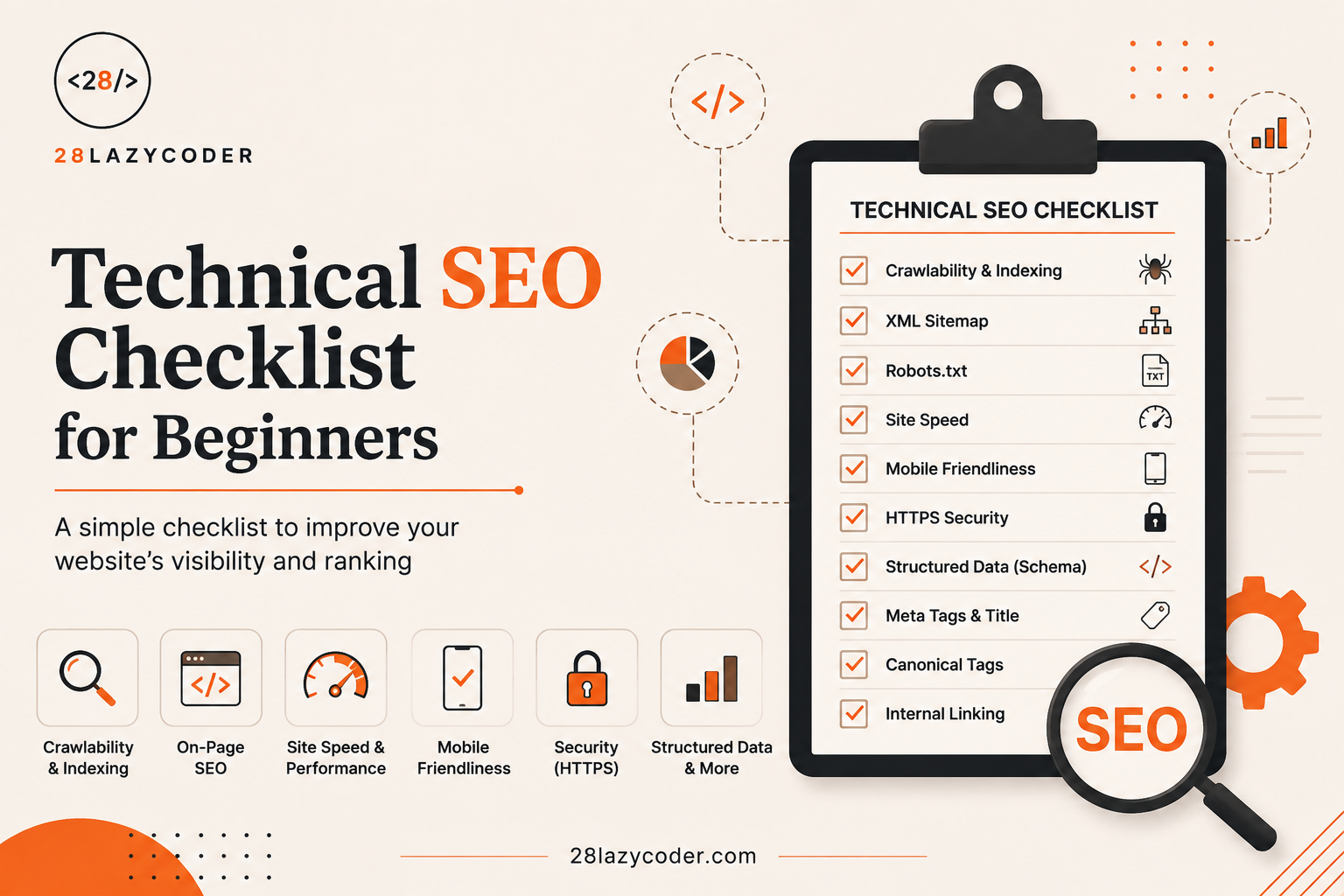
Imagine you build a beautiful shop. The shelves are perfectly arranged, the products look amazing, and the lighting is just right. But you forget to put a signboard outside, and you don’t tell anyone the shop’s address. No matter how good your shop is, nobody will find it.
This is exactly what happens to thousands of websites every day.
Developers spend weeks writing code, designing pages, and testing features — and then they publish the website without checking a few simple things. Google can’t “see” the shop’s signboard. Visitors can’t find the address. And all that hard work goes unnoticed.
This is where Technical SEO comes in.
In this guide, we are going to go through 25 practical things you should check before publishing any website — explained in plain, simple language, with real-life examples, so that even if you have never touched SEO before, you will finish this article feeling completely confident.
What Is Technical SEO? (In Simple Words)
Let’s start with a real-life example.
Imagine you order food using a food delivery app. Before your order reaches you, a lot of background work happens — the app checks the restaurant’s location, calculates the fastest delivery route, confirms your address, and assigns a delivery partner. You never see any of this. You only see your food arrive.
Technical SEO works the same way for your website.
It is the background work that helps search engines like Google understand, read, and correctly display your website — even though visitors never directly see this work. It’s not about the words on your page (that’s called on-page SEO); it’s about the technical setup behind those words: speed, structure, code, and accessibility for search engines.
Did You Know? Google uses automated programs called “crawlers” or “bots” to visit and read websites, almost like a librarian walking through a library and reading the title of every book to organize it properly.
Why do we need this? Because even the best-written content is useless if Google’s crawler cannot read or understand your page properly.
What problem does it solve? It makes sure your website is fast, mobile-friendly, secure, and structured properly — all of which directly affect whether your website shows up in search results at all.
What happens if we don’t use it? Your website might load slowly, look broken on mobile phones, or simply never appear in Google search results — no matter how good your content is.
Now, let’s go through the checklist, one item at a time.
Section 1: Website Structure & Crawlability (Items 1–6)
Think of Google’s crawler like a new delivery person visiting your neighborhood for the first time. If your street has no signboards, no house numbers, and no clear roads, the delivery person will get lost — even if your house is beautiful inside.
1. XML Sitemap Is Created and Submitted
An XML sitemap is like a table of contents for your entire website. It’s a simple file that lists all your important pages, so Google knows exactly what pages exist on your site.
xml
<url>
  <loc>https://28lazycoder.com/javascript-arrays/</loc>
  <lastmod>2026-07-01</lastmod>
</url>
Explaining every line:
<url>— marks the start of one page entry in the sitemap.<loc>— the exact web address (URL) of that page.<lastmod>— the date this page was last updated, so Google knows if it needs to re-check it.
Why it matters: Without a sitemap, Google has to discover your pages by following links from page to page — like walking through a maze. A sitemap hands Google a clear map instead.
Where developers use it: Every WordPress site using an SEO plugin (like Rank Math or Yoast) automatically generates a sitemap at a URL like yoursite.com/sitemap.xml. Always double-check this file exists and is submitted to Google Search Console.
2. Robots.txt File Is Configured Correctly
Think of robots.txt as a note on your shop’s door saying “Staff only — do not enter” for certain rooms, while the main shopping area stays open to customers.
User-agent: *
Disallow: /wp-admin/
Allow: /wp-admin/admin-ajax.php
Explaining every line:
User-agent: *— this rule applies to all search engine bots.Disallow: /wp-admin/— tells bots not to crawl the admin/login area of the site.Allow: /wp-admin/admin-ajax.php— makes an exception for one specific file that WordPress needs bots to access for certain functions.
Warning: A common and costly mistake is accidentally writing
Disallow: /inrobots.txt. This single line tells every search engine to avoid your entire website. Always double-check this file before going live.
3. Google Search Console Is Set Up
Google Search Console is like a report card for your website, straight from Google. It shows you which pages are indexed, which have errors, and how people are finding your site in search results.
Why it matters: Without it, you’re publishing a website blindly — with no way of knowing if Google can even see your pages properly.
4. URL Structure Is Clean and Readable
Compare these two web addresses:
| Messy URL | Clean URL |
|---|---|
28lazycoder.com/?p=294&cat=12 | 28lazycoder.com/css-flexbox-guide/ |
A clean URL is like a properly labeled folder on your computer — you instantly know what’s inside just by looking at the name. A messy URL is like a folder named “New Folder (3)” — confusing for both humans and search engines.
Best Practice: Keep URLs short, use hyphens (not underscores) to separate words, and include your focus keyword naturally.
5. No Broken Links (404 Errors)
Imagine following a signboard in a mall that says “Restroom this way,” but when you get there, it’s just a wall. That’s exactly how a visitor (and Google) feels when they click a link that leads to a “404 Page Not Found” error.
Why it matters: Broken links create a bad experience for visitors and waste the “crawl budget” Google gives your site — the limited attention Google’s bots spend crawling your pages.
Common tools to check this: Google Search Console’s “Coverage” report, or free tools like Screaming Frog.
6. Proper Internal Linking Structure
Internal links are like hallway signs inside a building, guiding visitors from one room to another. For example, this exact article links to related guides like our <a href=”https://28lazycoder.com/custom-wordpress-theme-development/”>Custom WordPress Theme Development Guide</a> so readers (and Google) can easily discover related content.
Why it matters: Internal links help Google understand which pages on your site are most important, and they keep visitors exploring more of your content instead of leaving.
Common Mistake: Beginners often create “orphan pages” — pages with no internal links pointing to them at all. If nothing links to a page, Google has a much harder time finding and ranking it.
Section 2: Page Speed & Core Web Vitals (Items 7–12)
Imagine ordering food and the delivery app shows “Delivery in 10 minutes,” but it actually takes an hour. You’d probably never use that app again. Website visitors behave exactly the same way with slow websites.
7. Page Load Speed Is Optimized
Why it matters: Studies consistently show that visitors abandon websites that take more than a few seconds to load. Google also uses page speed as a ranking factor.
What to check: Use free tools like Google PageSpeed Insights to test your homepage and a few important inner pages.
8. Images Are Compressed and Properly Sized
Think about sending a photo on WhatsApp. If you send the original, uncompressed camera photo, it might take forever to send over a slow network. WhatsApp automatically compresses it before sending — that’s exactly what you should do with website images.
| Format | Best Used For |
|---|---|
| JPEG | Photographs, complex images |
| PNG | Images needing transparency |
| WebP | Modern format, smaller size, great for most web images |
| SVG | Logos, icons, simple illustrations |
Tip: Always compress images using tools like TinyPNG or Squoosh, and use the modern WebP format wherever possible.
9. Core Web Vitals Are Within Good Range
Core Web Vitals are three specific measurements Google uses to judge how a real visitor experiences your page.
| Metric | What It Measures | Good Score |
|---|---|---|
| LCP (Largest Contentful Paint) | How fast the main content loads | Under 2.5 seconds |
| INP (Interaction to Next Paint) | How quickly the page responds when clicked/tapped | Under 200 milliseconds |
| CLS (Cumulative Layout Shift) | How much the page “jumps around” while loading | Under 0.1 |
Real-life example for CLS: Imagine you’re about to tap a button on a shopping app, but right before your finger touches the screen, an ad loads and pushes the button down — so you accidentally tap something else. That frustrating jump is exactly what CLS measures.
10. Browser Caching Is Enabled
Think about a TV remote. Every time you press a button, the TV doesn’t reinvent how to change the channel from scratch — it remembers the process. Browser caching works similarly: it lets a visitor’s browser “remember” parts of your website (like your logo and stylesheets) so it doesn’t have to re-download them on every visit.
11. A Content Delivery Network (CDN) Is Used
Imagine ordering from a food delivery app. If the restaurant is 2 km away, your food arrives faster than if it were 50 km away. A CDN stores copies of your website on servers around the world, so visitors always load your site from the server closest to them — just like ordering from the nearest restaurant instead of a distant one.
12. Unnecessary Code, Scripts, and Plugins Are Removed
Why it matters: Every extra script or plugin on your website is like extra luggage on a car — the car (your website) has to work harder to move, slowing everything down.
Common Mistake: Beginners often install too many WordPress plugins “just in case,” without realizing each one adds extra loading time. Regularly review and remove unused plugins.
Section 3: Mobile-Friendliness & Accessibility (Items 13–16)
13. Website Is Fully Mobile-Responsive
Think about YouTube. Whether you open it on a small phone, a tablet, or a large TV screen, the layout automatically adjusts to fit perfectly. That’s what “responsive design” means — and Google specifically checks for this using mobile-first indexing, meaning it primarily looks at your website’s mobile version to decide rankings.
Best Practice: Test your website on Google’s Mobile-Friendly Test tool before publishing.
14. Text Is Readable Without Zooming
Why it matters: If a visitor has to pinch and zoom just to read your text, most will simply leave. Font sizes below 16px on mobile are a common culprit.
15. Buttons and Links Are Easy to Tap
Imagine using an ATM machine where the buttons are so close together that you keep pressing the wrong one. That’s a real accessibility problem — and the same applies to tiny, cramped buttons on a mobile website.
16. Alt Text Is Added to All Images
Alt text is a short written description of an image, added directly in the HTML code.
html
<img src="flexbox-diagram.png" alt="Diagram showing flex container and flex items in a row">Explaining every line:
src— tells the browser where to find the image file.alt— a text description of what the image shows.
Why it matters: Screen readers (used by visually impaired visitors) read this alt text aloud. Google also uses it to understand what an image is about, since it cannot “see” images the way humans do.
Section 4: Security & Trust Signals (Items 17–20)
17. HTTPS (SSL Certificate) Is Installed
Think about a bank. Before you trust a bank with your money, you check that it’s a licensed, secure institution. HTTPS (shown as a padlock icon in the browser) tells visitors — and Google — that data sent between their browser and your website is encrypted and secure.
Warning: Websites without HTTPS are marked as “Not Secure” directly in the browser address bar, which scares away visitors instantly.
18. No Mixed Content Warnings
Mixed content happens when a secure (HTTPS) page tries to load an insecure (HTTP) resource, like an old image link. This breaks the padlock icon and creates a security warning.
19. Website Has a Privacy Policy Page
Why it matters: Beyond building visitor trust, many countries legally require websites to disclose how they collect and use visitor data, especially if you use analytics tools or contact forms.
20. Contact Information Is Easy to Find
Why it matters: Both visitors and Google use trust signals like a visible contact page, physical address, or business details (especially important for business or e-commerce websites) to judge how trustworthy a site is.
Section 5: On-Page Technical Elements (Items 21–25)
21. Every Page Has a Unique Title Tag and Meta Description
Think of a title tag like a book’s title on a library shelf, and the meta description like the short summary printed on the back cover. If every book in the library had the exact same title, nobody could find the right one.
html
<title>CSS Flexbox: A Complete Beginner's Guide</title>
<meta name="description" content="Learn CSS Flexbox with simple, real-life examples for beginners.">
Explaining every line:
<title>— the clickable blue text shown in Google search results.<meta name="description">— the short summary text shown below the title in search results.
Common Mistake: Using the exact same title tag on every page of your website. Each page needs its own unique, descriptive title.
22. Proper Heading Structure (H1, H2, H3) Is Used
Imagine reading a textbook with no chapter titles or section headings — just one giant block of text from page 1 to page 300. You’d struggle to find anything. Headings organize content for both readers and search engines.
Best Practice: Use exactly one H1 per page (the main title), and organize the rest of your content using H2 and H3 tags in a logical order — never skip from H2 directly to H4.
23. Schema Markup (Structured Data) Is Added
Schema markup is extra code added to your page that explains its content directly to search engines in a language they understand perfectly — almost like handing Google a labeled diagram instead of making it guess.
json
{
  "@context": "https://schema.org",
  "@type": "Article",
  "headline": "Technical SEO Checklist for Beginners"
}
Explaining every line:
"@context": "https://schema.org"— tells search engines this data follows the official schema.org standard."@type": "Article"— specifies that this page is an article (schema also has types like Product, FAQPage, Recipe, and more)."headline"— the title of the article, provided directly to search engines.
Real-world use case: Schema markup is exactly why some Google search results show star ratings, FAQ dropdowns, or recipe cooking times directly in the search results — these rich, eye-catching results are only possible with structured data.
24. Canonical Tags Are Set Correctly
Imagine two students submitting the exact same essay under two different names. The teacher gets confused about who to credit. A canonical tag tells Google, “If you find duplicate or similar versions of this page, this is the original one to credit and rank.”
html
<link rel="canonical" href="https://28lazycoder.com/css-flexbox-guide/">Why it matters: Without canonical tags, similar pages (like a product page accessible through two different URLs) can confuse Google and split your ranking potential between them.
25. 404 Page and Redirects Are Properly Configured
Why it matters: When a page is deleted or a URL changes, visitors and search engines following the old link need somewhere to go. A well-designed custom 404 page, along with proper 301 redirects to the correct new page, prevents visitors from hitting a dead end.
Interview Tip: A common interview question is: “What is the difference between a 301 and a 302 redirect?” A 301 redirect means “permanently moved” and passes on most of the original page’s SEO value. A 302 redirect means “temporarily moved” and does not pass on SEO value the same way. Always use 301 for permanent URL changes.
The Complete 25-Point Checklist (Quick Reference)
| # | Checklist Item | Category |
|---|---|---|
| 1 | XML Sitemap created and submitted | Structure |
| 2 | robots.txt configured correctly | Structure |
| 3 | Google Search Console set up | Structure |
| 4 | Clean, readable URL structure | Structure |
| 5 | No broken links (404 errors) | Structure |
| 6 | Proper internal linking | Structure |
| 7 | Page load speed optimized | Speed |
| 8 | Images compressed and sized properly | Speed |
| 9 | Core Web Vitals within good range | Speed |
| 10 | Browser caching enabled | Speed |
| 11 | CDN in use | Speed |
| 12 | Unused code/plugins removed | Speed |
| 13 | Fully mobile-responsive | Mobile |
| 14 | Text readable without zooming | Mobile |
| 15 | Buttons/links easy to tap | Mobile |
| 16 | Alt text added to all images | Mobile/Accessibility |
| 17 | HTTPS/SSL installed | Security |
| 18 | No mixed content warnings | Security |
| 19 | Privacy policy page exists | Security |
| 20 | Contact information visible | Security |
| 21 | Unique title tags and meta descriptions | On-Page |
| 22 | Proper heading structure (H1, H2, H3) | On-Page |
| 23 | Schema markup added | On-Page |
| 24 | Canonical tags set correctly | On-Page |
| 25 | 404 page and redirects configured | On-Page |
[Comparison Table: 25-point checklist by category]
Common Mistakes to Avoid
Common Mistake: Publishing a website and only thinking about SEO weeks or months later. Technical SEO is far easier to set up correctly from day one than to fix afterward.
Common Mistake: Focusing only on content and completely ignoring page speed, mobile-friendliness, or security — all of which directly affect rankings.
Common Mistake: Copying title tags, meta descriptions, or even entire chunks of content from other websites. This can trigger duplicate content issues and hurt trust with search engines.
Best Practices Going Forward
- Run this 25-point checklist before every website launch, not just once.
- Recheck Core Web Vitals every few months, since Google’s standards and your website’s content both evolve over time.
- Use free tools like Google Search Console and PageSpeed Insights regularly — they’re built by Google and reflect exactly what Google sees.
- Treat technical SEO as an ongoing habit, not a one-time task.
Frequently Asked Questions (FAQs)
Q1. What is the difference between technical SEO and on-page SEO? Technical SEO focuses on the backend setup of your website — speed, structure, security, and crawlability. On-page SEO focuses on the actual content — keywords, headings, and readability. Both work together, but this checklist focuses specifically on the technical side.
Q2. Do I need to hire an SEO expert to fix these issues? Not necessarily. Many of these 25 checks — like enabling HTTPS, compressing images, or setting up a sitemap — can be handled by beginners using free tools and, on WordPress, plugins like Rank Math or Yoast SEO.
Q3. How often should I recheck this technical SEO checklist? Ideally, before every major website launch, and then every few months afterward, especially after adding new pages, plugins, or design changes.
Q4. Does technical SEO guarantee a top ranking on Google? No. Technical SEO removes obstacles that prevent Google from properly reading and trusting your site, but it works alongside great content, backlinks, and user experience — not as a replacement for them.
Q5. Which item on this checklist matters the most for beginners? If you can only start with a few, prioritize HTTPS, mobile-responsiveness, and page speed — these three directly affect both user experience and search rankings the most.
Conclusion
Technical SEO might sound intimidating at first, with terms like “canonical tags” and “Core Web Vitals” floating around — but as you’ve just seen, every single one of these 25 items is really just common sense, explained with the right words.
You don’t need to fix all 25 items in one day. Pick a few, work through them one at a time, and check them off just like a real launch checklist. Before you know it, checking your robots.txt file or testing your Core Web Vitals will feel as natural as checking your phone before leaving the house.
Your website deserves to be found — not just built beautifully, but found by the people searching for exactly what you offer.
Additional SEO & Technical Assets
Internal Linking Table
| Anchor Text | Target URL | Placement |
|---|---|---|
| Custom WordPress Theme Development Guide | https://28lazycoder.com/custom-wordpress-theme-development/ | Section 1, Item 6 (internal linking example) + Continue Learning |
| WordPress Hooks Explained for Beginners | https://28lazycoder.com/wordpress-hooks/ | Continue Learning |
| JavaScript Functions Explained for Beginners | https://28lazycoder.com/javascript-functions/ | Continue Learning |
Note: No existing published article was directly about SEO, so contextual mid-article links were limited to your WordPress-related posts to avoid forcing irrelevant links. Once your CSS Flexbox or Core Web Vitals posts are published, add contextual links in Sections 2 and 3.
External Linking Table (Trusted Sources)
| Anchor Text | Target URL | Context |
|---|---|---|
| Google Search Console | https://search.google.com/search-console/about | Reference for Section 1 |
| Google’s Core Web Vitals documentation | https://web.dev/articles/vitals | Reference for Section 2 |
| MDN guide on meta descriptions | https://developer.mozilla.org/en-US/docs/Web/HTML/Element/meta | Reference for Section 5 |